This content was translated from Korean to English using AI.
Background
The larger the company, the more administrators and diverse users there are, making resource management challenging. You need to ensure user freedom while also maintaining operational efficiency, which makes it even harder.
Recently, as the company shifted toward AX (Analytics Transformation), the number of data analysis users grew significantly, and notebook instance usage increased substantially.
As a result, from a management perspective, we needed to improve policies so that unused instances would automatically stop. Previously, when user onboarding and usage were low, we managed this manually. We automated the process and achieved meaningful improvements in both operational stability and cost management, which I’d like to share.
Impact
- Achieved a monthly cost savings of $556 (approximately 66.7%). (At least ~66.7% cost reduction compared to before)
Explanation
Goal
Among the notebook services offered by AWS SageMaker,
the goal is to automate lifecycle configuration updates for SageMaker Notebook Instances when users create a notebook.
Flow
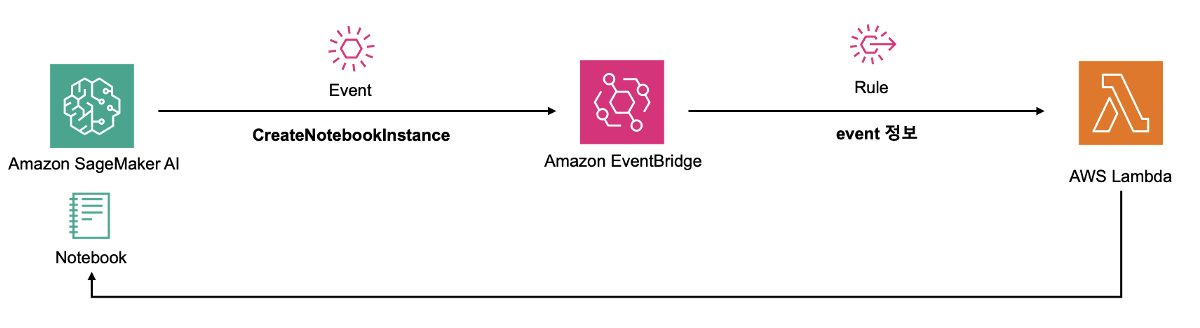
User creates a notebook
-> EventBridge detects the event
-> Lambda is invoked
-> Updates the lifecycle configuration for the created notebook
Architecture
Implementation Steps
- Create SageMaker Lifecycle Configurations
- Create a Lambda function to update notebook lifecycle
- Set up EventBridge rule
We will proceed with the actual configuration in this order.
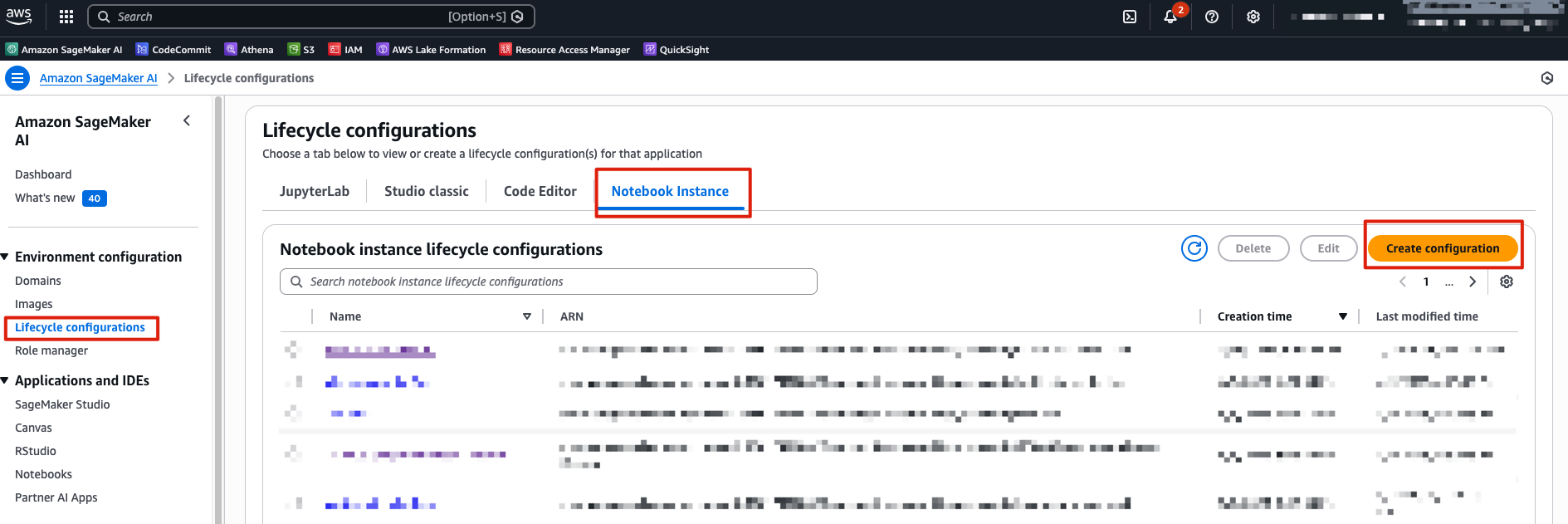
1. Create SageMaker Lifecycle Configurations
- Amazon SageMaker AI >> Lifecycle configurations >> Create lifecycle configuration
Amazon official repo
https://github.com/aws-samples/amazon-sagemaker-notebook-instance-lifecycle-config-samples/blob/master/scripts/auto-stop-idle/on-start.sh
- Lifecycle configuration code
#!/bin/bash

set -ex

# OVERVIEW
# This script stops a SageMaker notebook once it's idle for more than 1 hour (default time)
# You can change the idle time for stop using the environment variable below.
# If you want the notebook the stop only if no browsers are open, remove the --ignore-connections flag
#
# Note that this script will fail if either condition is not met
#   1. Ensure the Notebook Instance has internet connectivity to fetch the example config
#   2. Ensure the Notebook Instance execution role permissions to SageMaker:StopNotebookInstance to stop the notebook
#       and SageMaker:DescribeNotebookInstance to describe the notebook.
#

# PARAMETERS
IDLE_TIME=3600

echo "Fetching the autostop script"
wget https://raw.githubusercontent.com/aws-samples/amazon-sagemaker-notebook-instance-lifecycle-config-samples/master/scripts/auto-stop-idle/autostop.py


echo "Detecting Python install with boto3 install"

# Find which install has boto3 and use that to run the cron command. So will use default when available
# Redirect stderr as it is unneeded
CONDA_PYTHON_DIR=$(source /home/ec2-user/anaconda3/bin/activate /home/ec2-user/anaconda3/envs/JupyterSystemEnv && which python)
if $CONDA_PYTHON_DIR -c "import boto3" 2>/dev/null; then
    PYTHON_DIR=$CONDA_PYTHON_DIR
elif /usr/bin/python -c "import boto3" 2>/dev/null; then
    PYTHON_DIR='/usr/bin/python'
else
    # If no boto3 just quit because the script won't work
    echo "No boto3 found in Python or Python3. Exiting..."
    exit 1
fi

echo "Found boto3 at $PYTHON_DIR"


echo "Starting the SageMaker autostop script in cron"

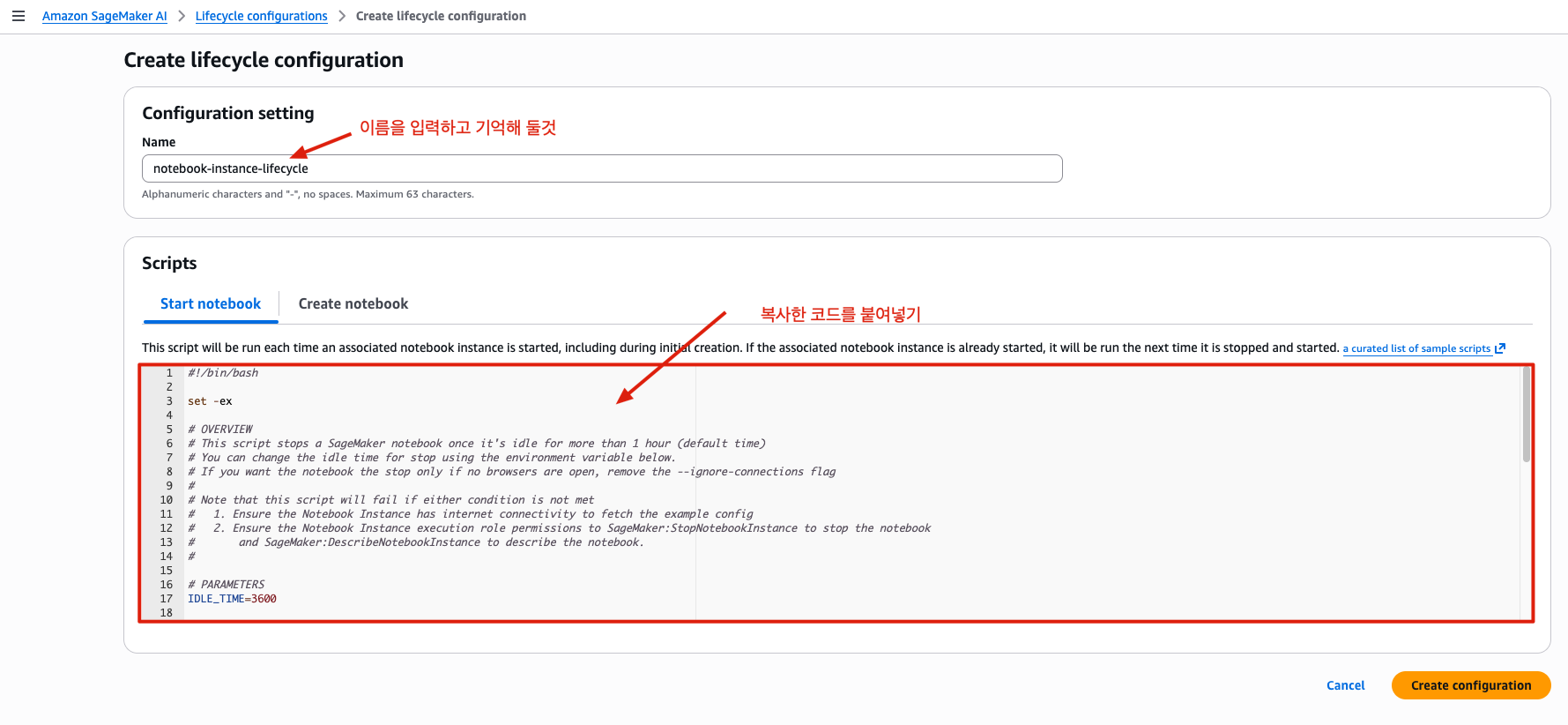
(crontab -l 2>/dev/null; echo "*/5 * * * * $PYTHON_DIR $PWD/autostop.py --time $IDLE_TIME --ignore-connections >> /var/log/jupyter.log") | crontab -- Copy the code above and paste it into the script input field below.
Remember the Configuration setting name you save
(here it is designated as notebook-instance-lifecycle)
2. Create a Lambda Function to Update Notebook Lifecycle
-
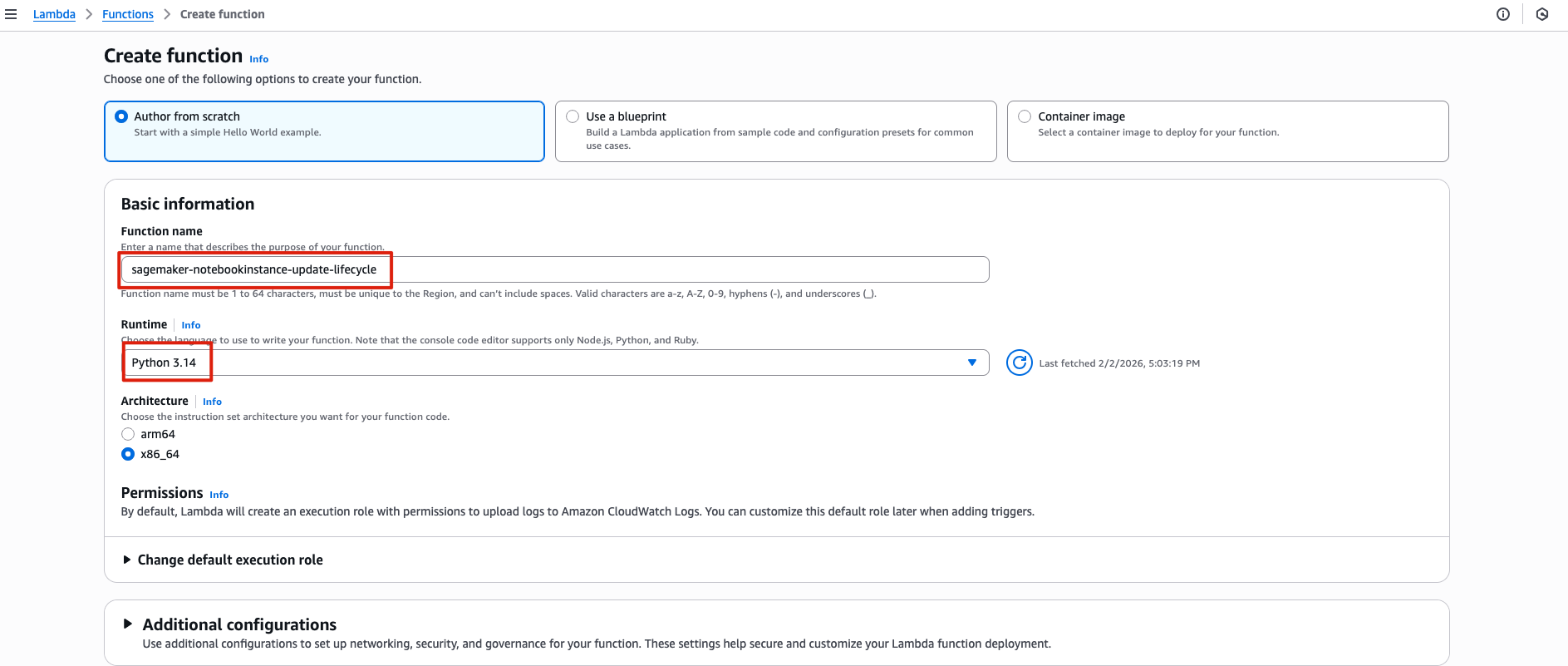
Create a Lambda function

-
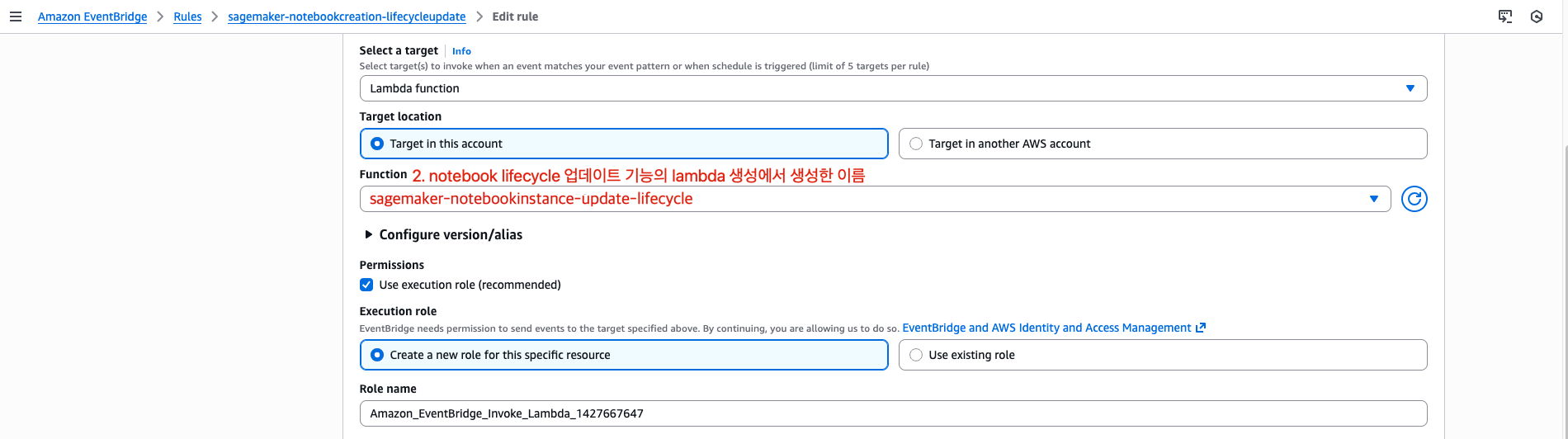
Function name: sagemaker-notebookinstance-update-lifecycle (name is flexible)
-
Runtime: Python 3.14
-
Enter the name of the resource created in Step 1 (SageMaker Lifecycle Configurations) in the code:
- LifecycleConfigName: notebook-instance-lifecycle
import boto3
import time
sm = boto3.client("sagemaker")

def wait_until_any(name, targets, timeout_sec=1200, poll_sec=30):
      start = time.time()
      while True:
          status = sm.describe_notebook_instance(
              NotebookInstanceName=name
          )["NotebookInstanceStatus"]
          if status in targets:
              return status
          if time.time() - start > timeout_sec:
              raise TimeoutError(f"Timeout waiting for {name} in {targets}. Current={status}")
          time.sleep(poll_sec)


def lambda_handler(event, context):
    name = event["detail"]["requestParameters"]["notebookInstanceName"]

    desc = sm.describe_notebook_instance(NotebookInstanceName=name)
    current_lcc = desc.get("LifecycleConfigName")
    if current_lcc:
        # Already attached, exit
        return {"skipped": True, "reason": f"LifecycleConfigName already set: {current_lcc}"}

    # 1) Wait until it is actionable
    status = wait_until_any(name, ["InService", "Stopped", "Failed"])

    # 2) If running, stop first
    if status == "InService":
        sm.stop_notebook_instance(NotebookInstanceName=name)
        wait_until_any(name, ["Stopped", "Failed"])

    # 3) Attach lifecycle config (allowed when Stopped/Failed)
    sm.update_notebook_instance(
        NotebookInstanceName=name,
        LifecycleConfigName="notebook-instance-lifecycle"
    )

    print(f"notebook name: {name}, result: {result}")
3. Set Up EventBridge Rule
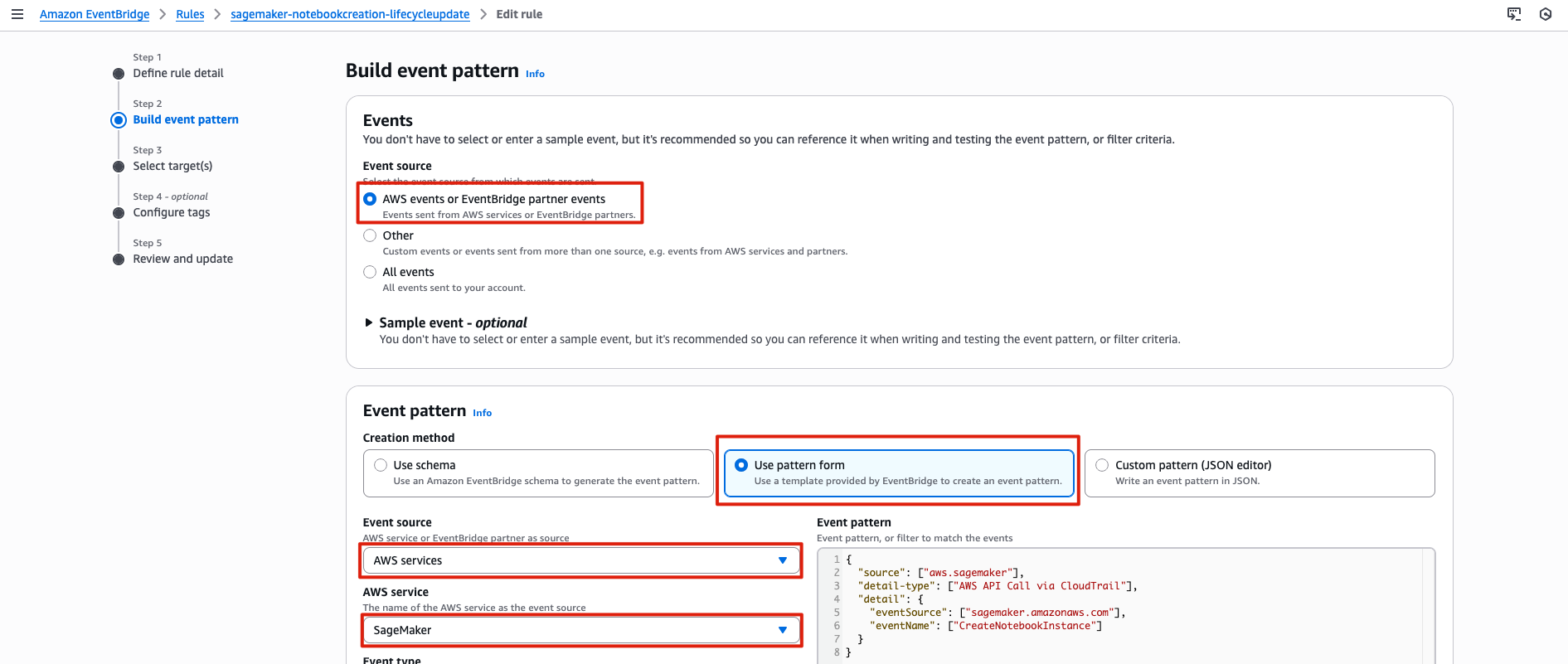
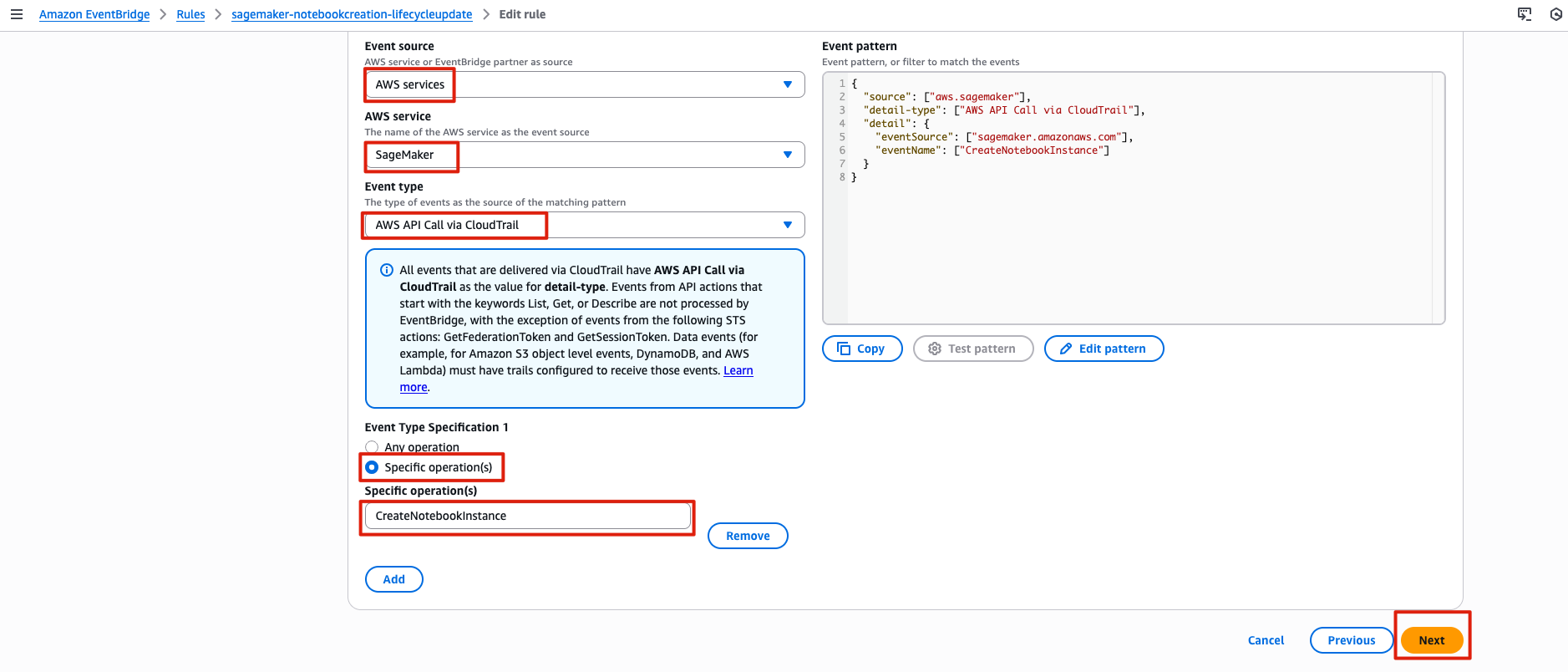
Event pattern to detect in EventBridge:
{
  "source": ["aws.sagemaker"],
  "detail-type": ["AWS API Call via CloudTrail"],
  "detail": {
    "eventSource": ["sagemaker.amazonaws.com"],
    "eventName": ["CreateNotebookInstance"]
  }
}
EventBridge Rule
Triggering Event:
CreateNotebookInstanceevent patternTargets: (the target that receives the event information)
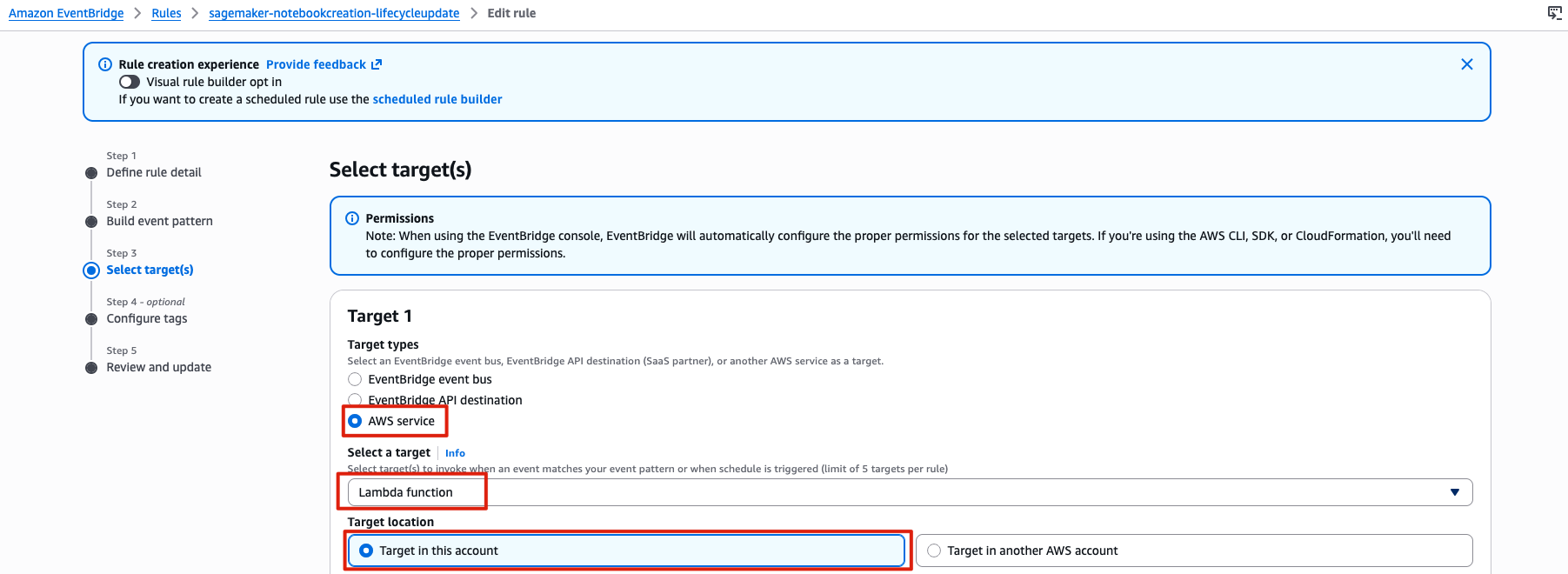
Lambda: Receives the event information and updates the notebook lifecycle configuration
Choose one of the two methods below to proceed:
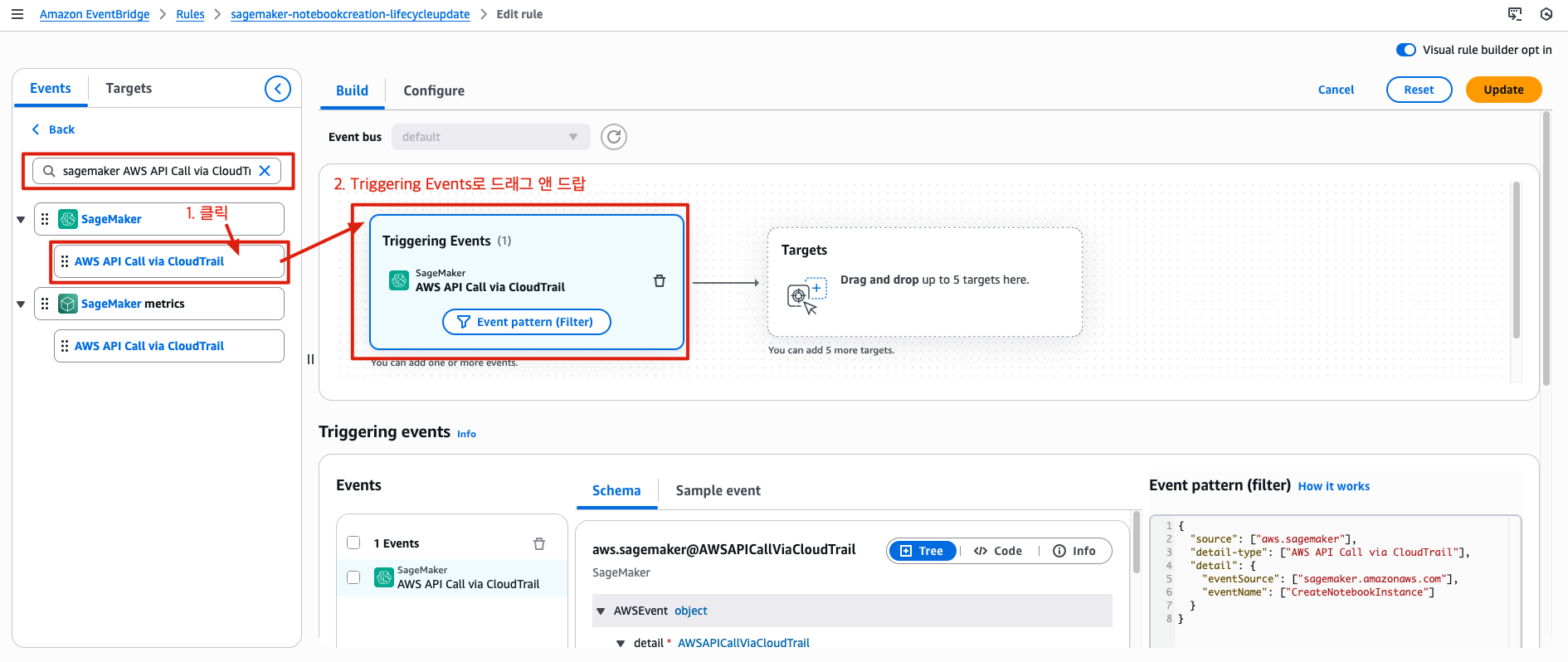
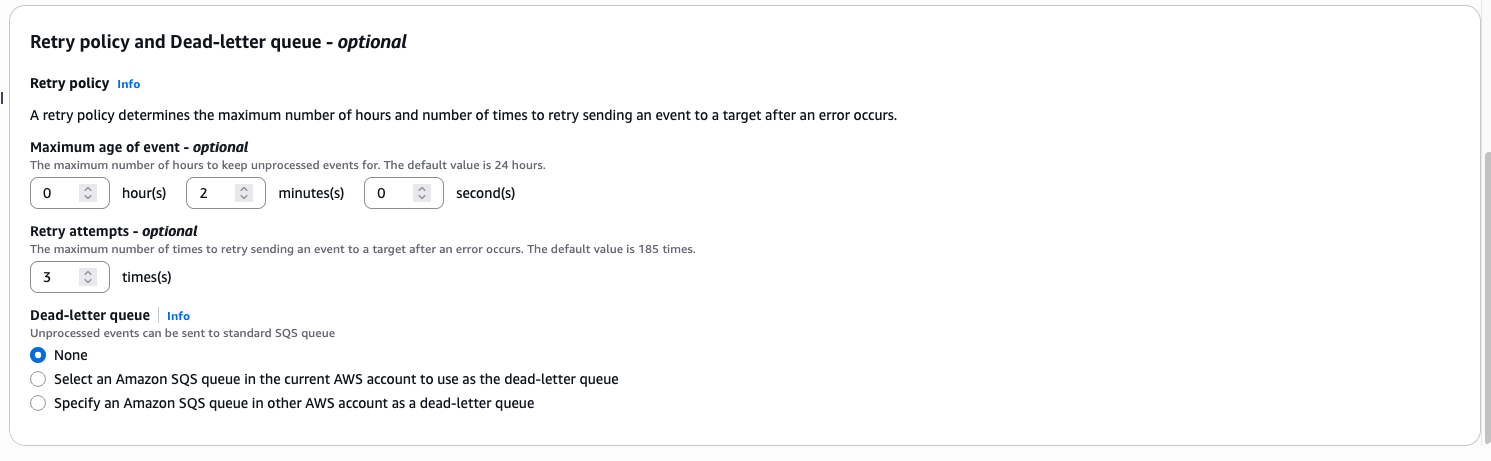
Method 1. Using the Visual Rule Builder Opt-In
Rule Name: sagemaker-notebook-creation-lifecycle-update
-
Search for SageMaker AWS API Call via CloudTrail Triggering Event
-
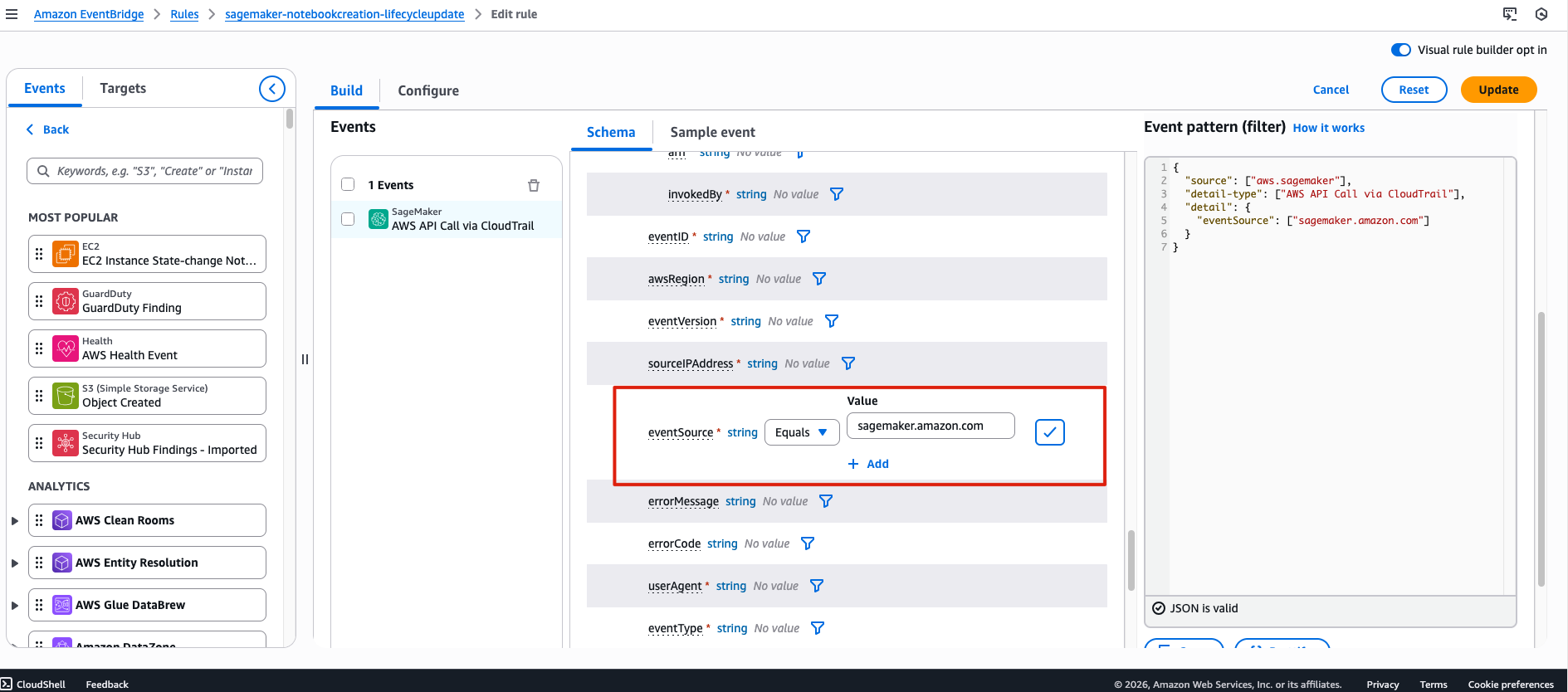
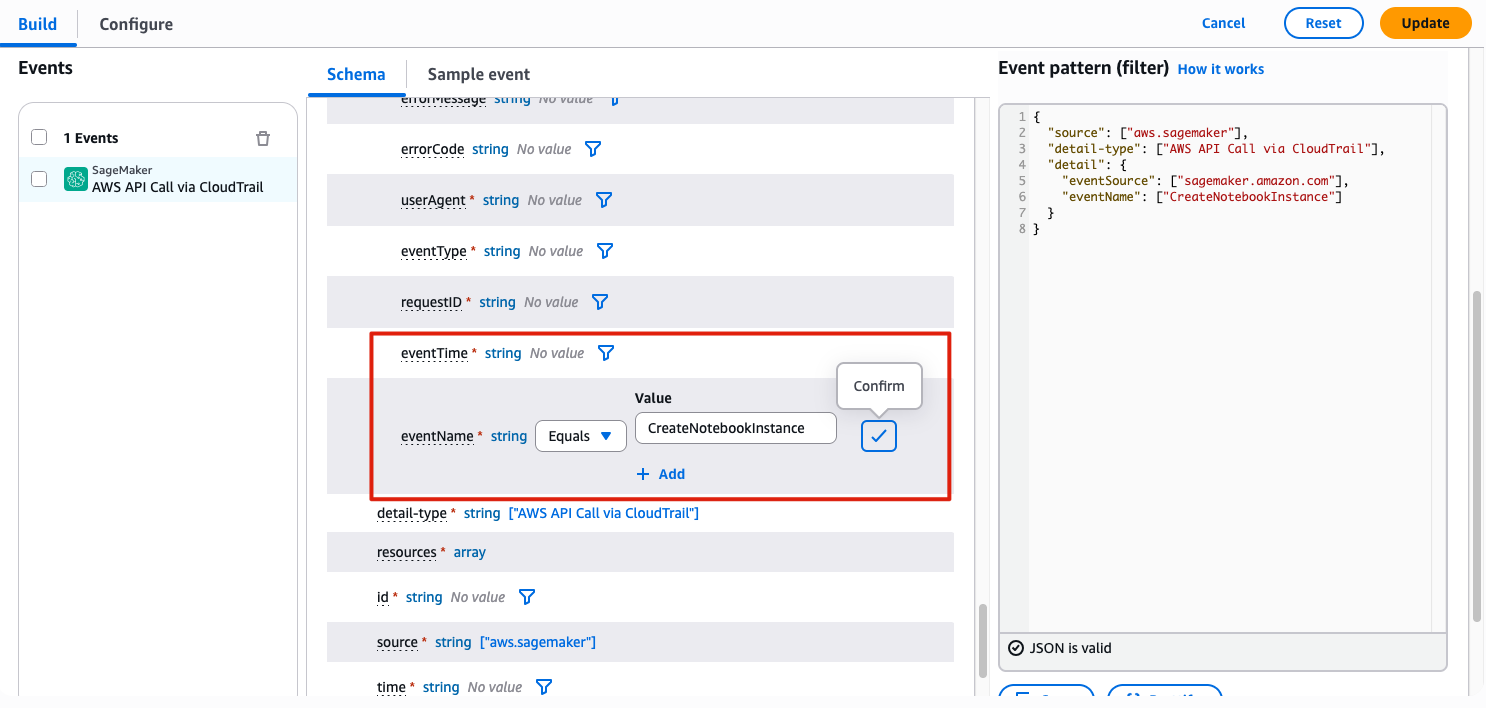
Search for eventSource and eventName in the schema
eventSource:sagemaker.amazon.com
eventName:CreateNotebookInstance
- Specify Lambda
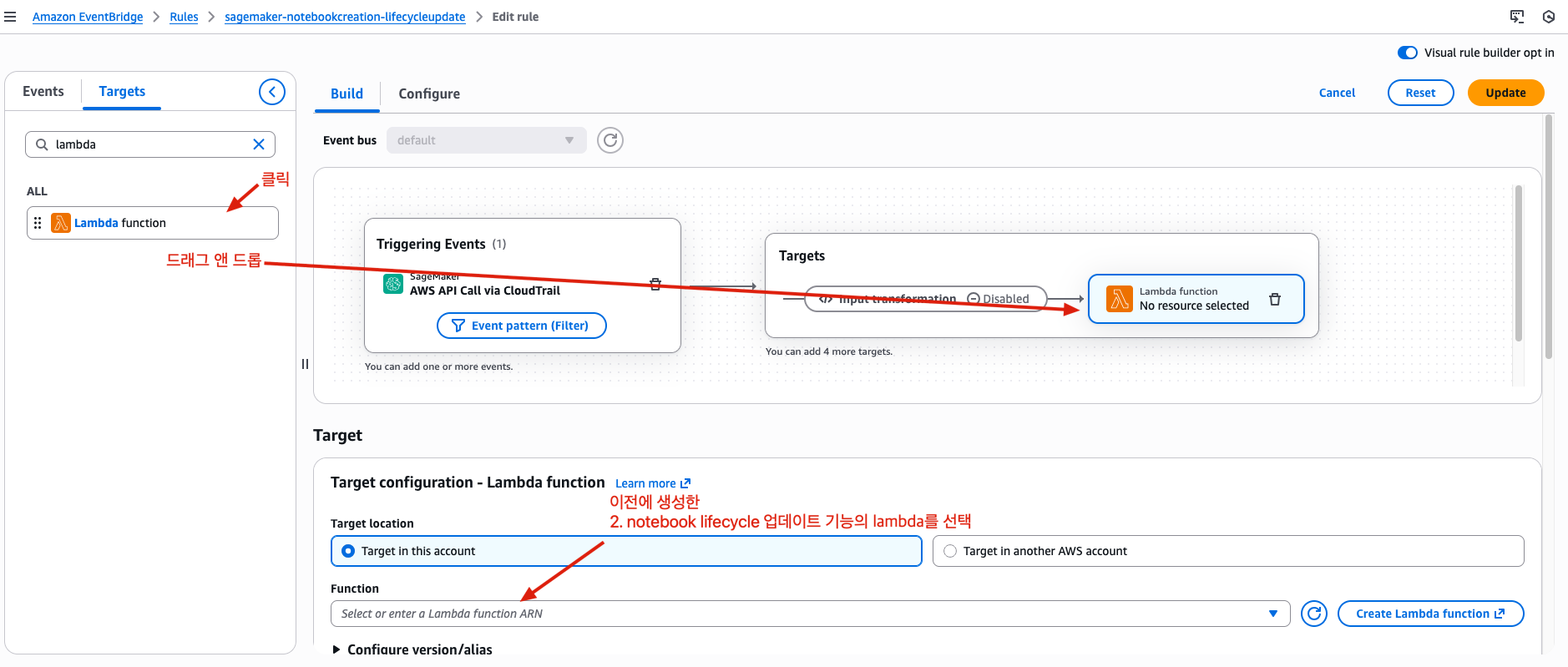
For the Execution role, if you have an existing one,
use “Use existing role.”
Otherwise, use “Create a new role for this specific resource.”
Method 2. Creating a Standard Rule
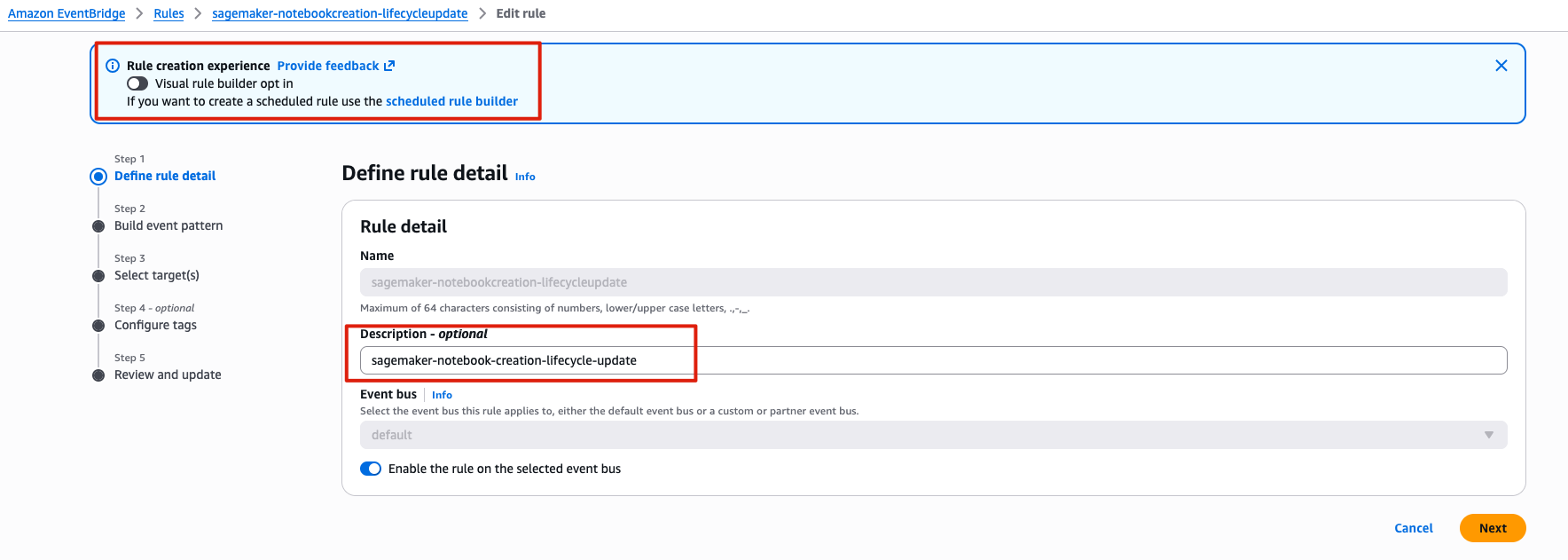
Rule Name: sagemaker-notebook-creation-lifecycle-update
Define Rule Detail
Build Event Pattern
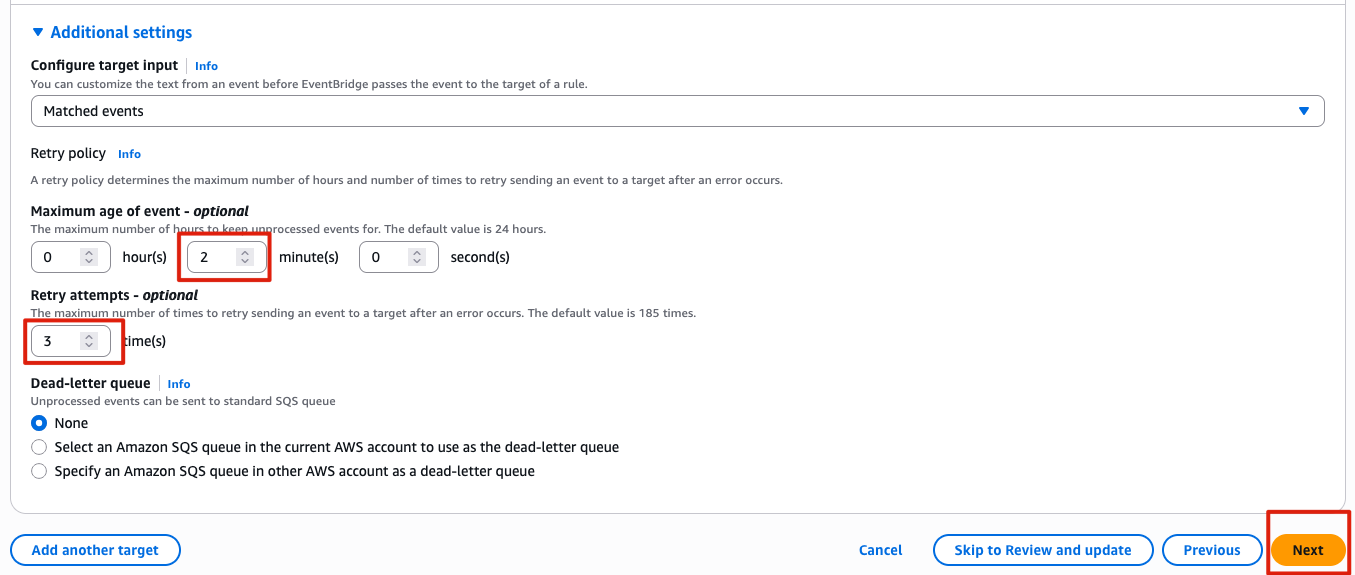
Select Target
Configure Tags
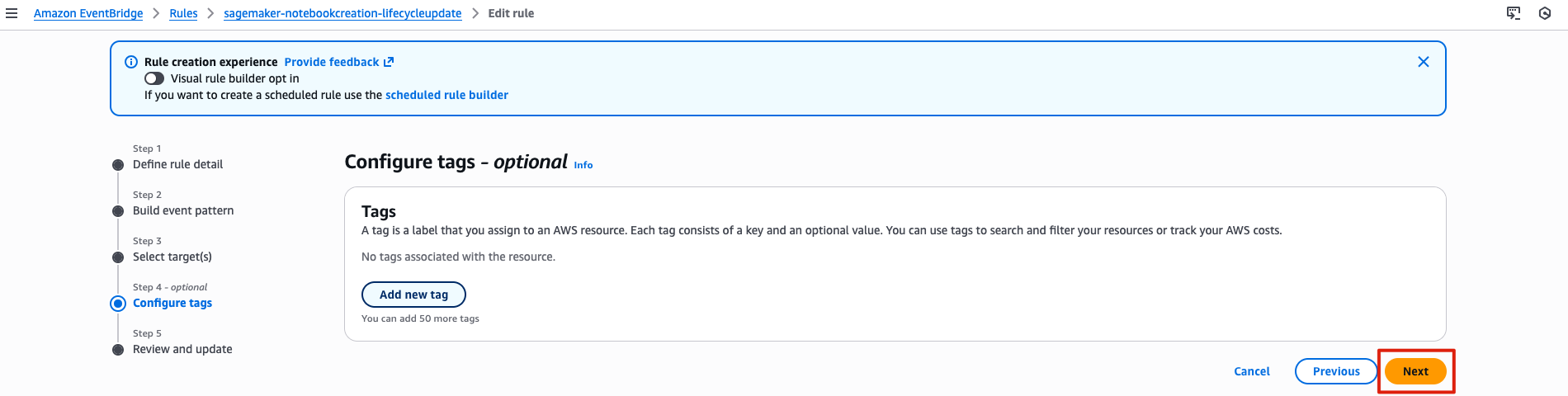
Review and Update
