This content was translated from Korean to English using AI.
Palantir Development Environment: https://www.palantir.com/developers/
Palantir Training Materials: https://learn.palantir.com
While studying ontology,
I kept asking myself, “How can I actually apply this to real work?”
Then I became curious about Palantir, a platform already proven in the market and actively used in practice.
That curiosity led me to this hands-on exercise, and I’m sharing my learning experience in this post.
What can you really do with Palantir?
I recommend this for anyone who wants to quickly understand Palantir through an end-to-end hands-on exercise.
Goal
- Through a real-world scenario exercise, learn how problems can be solved with Palantir.
- Gain hands-on experience with Palantir’s key components and understand the overall workflow.
Palantir Features Used
- Pipeline Builder (Data Integration)
- Ontology Manager (Ontology Construction)
- Object Explorer
- Workshop (Application UI)
- Workspace Navigator
Problem Description
Field Situation
📍 Field Situation
I work at Company O.
Recently, we acquired Company B,
and now we need to manage orders in a unified way.However, full system integration is a year away.
So we started using Excel as a stopgap.It was fine at first, but as orders grew,
missed orders, arguments over the latest file version, and delivery delays kept happening.What we ultimately need isn’t Excel, but
a single operational tool that connects both systems
so we can view, assign, and
immediately track at-risk orders in one place.I’m going to try solving this problem with Palantir’s Ontology and Workshop.
Problem Summary
- Order data is scattered, making unified management difficult.
- Manual Excel work causes errors, omissions, and version conflicts.
- There is no operational tool to track order assignments and delivery risks in real time.
- There is a lack of short-term solutions to bridge the gap until IT integration.
Solution
- Import data from two order systems and consolidate them into a single data flow.
- Model orders, customers, and delivery statuses as business objects to create a Single Source of Truth.
- Provide an operational tool for managers to assign orders and monitor unprocessed and at-risk deliveries in real time.
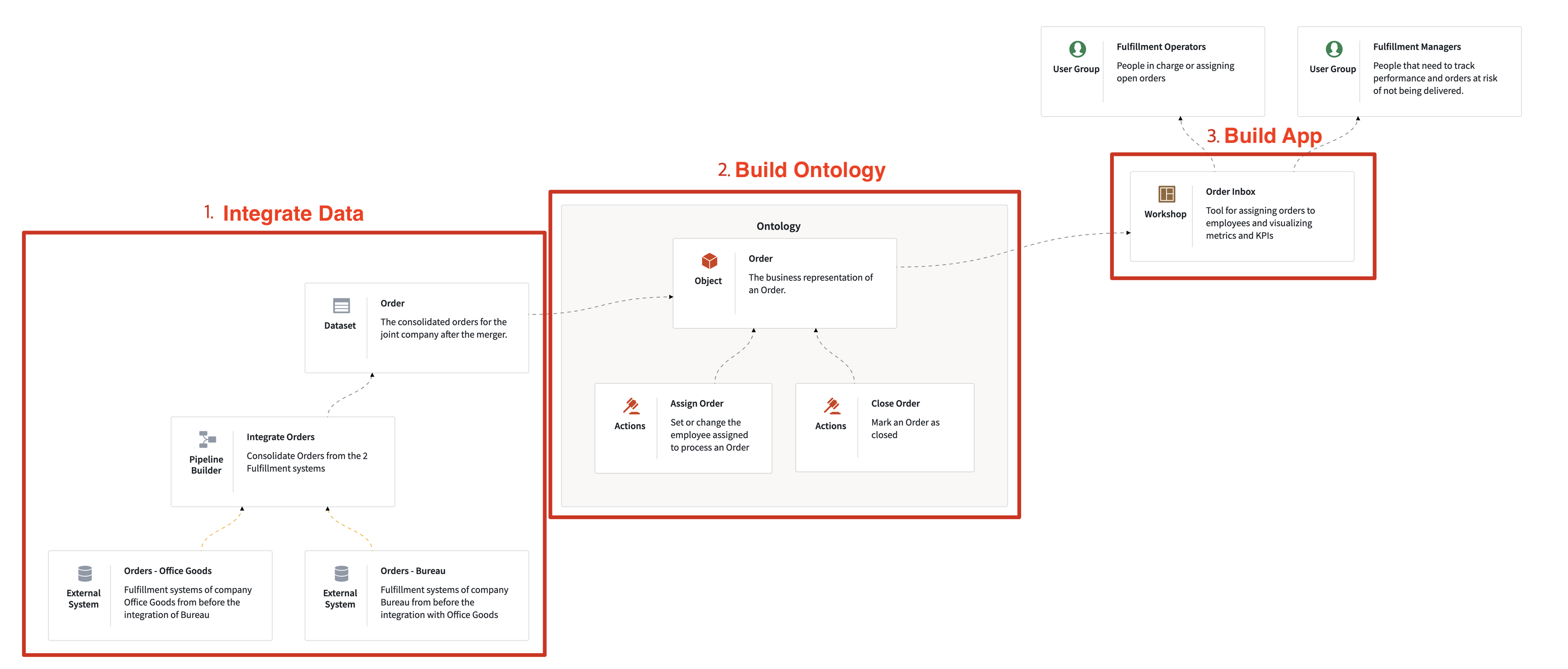
Solution Workflow
- Data Load & Integration (Pipeline Builder)
- Ontology Construction (Ontology Manager)
- Application Layer for Monitoring and Operations (Workshop)
Users:
- Fulfillment Managers (people who need to oversee order tracking)
- Fulfillment Operators (people who process orders or assign unprocessed orders)
Target Data:
- Order data from Office Goods Fulfillment company
- Order data from Bureau Fulfillment company
Palantir Implementation
Project Environment Setup
- A project is a folder that holds resources.
- A Palantir project is a boundary unit that groups related resources and controls permissions.
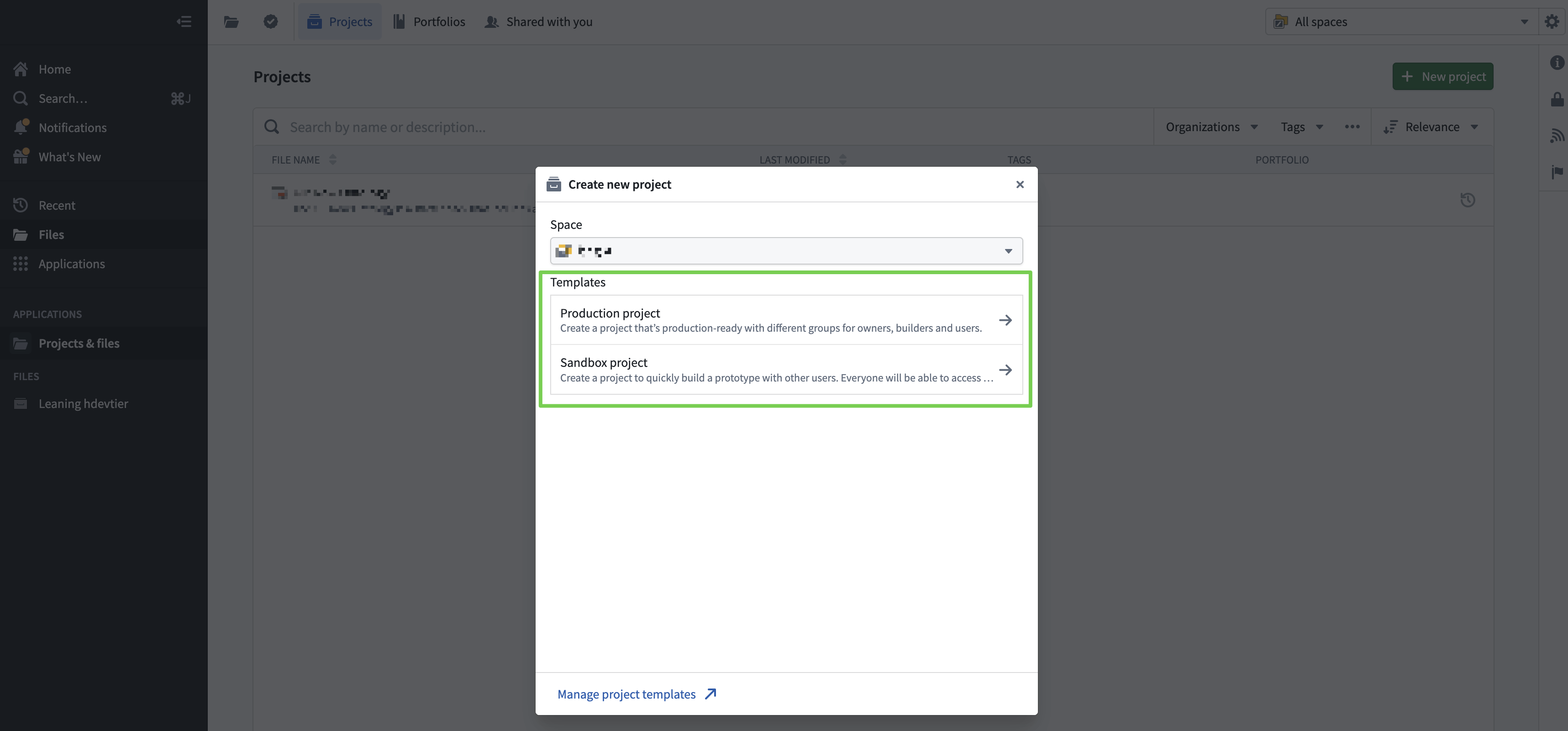
Creating a Project
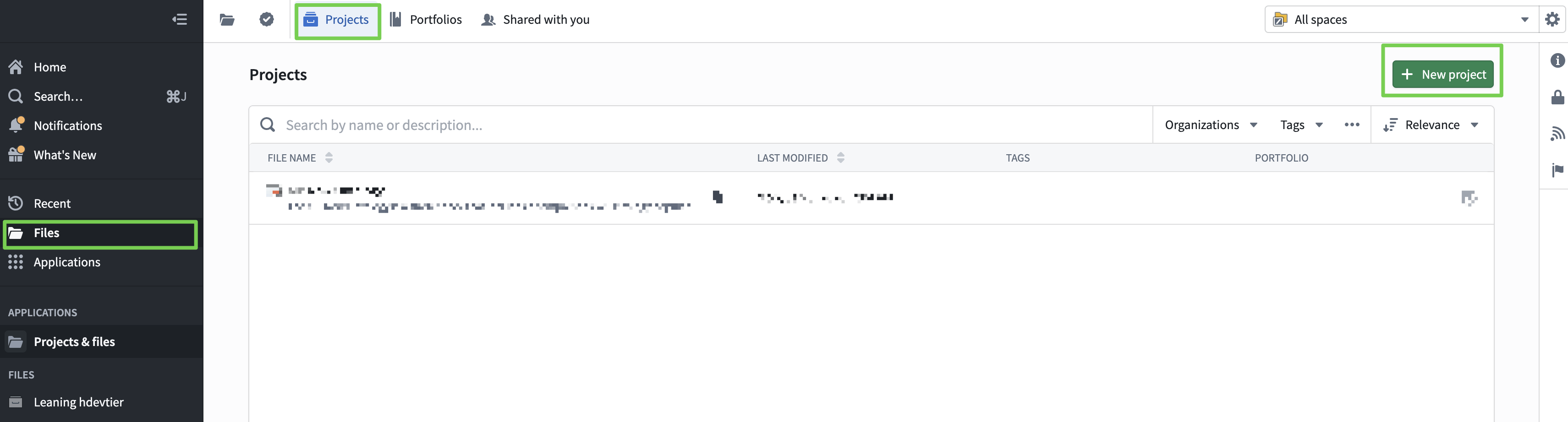
- Production project: visible only to me.
- Sandbox project: visible to everyone.
(Selected Production project so only I can see it.)
Write the project name and description clearly so it’s easy to identify.
(Include an English name for quick project search.)
Project Name: palantir learning <your English name>
Project Name: palantir learning Leon
Description: personal project for palantir learning courses.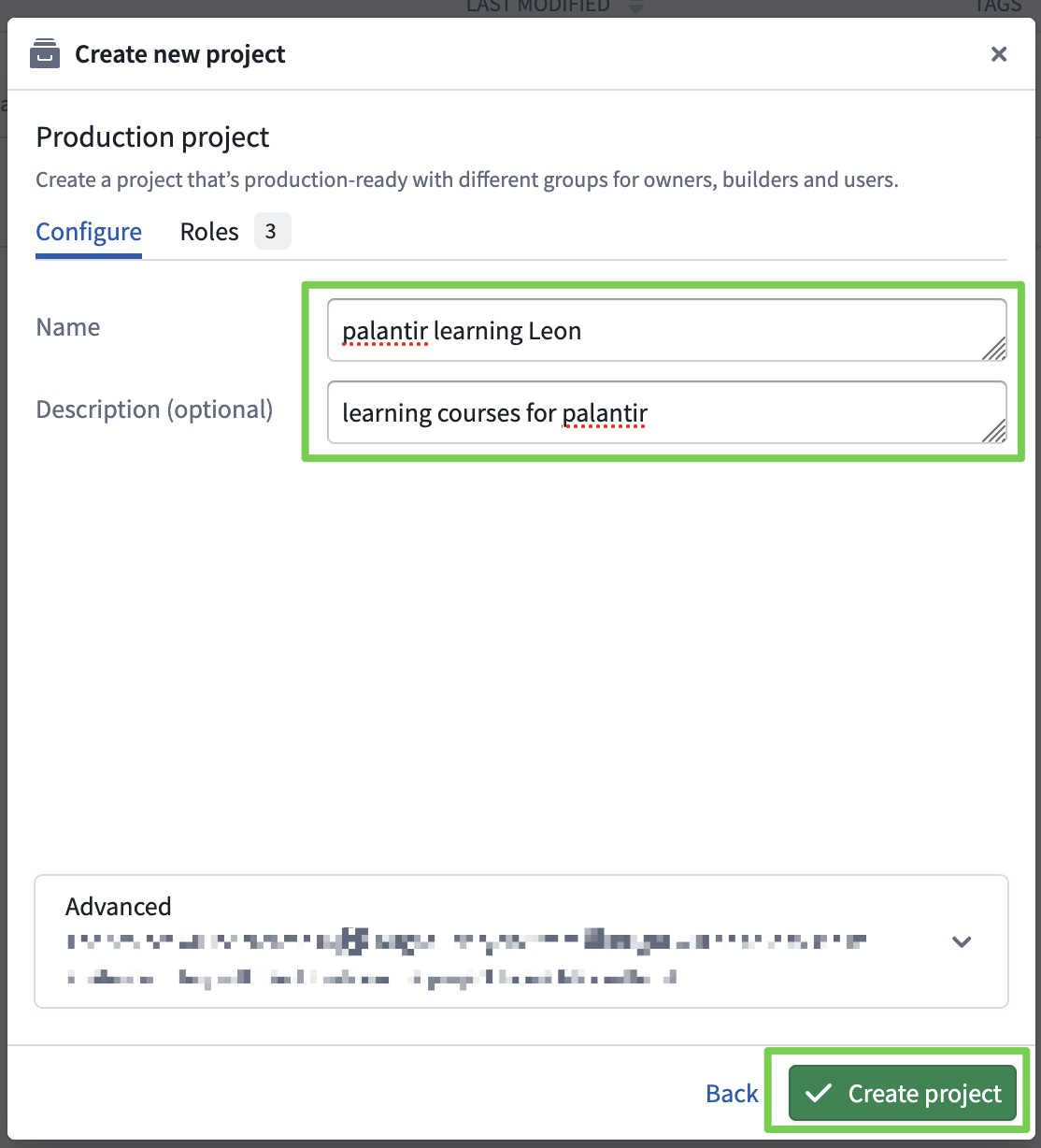
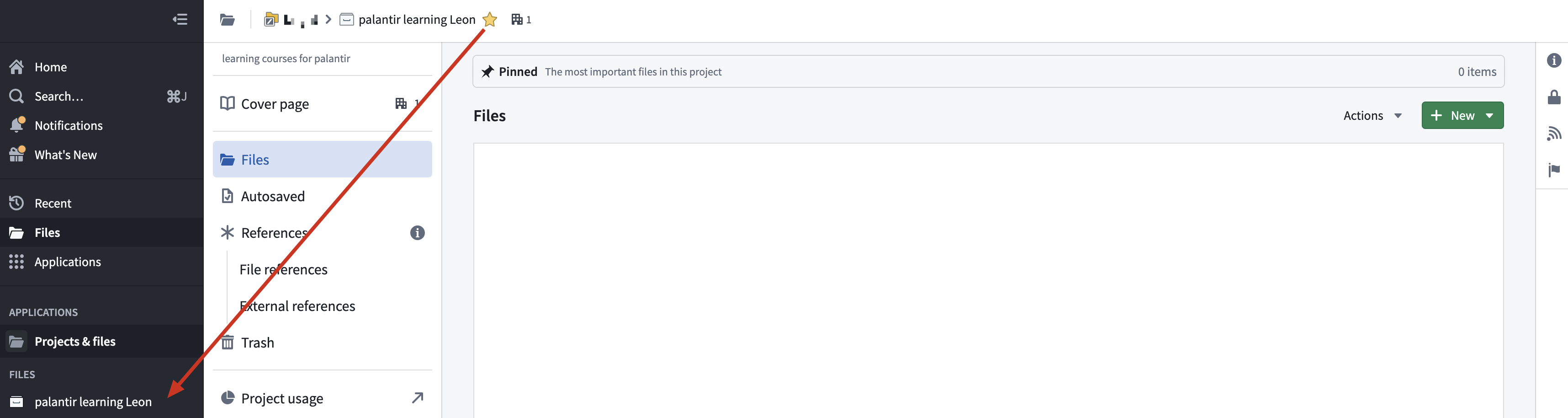
Adding to Favorites
- You can see the project added to favorites at the bottom left.
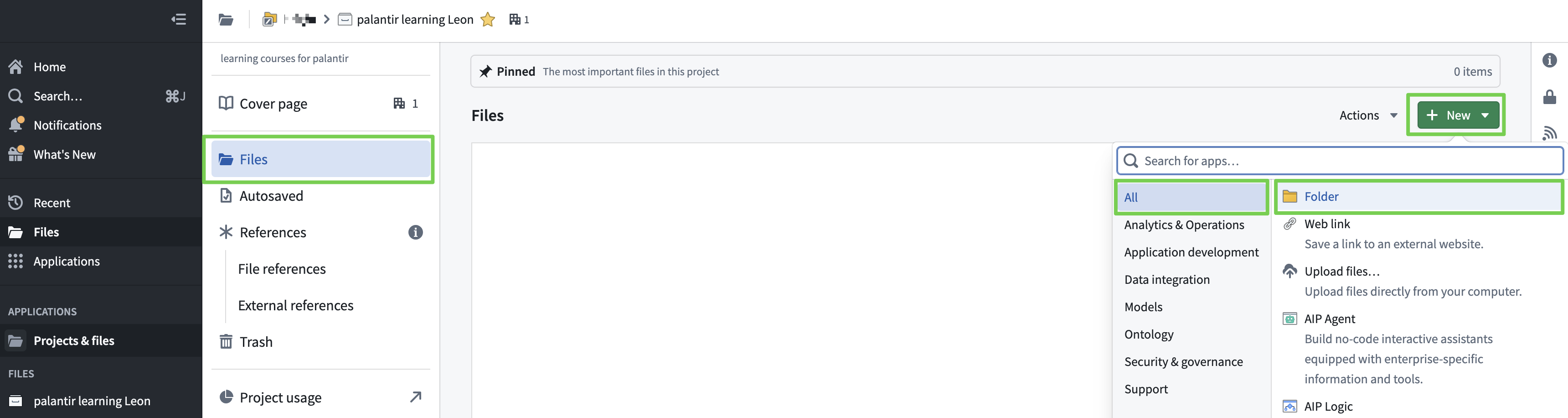
Creating a Folder
- Create a folder to organize resources.
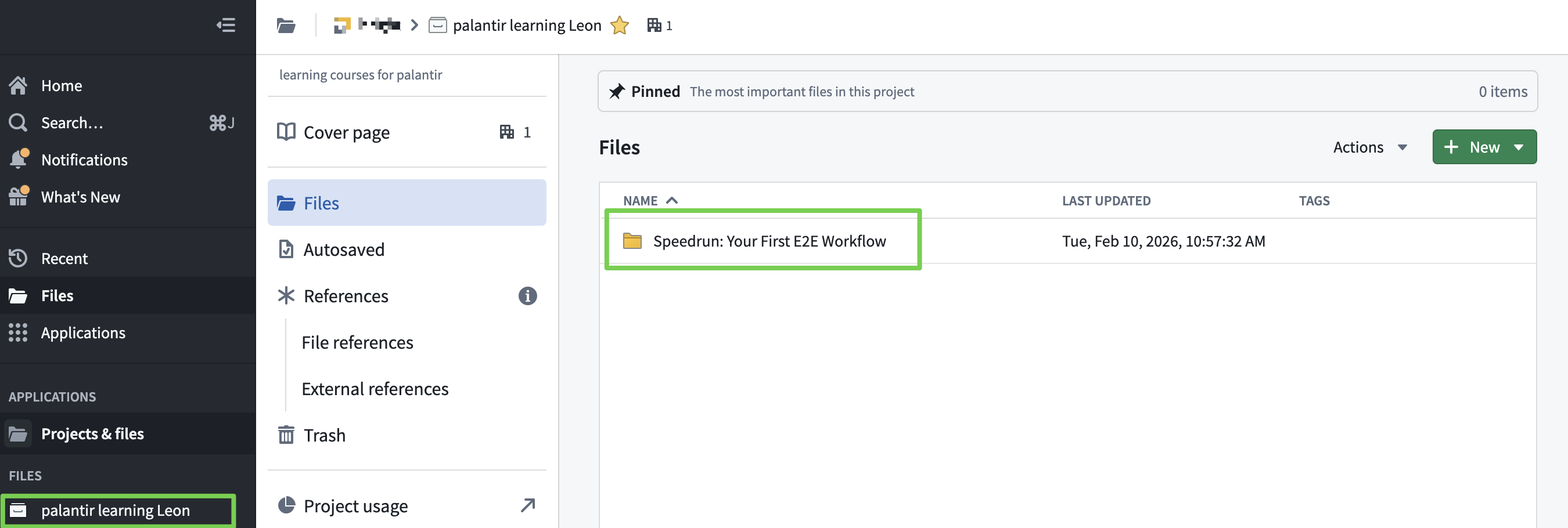
- Folder Name: Speedrun: Your First E2E Workflow
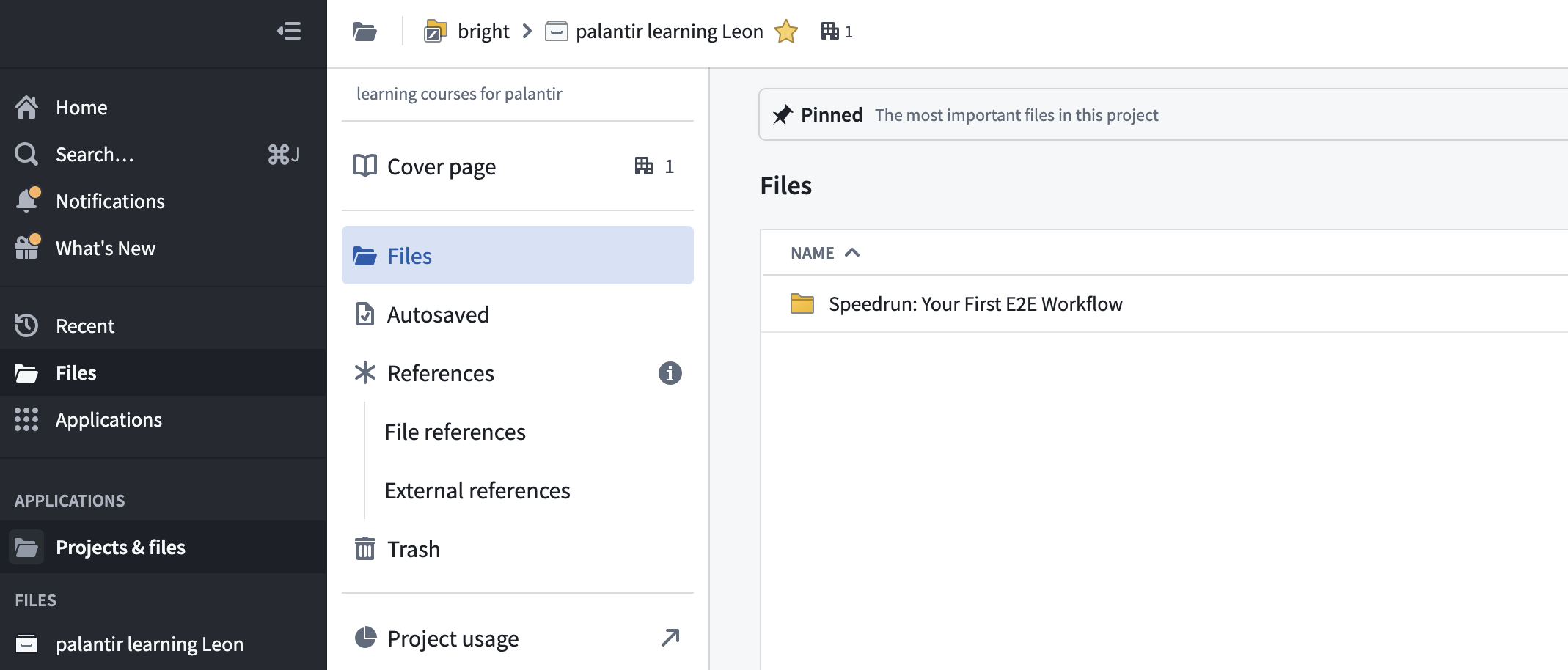
This completes the basic project setup.
Now the actual work begins…
- Data Load & Integration (Pipeline Builder)
- Ontology Construction (Ontology Manager)
- Application Layer for Monitoring and Operations (Workshop)
1. Data Load & Integration
Pipeline Builder
Using Pipeline Builder:
- Import data from two Excel-managed order systems and consolidate into a single data flow.
- Data ELT (Data Connection, Data Load, Data Transformation)
Company O Order Data: orders_office_goods-202602100958.csv
Company B Order Data: orders_bureau_transactional_system-202602100958.csv
Consolidated Customer List: consolidated_customers-202602100958.csv
Data Connection
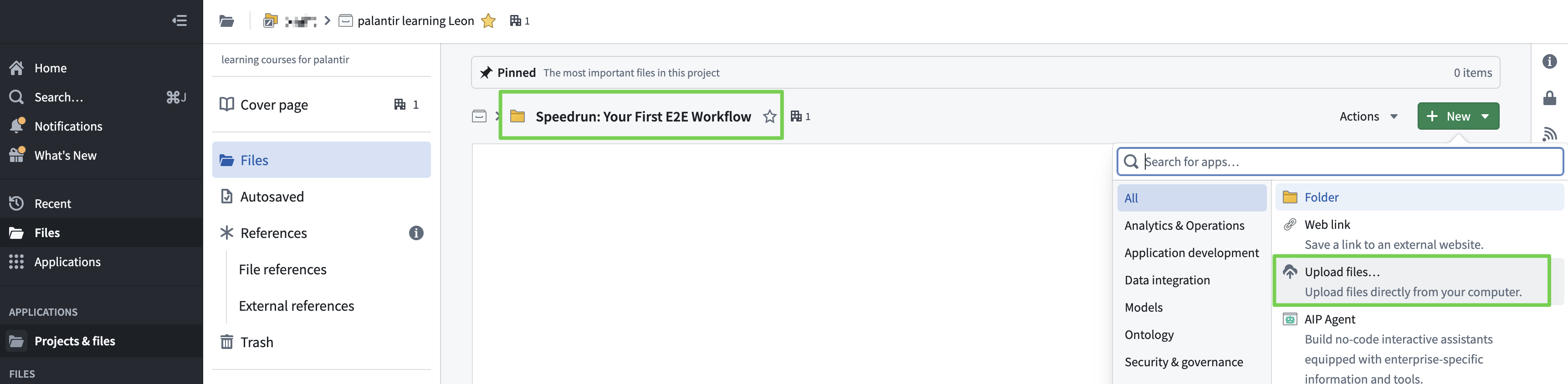
Data Upload
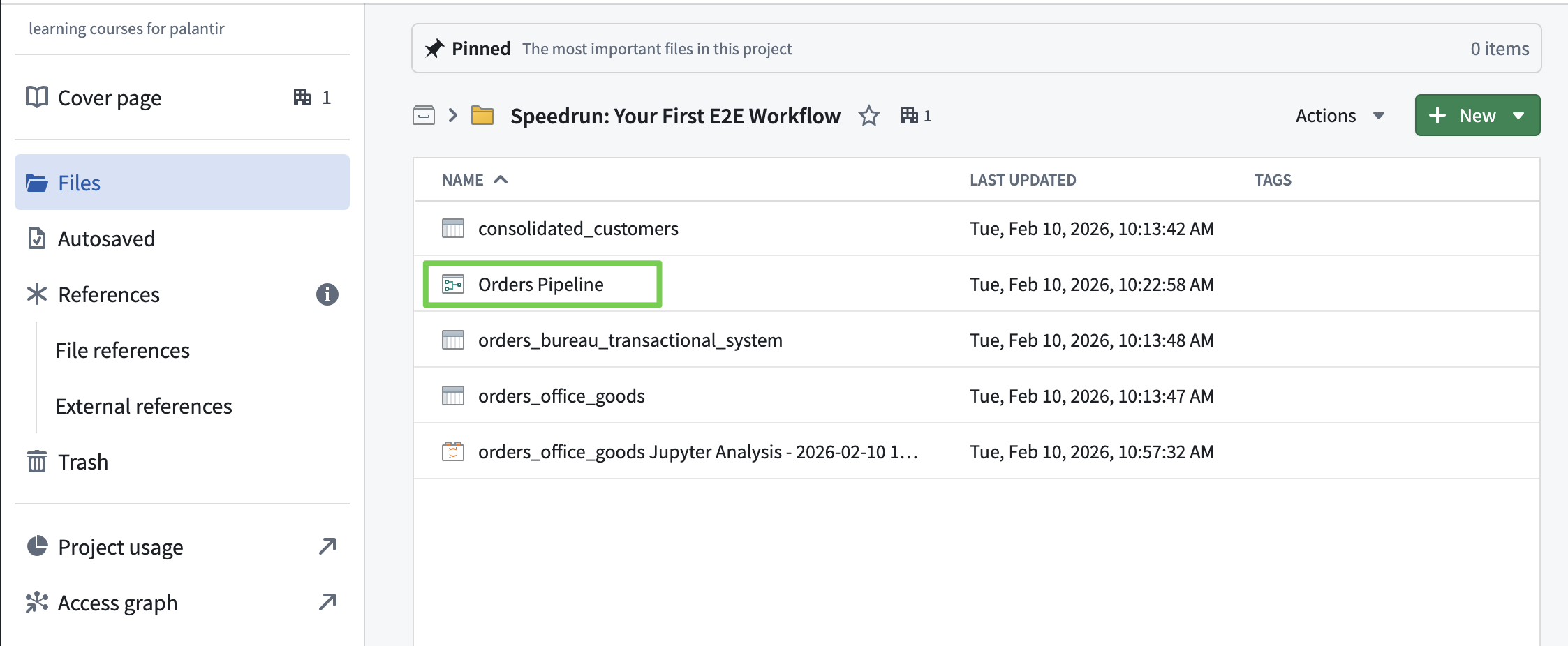
Go into the folder and upload the downloaded Excel files.
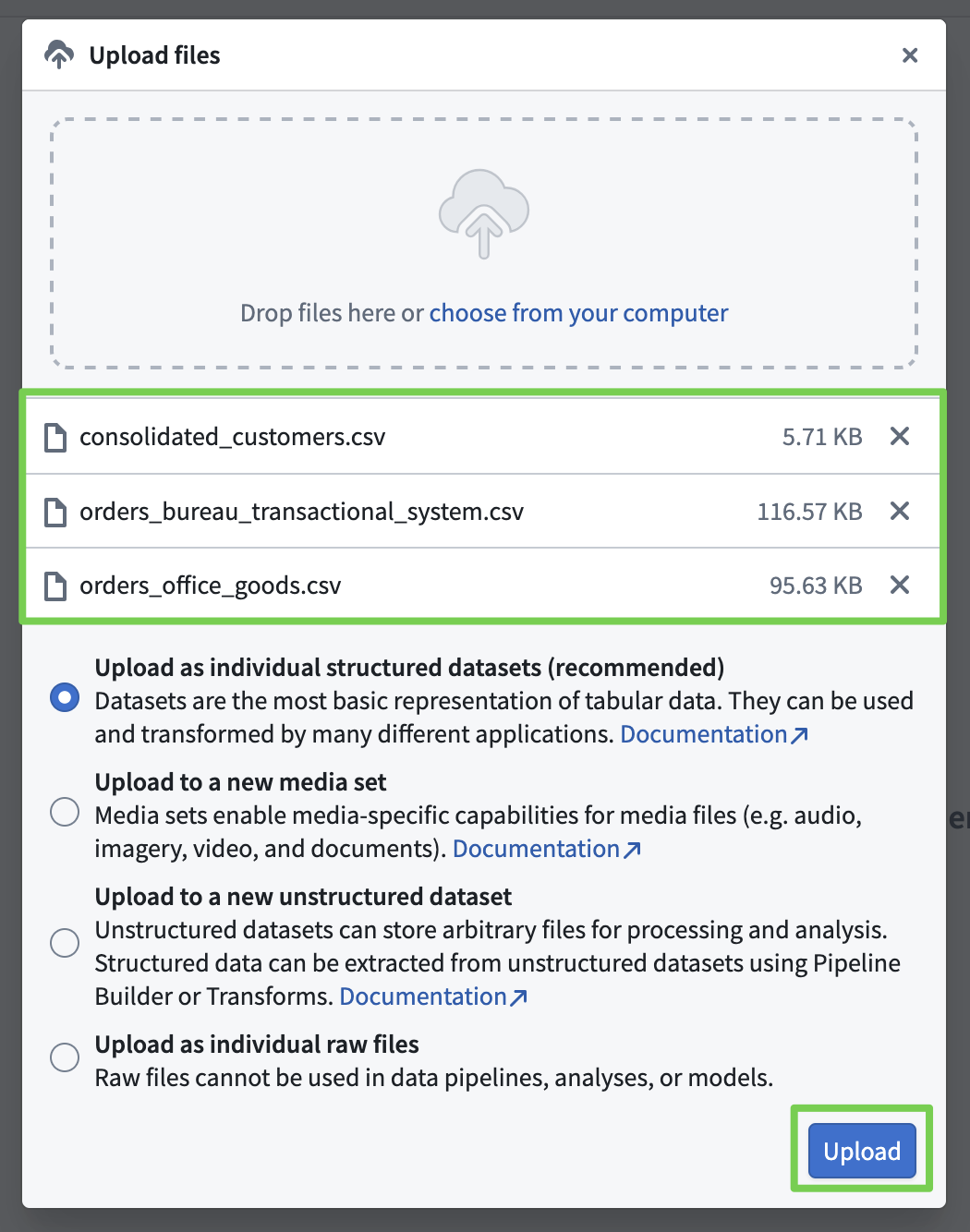
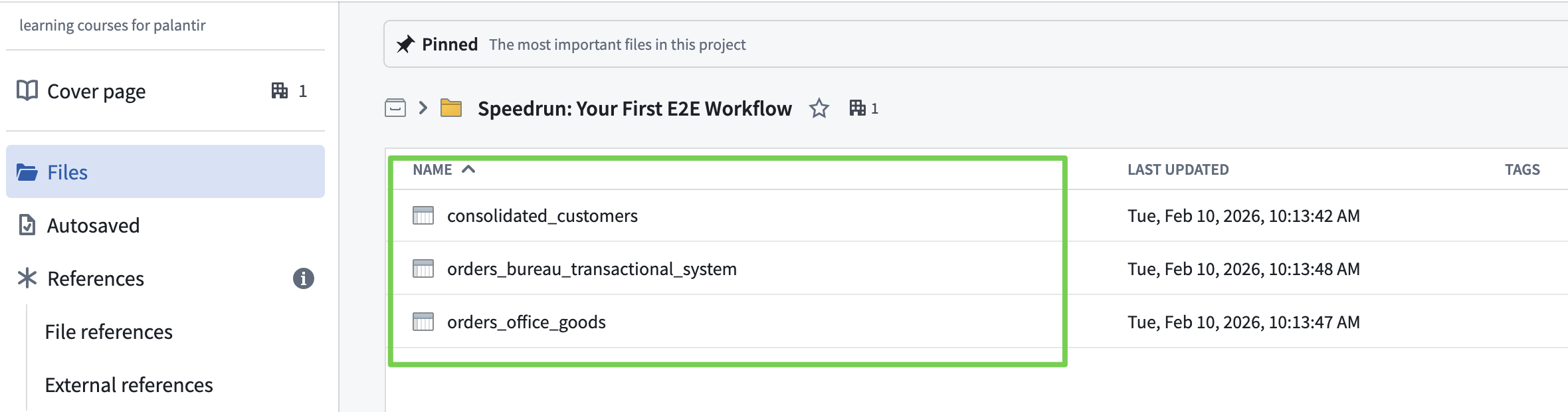
Verify Data Upload
Data Load
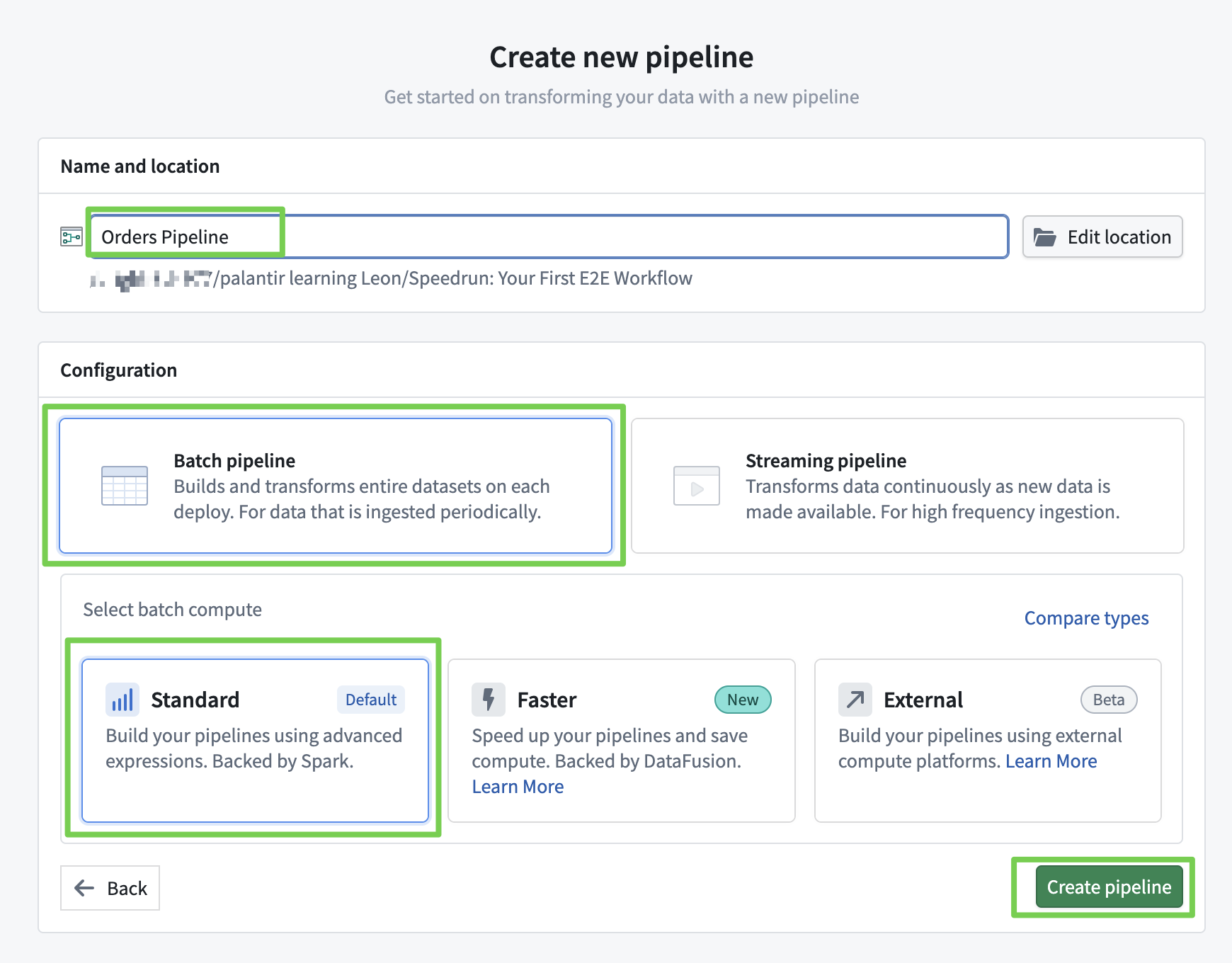
- Load data using the no-code tool Pipeline Builder and verify the data.
Create Pipeline Builder
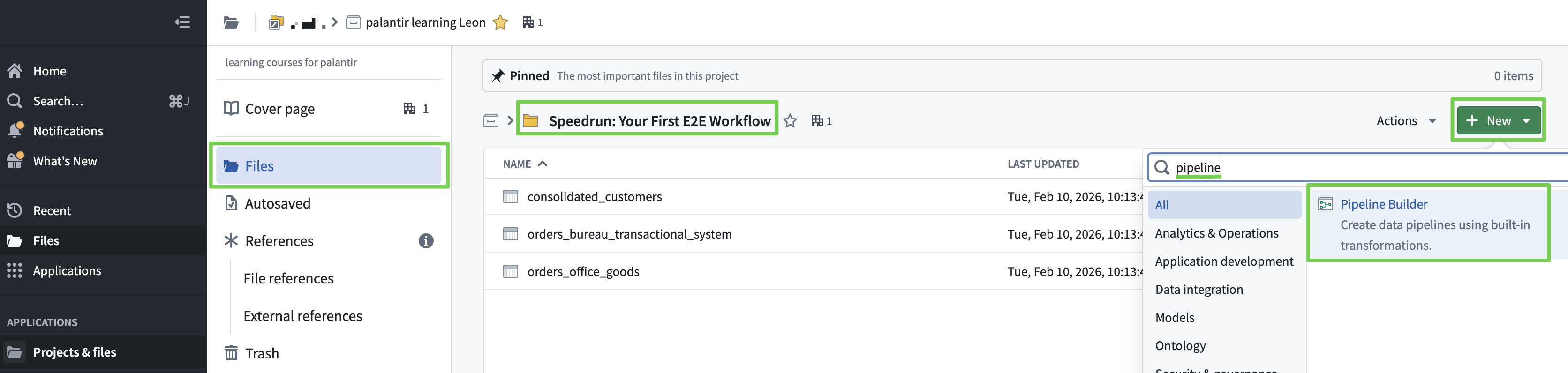
- Enter a clear name that describes the pipeline.
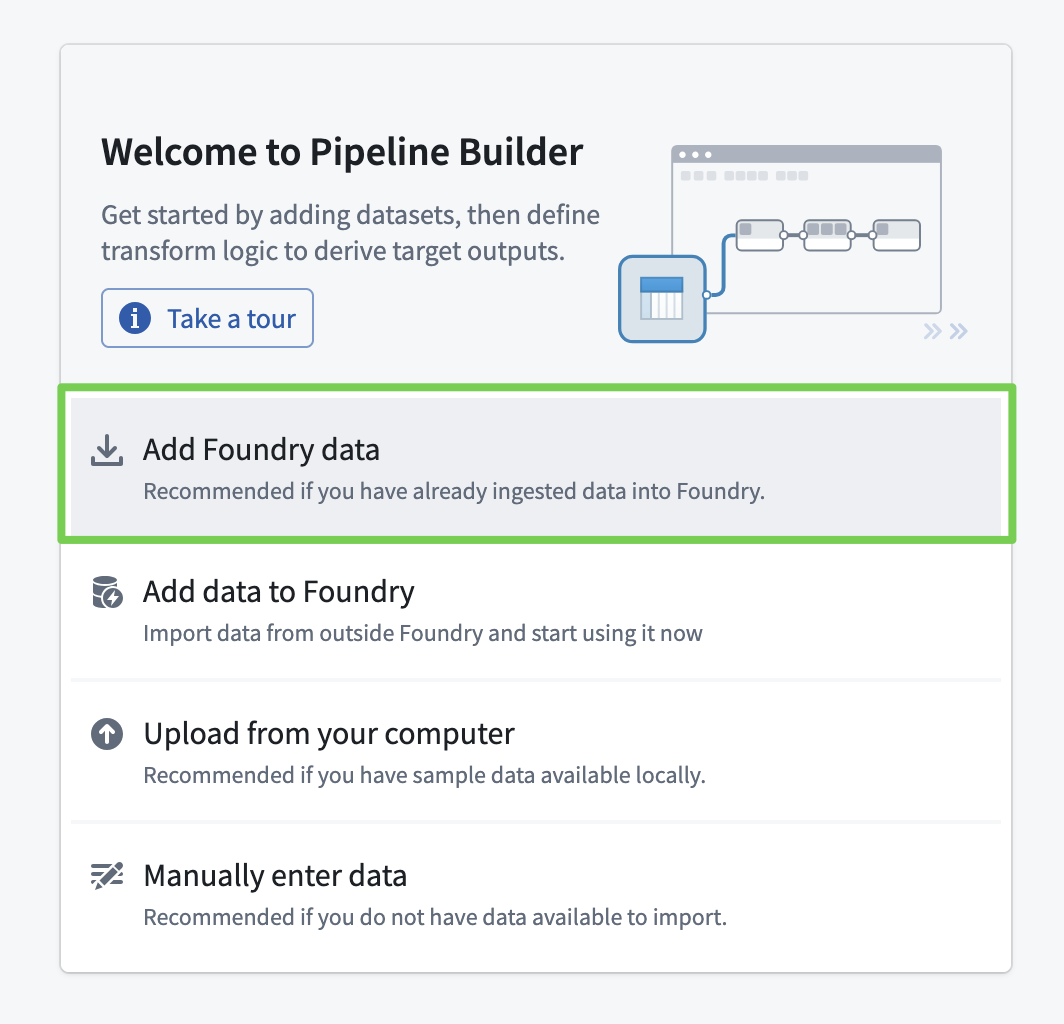
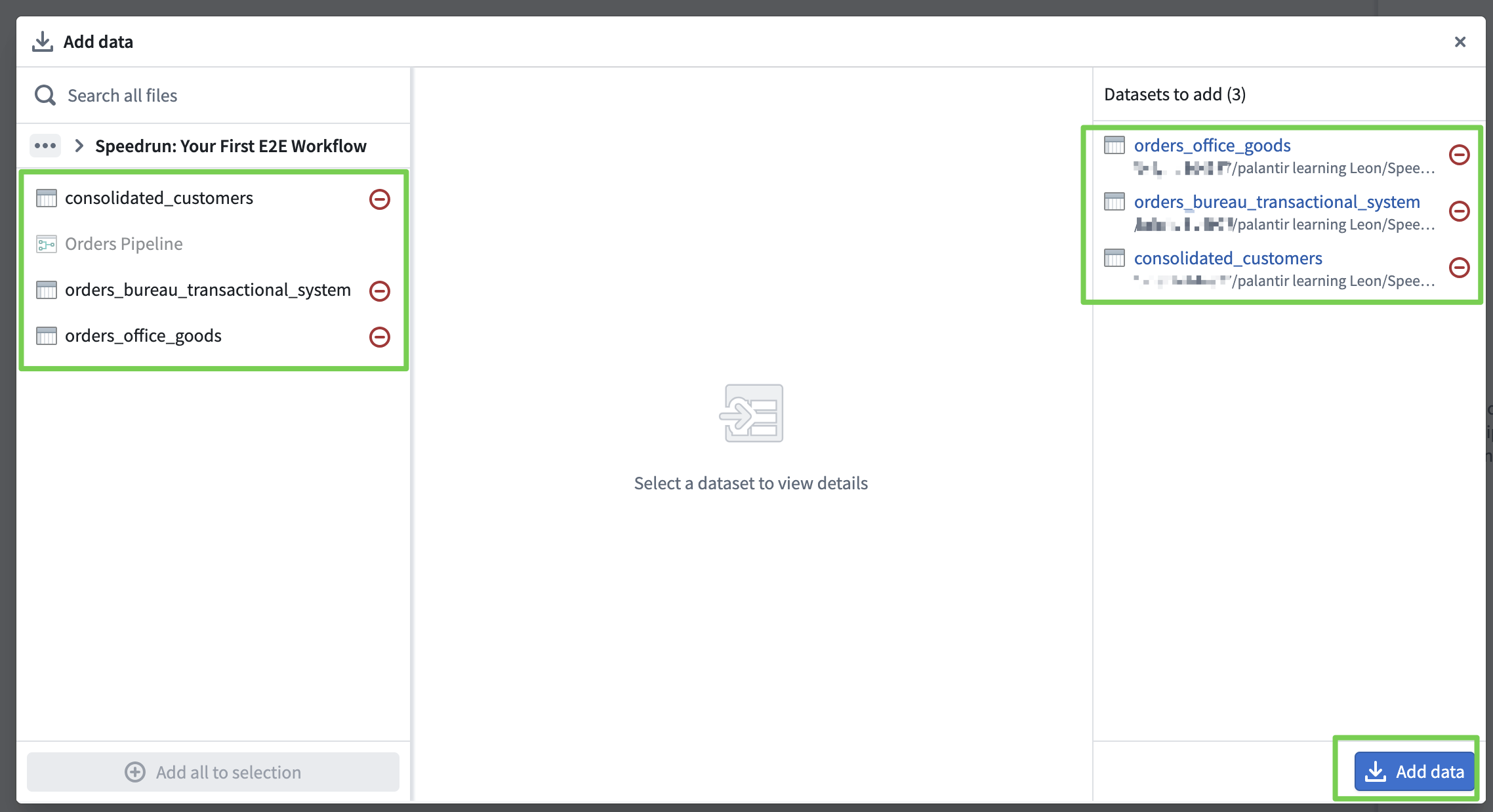
Import Data into the Pipeline
Data Verification
Verify the imported data.
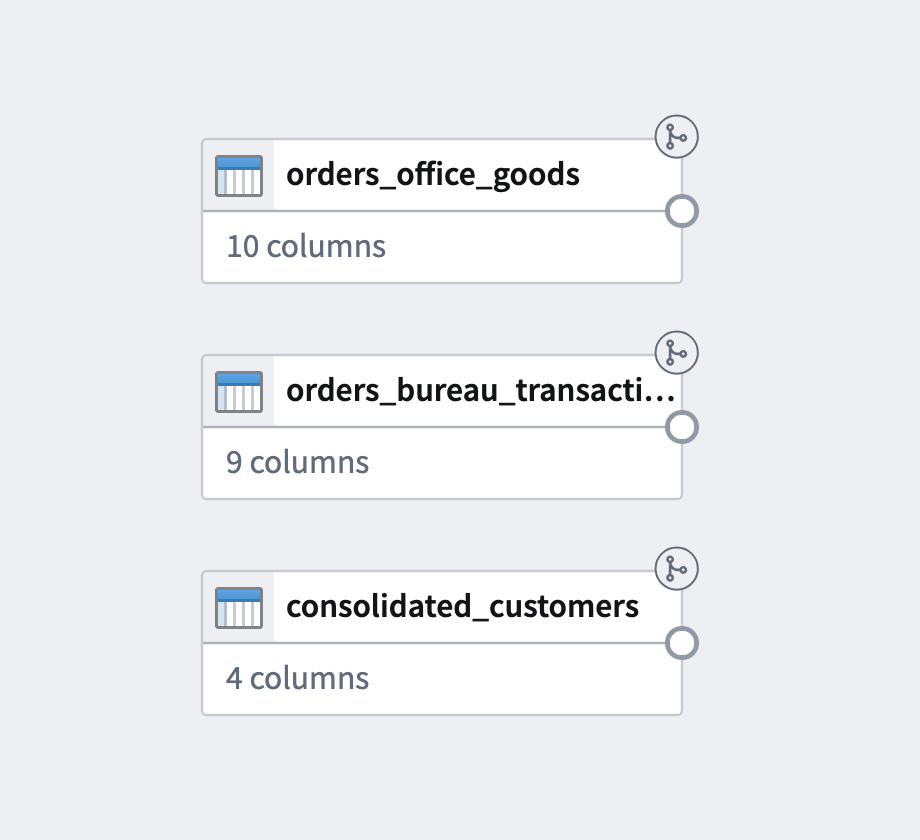
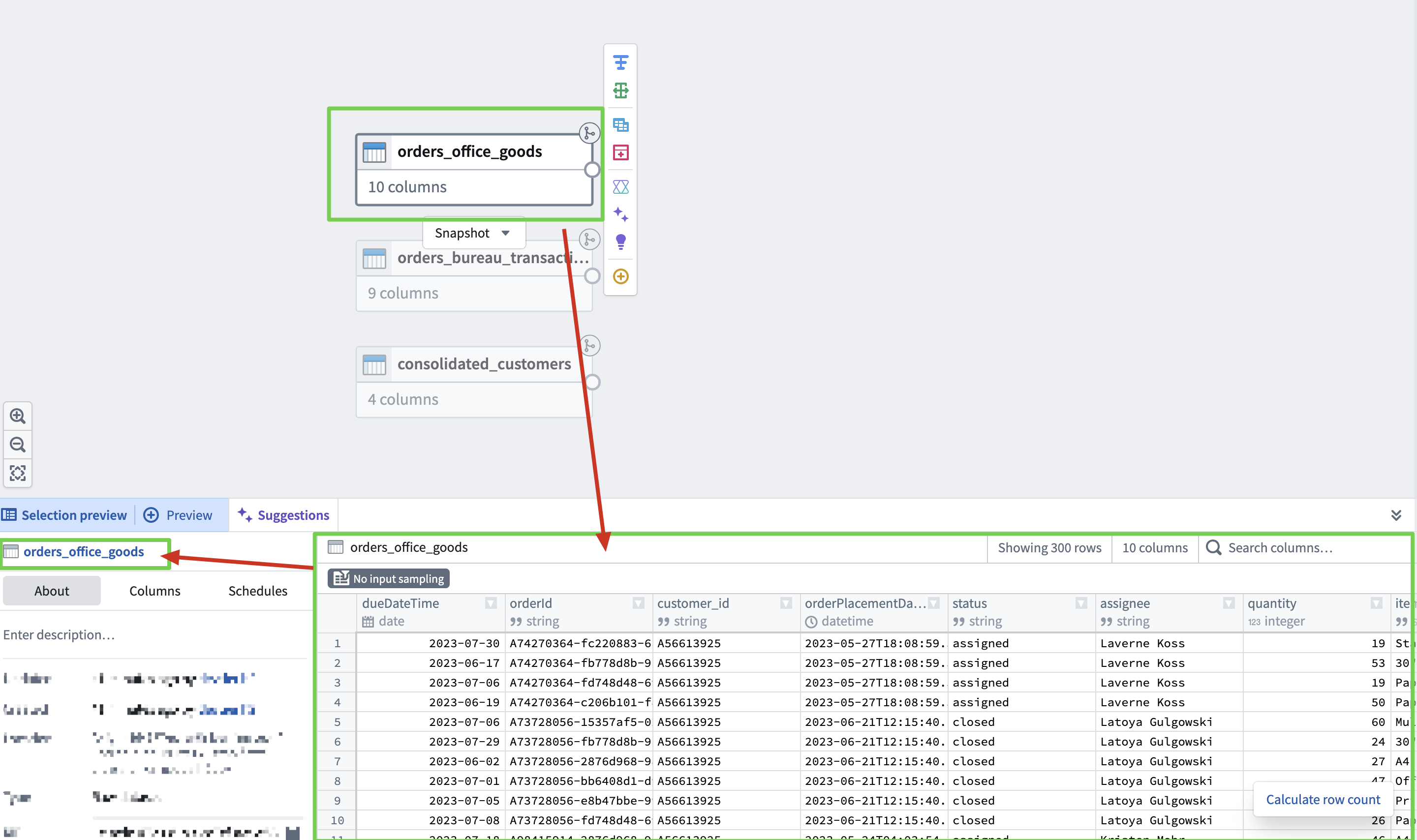
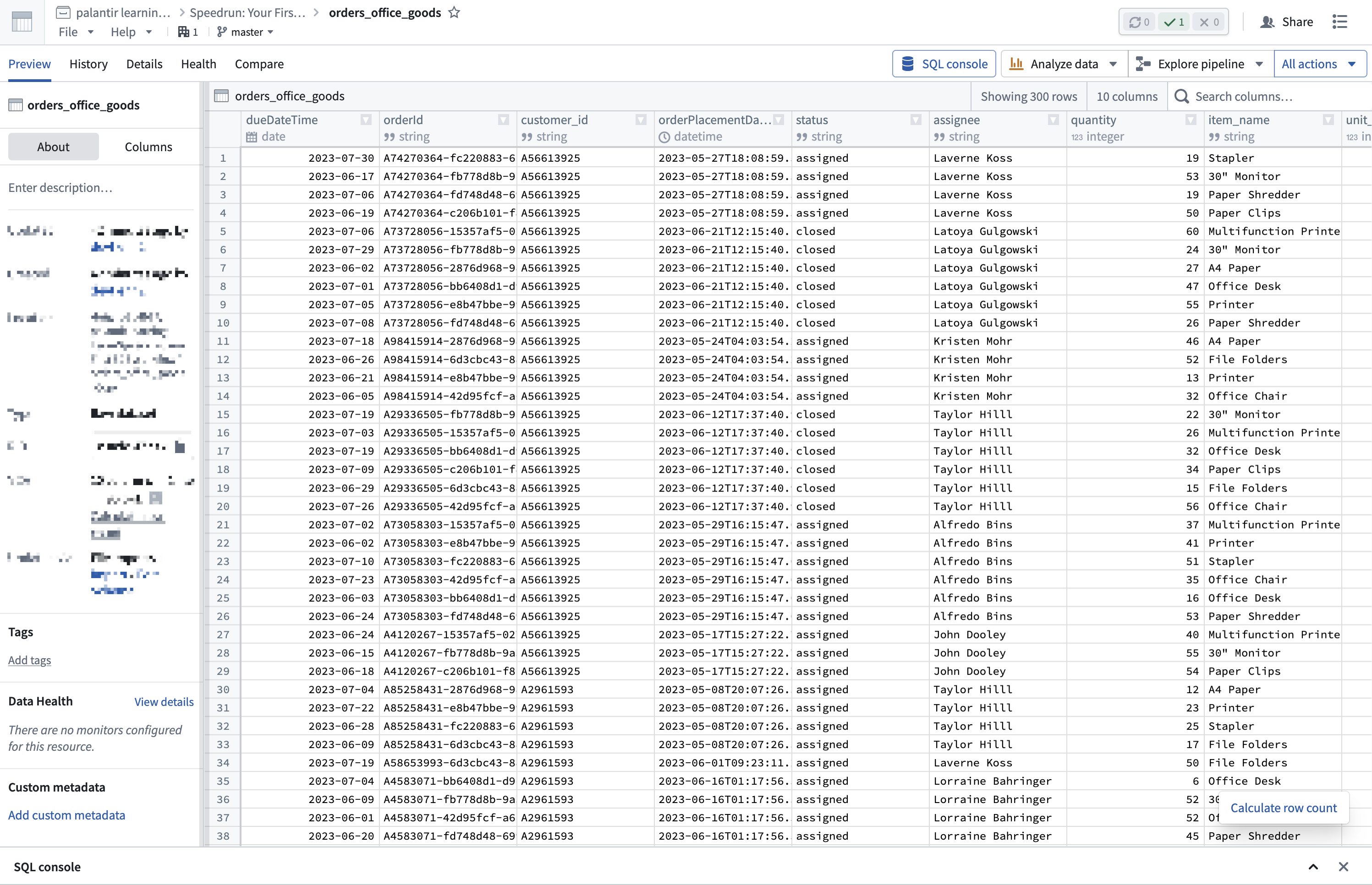
Verify data using the same method.
Upon reviewing the data...
- Date format inconsistency
order_due_date(Bureau) vs.dueDateTime(Office Goods)- Stored as date strings → need to convert to Timestamp.
- Orders without a PK exist
- Incomplete rows where
order_id/orderIdis null or empty string.- Column names differ between systems
- Office Goods uses camelCase (
dueDateTime,orderId)- Bureau uses snake_case (
order_due_date,order_id)- Column unique to Office Goods
orderPlacementDatedoes not exist in Bureau.
Company O (Office Goods) Order Data Schema
| Column | Type | Description |
|---|---|---|
dueDateTime | string (M/D/YY) | Due date |
orderId | string (prefix+UUID) | Unique order ID (PK) |
customer_id | string (A+number) | Office Goods customer ID |
orderPlacementDate | string (ISO 8601) | Order placement datetime |
status | string (category) | Order status: assigned / closed / open |
assignee | string (nullable) | Assignee name |
quantity | int64 | Order quantity |
item_name | string (category) | Item name (10 types) |
unit_price | int64 | Unit price (20–110) |
days_until_due | int64 | Days remaining until due date |
Company B (Bureau) Order Data Schema
| Column | Type | Description |
|---|---|---|
order_id | string (UUID-linked) | Unique order ID (PK) |
customer_id | string (UUID) | Bureau customer ID |
status | string (category) | Order status: assigned / closed / open |
assignee | string (nullable) | Assignee name |
quantity | int64 | Order quantity |
item_name | string (category) | Item name (10 types) |
unit_price | int64 | Unit price (20–110) |
order_due_date | string (M/D/YY) | Due date |
days_until_due | int64 | Days remaining until due date |
Consolidated Customer List Schema
A customer ID mapping (master) table between the two systems.
| Column | Type | Description |
|---|---|---|
officegoods_customer_id | string (nullable) | Office Goods customer ID |
bureau_customer_id | string (nullable) | Bureau customer ID |
consolidated_customer_id | string (UUID) | Consolidated customer ID (PK) |
customer_name | string | Customer name |
Back to Pipeline Builder
Data Transformation
- Data cleaning and transformation based on findings from data review.
Data Cleaning & Integration Tasks
- Data cleansing (remove orders without PK)
- Standardize column naming conventions
- Align date formats
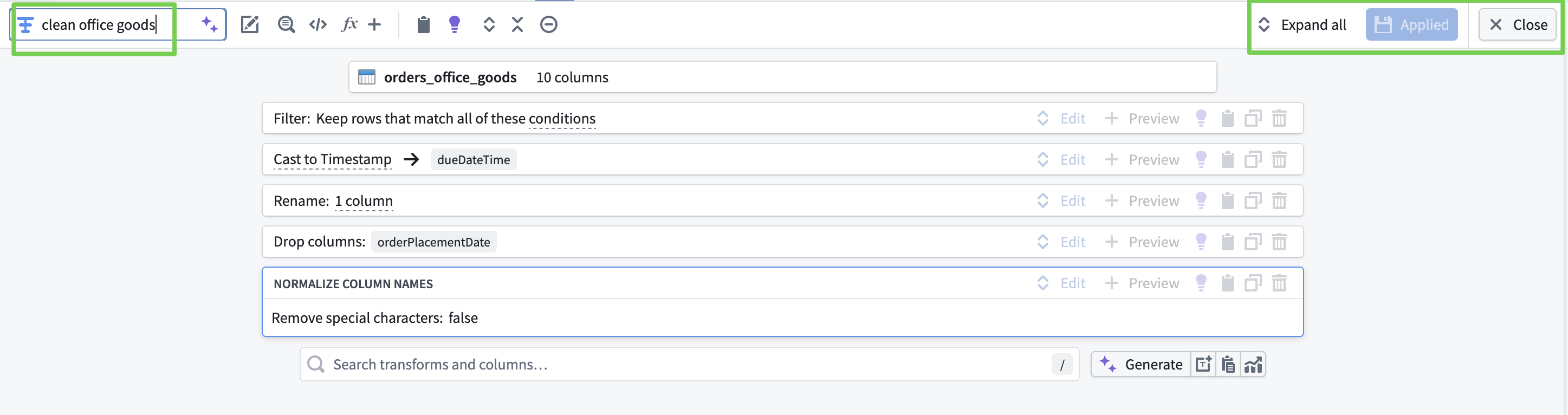
orders_office_goods (Clean Office Goods)
- Remove rows where
orderIdis null/empty string - Convert
dueDateTimefrom Date → Timestamp - Rename column
dueDateTime→order_due_date - Drop
orderPlacementDatecolumn - Normalize column names (unify to snake_case)
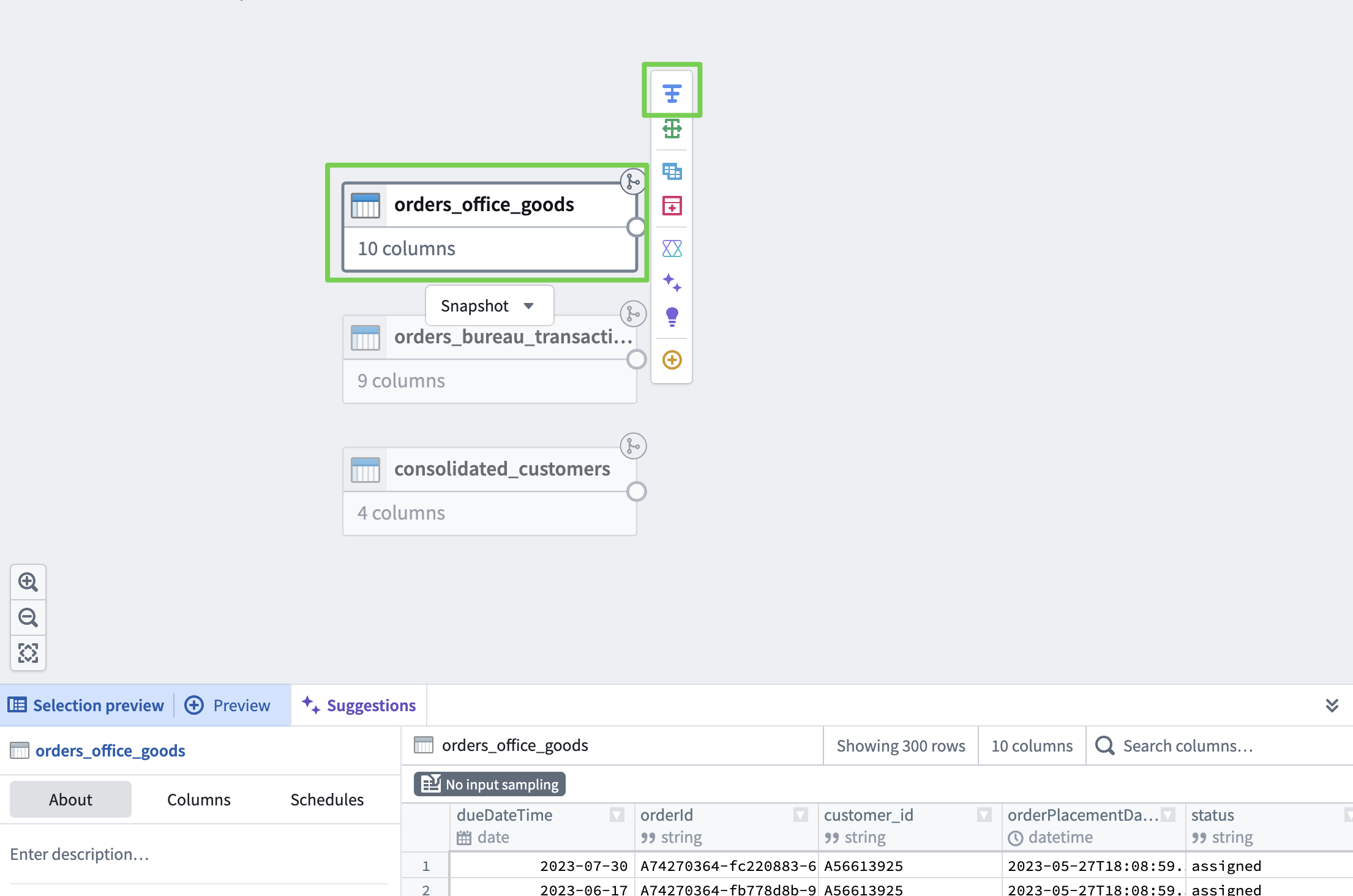
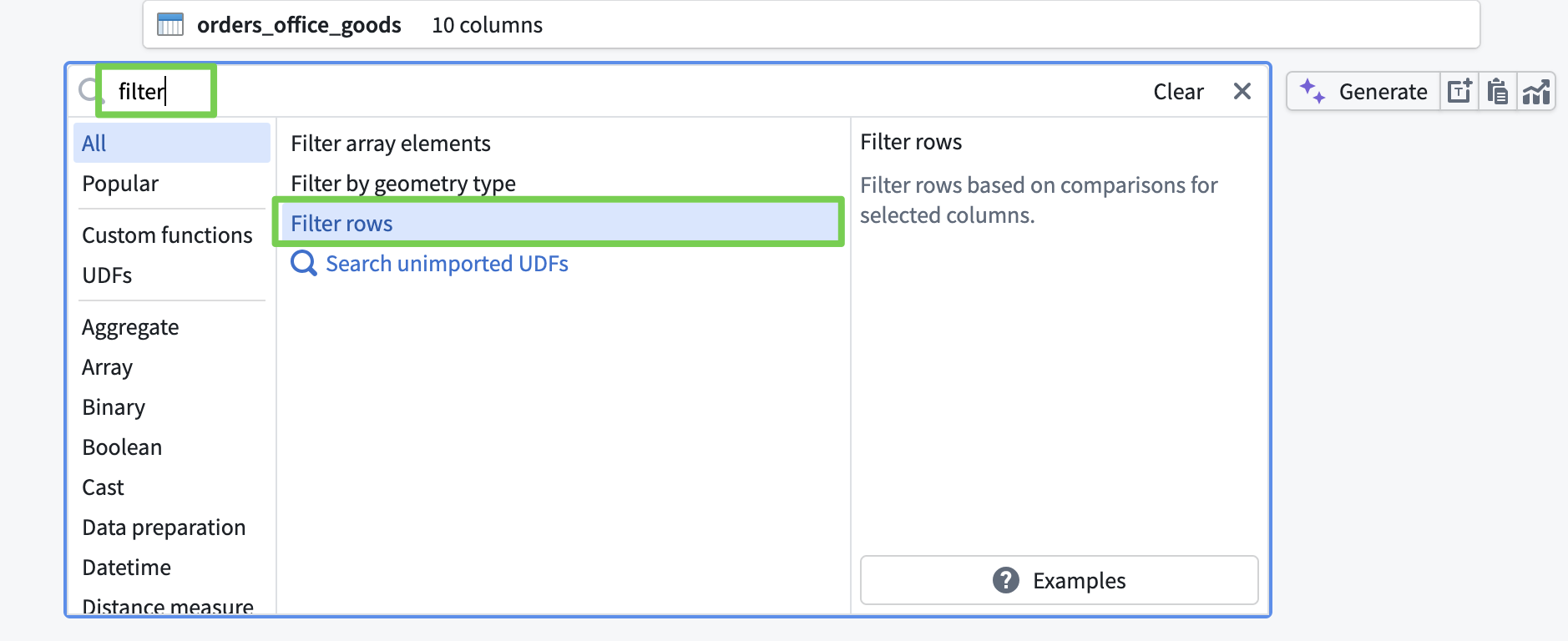
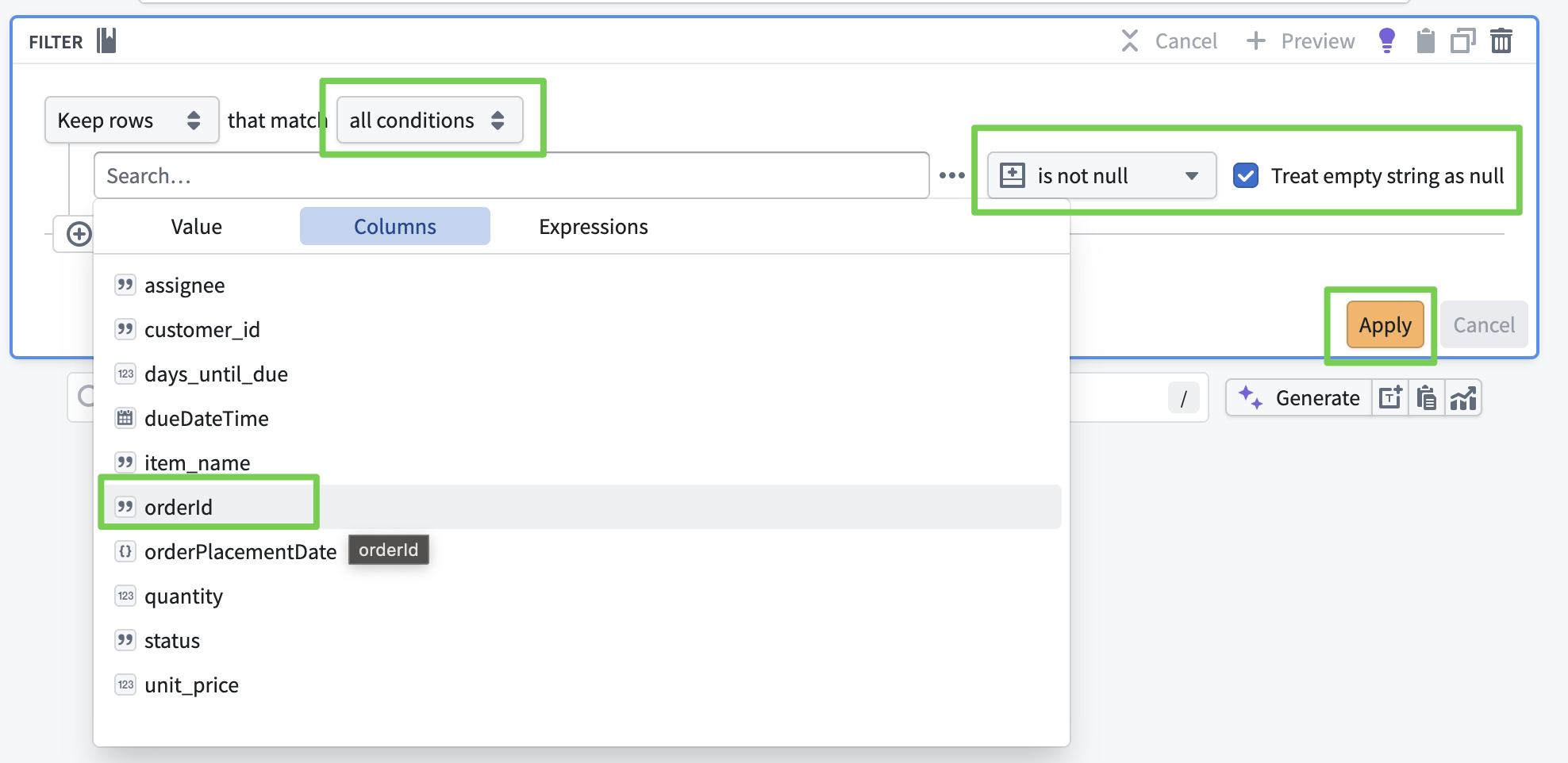
- Remove rows where
orderIdis null/empty string- Search for
Filter Rows
- Search for
- Convert
dueDateTimefrom Date → Timestamp- Search for
Cast
- Search for
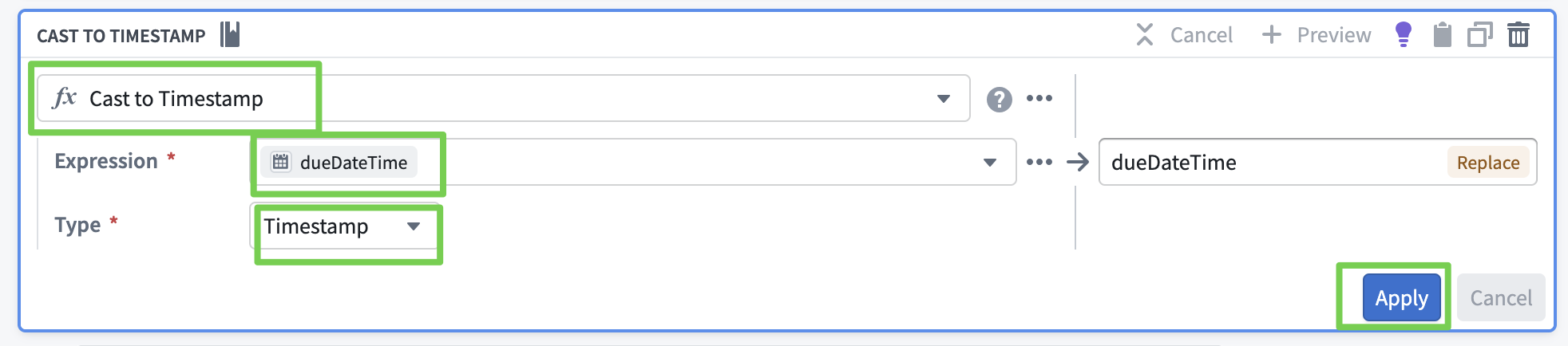
- Rename column
dueDateTime→order_due_date- Search for
Rename columns
- Search for

- Drop
orderPlacementDatecolumn- Search for
Drop columns
- Search for

- Normalize column names (unify to snake_case)
- Search for
Normalize column names
- Search for

Name the transform to identify the transformation step (clean office goods).
- Click Apply, then Close.
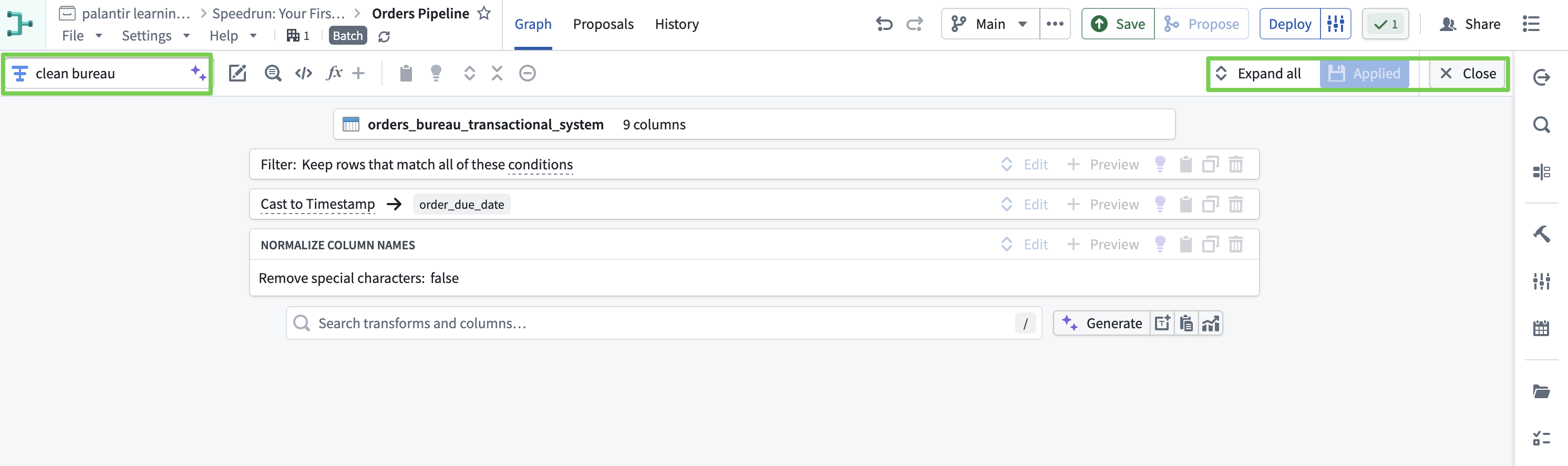
orders_bureau_transactional_system (Clean Bureau)
- Convert
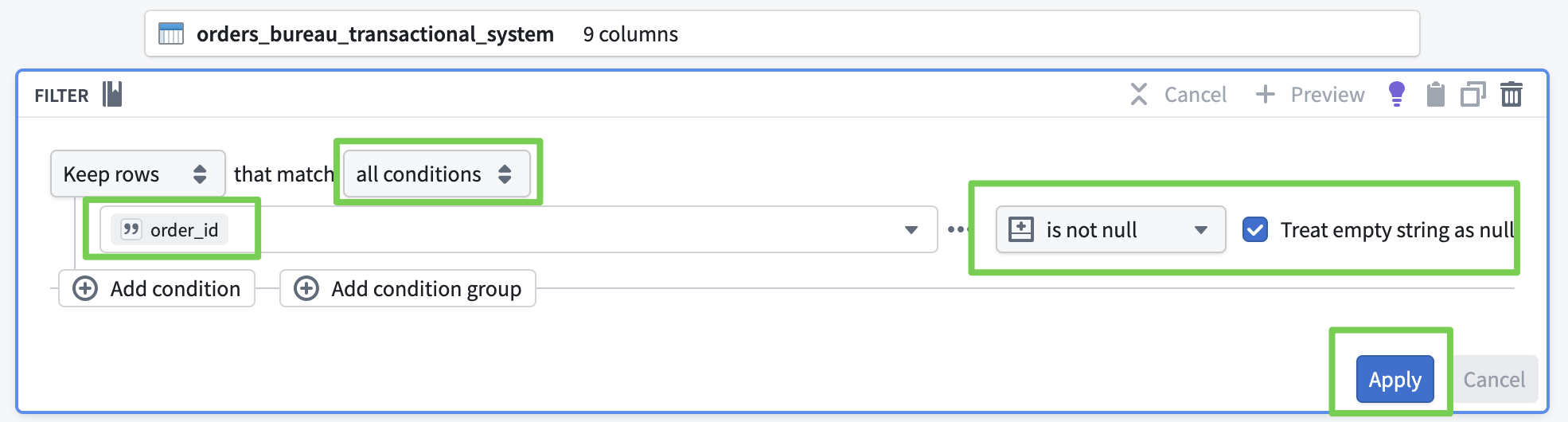
order_due_datefrom Date → Timestamp - Remove rows where
order_idis null/empty string - Normalize column names (unify to snake_case)
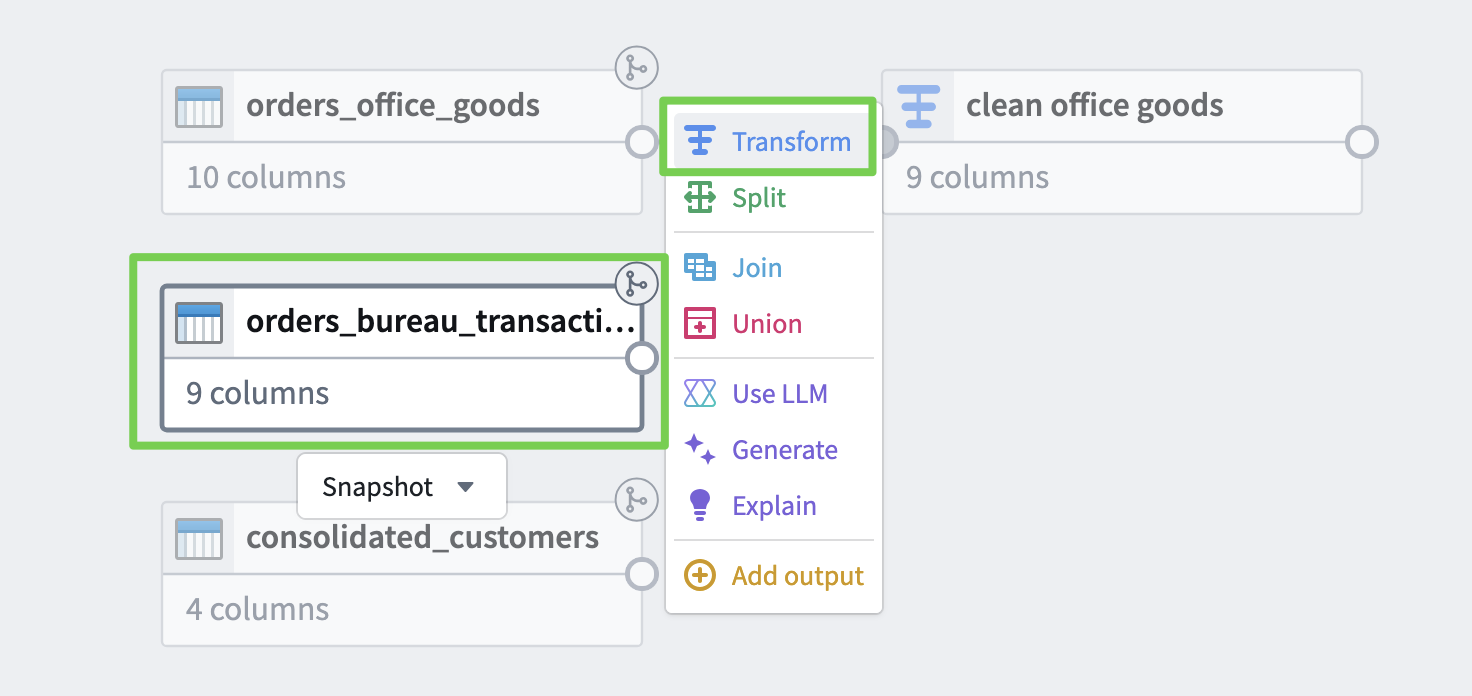
- Remove rows where
order_idis null/empty string- Search for
Filter Rows
- Search for
- Convert
order_due_datefrom Date → Timestamp- Search for
Cast
- Search for
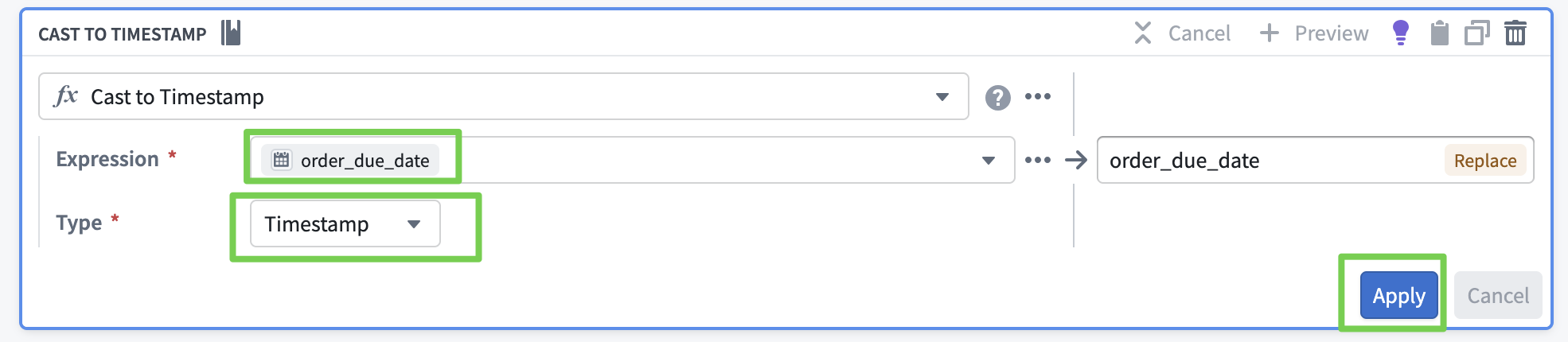
- Normalize column names (unify to snake_case)
- Search for
Normalize column names
- Search for
Name the transform to identify the transformation step (clean bureau).
- Click Apply, then Close.
Data Integration
Model orders, customers, and delivery statuses as business objects to create a Single Source of Truth.
Merge Data into One
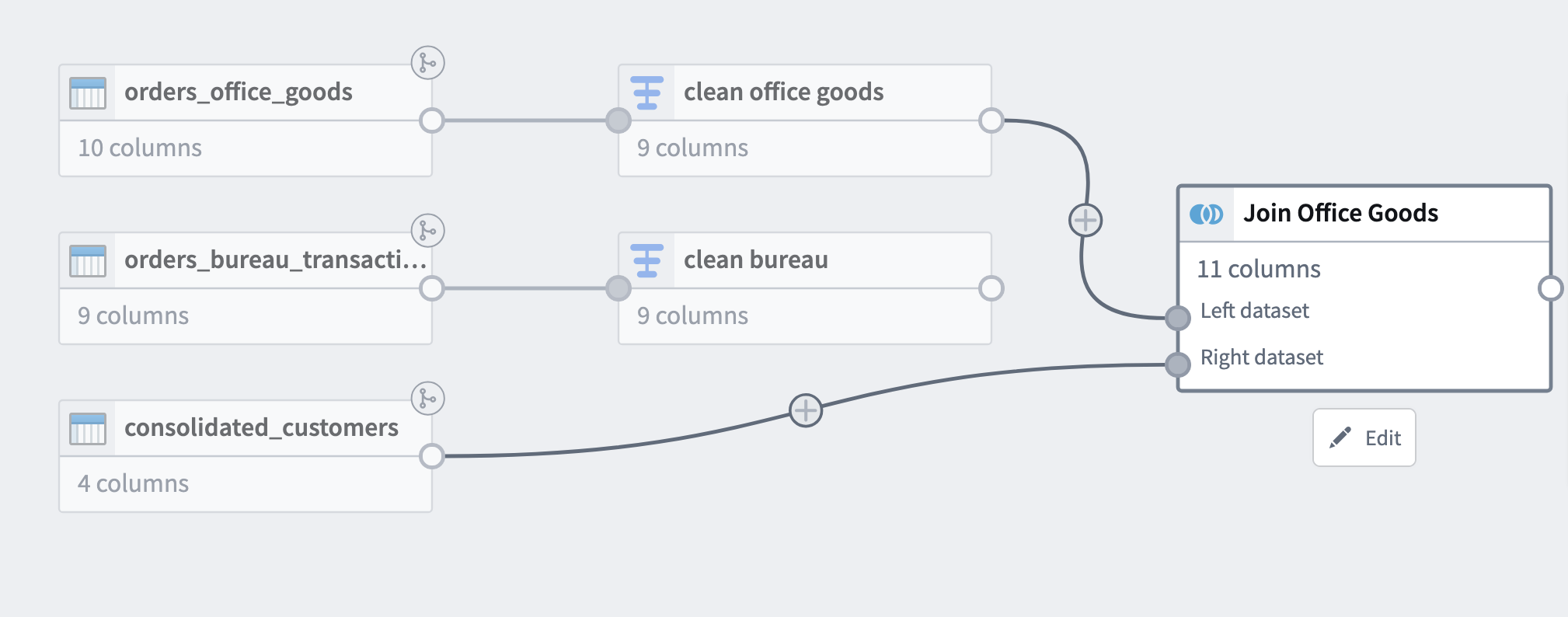
- Merge data into one based on the consolidated customer ID created after the acquisition.
Attaching Consolidated Customer ID
- Clean Office Goods
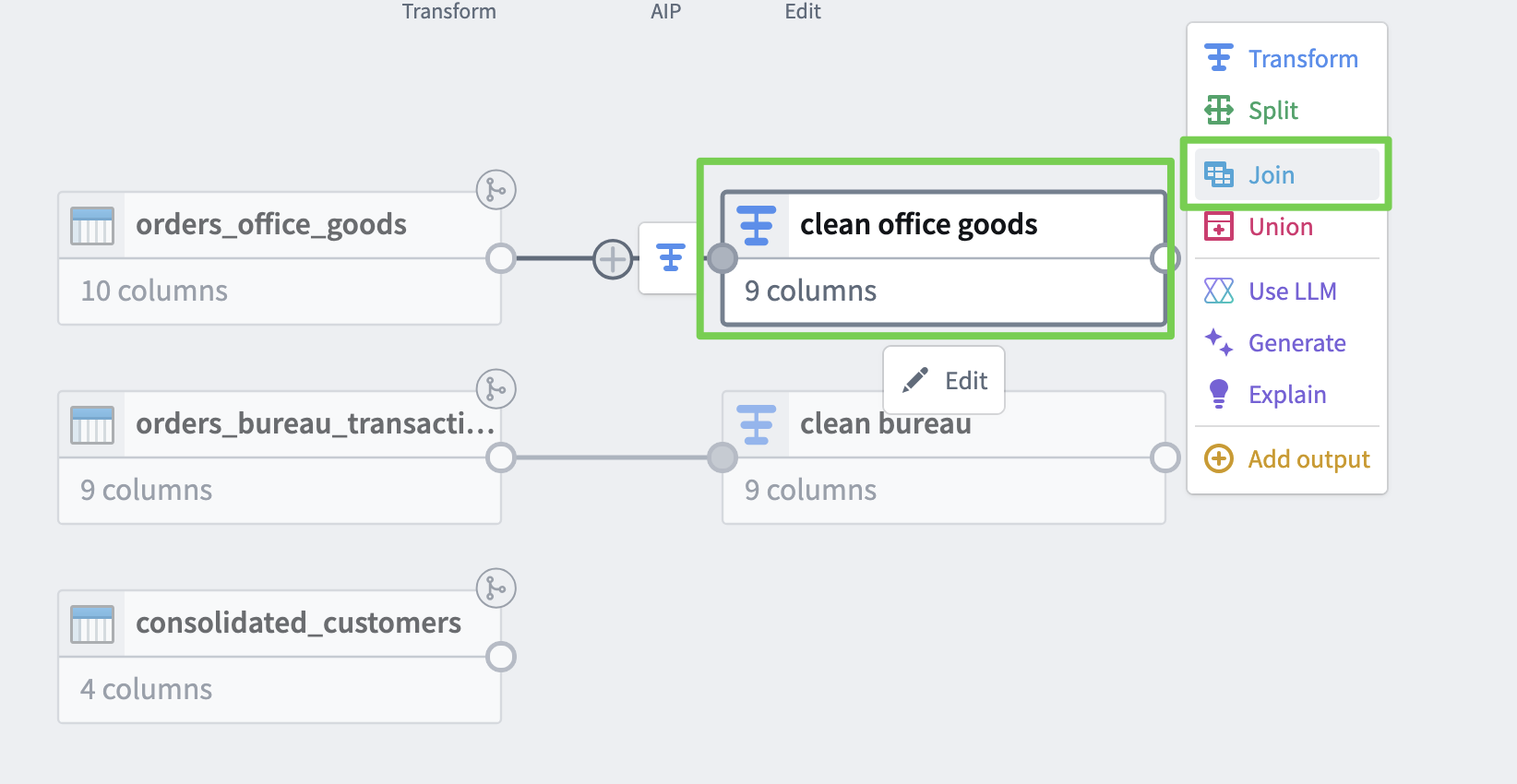
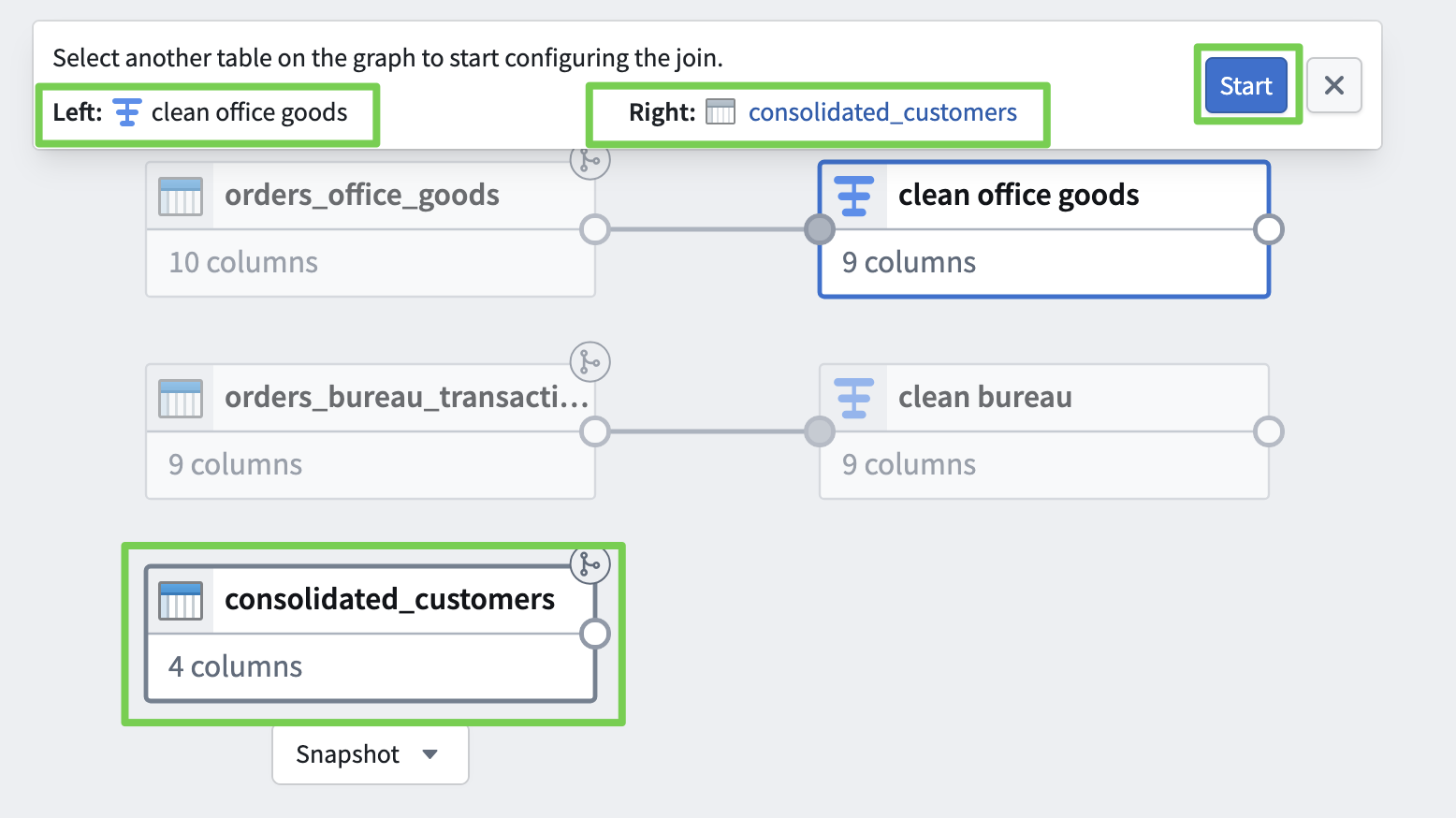
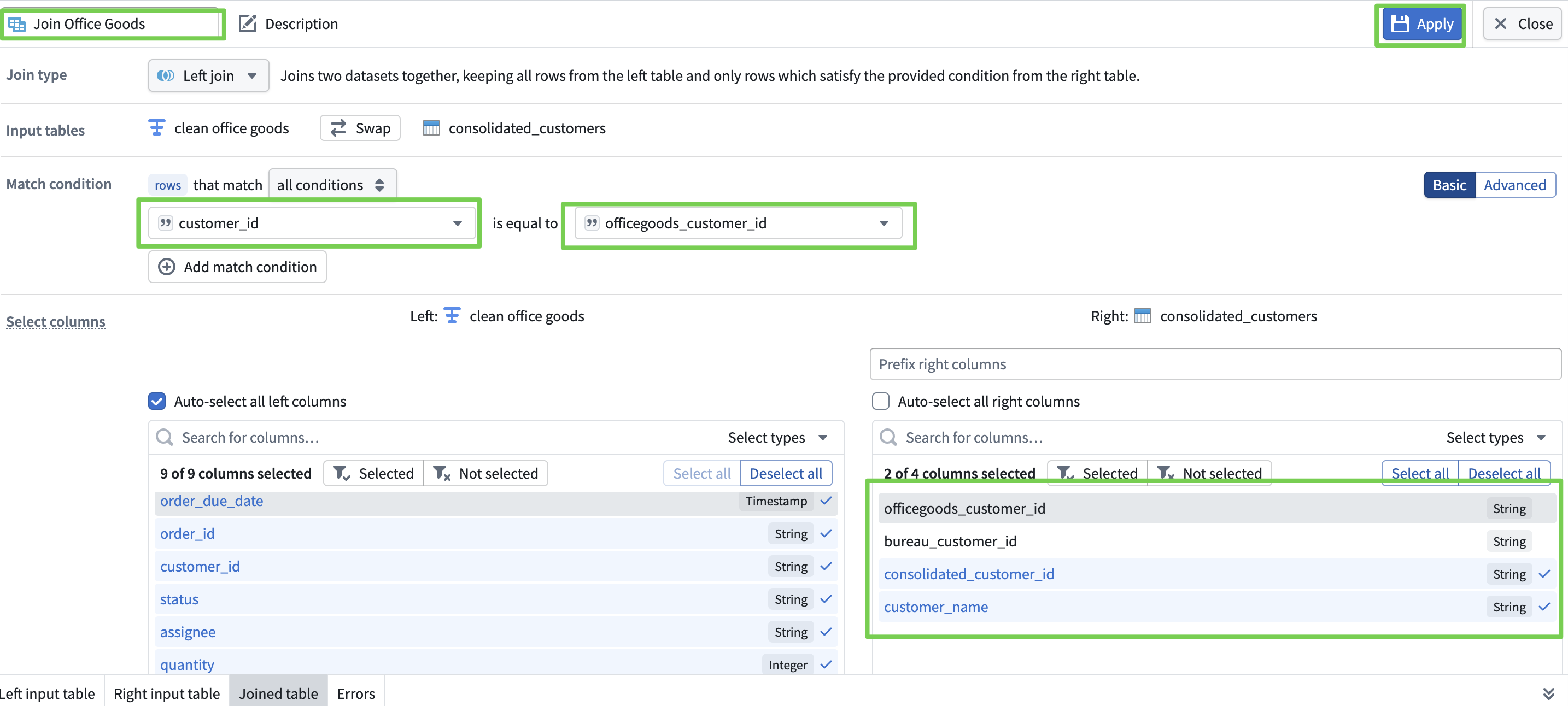
- Verify
- Clean Bureau
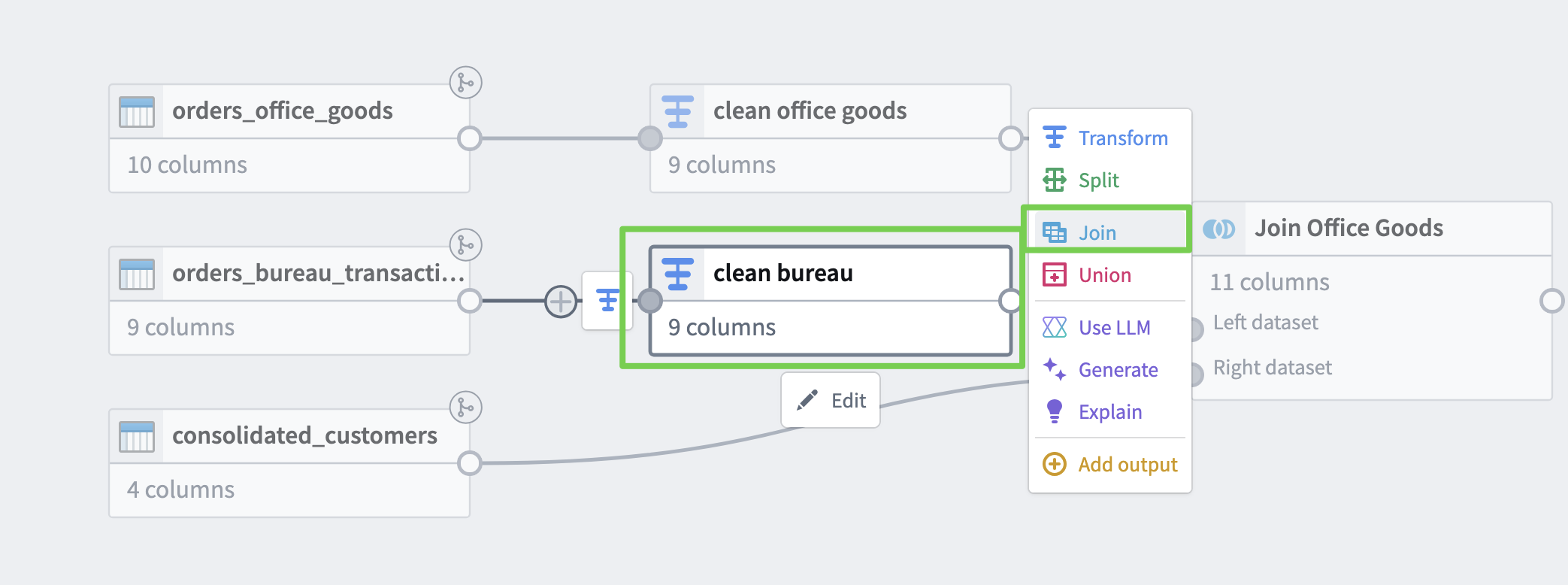
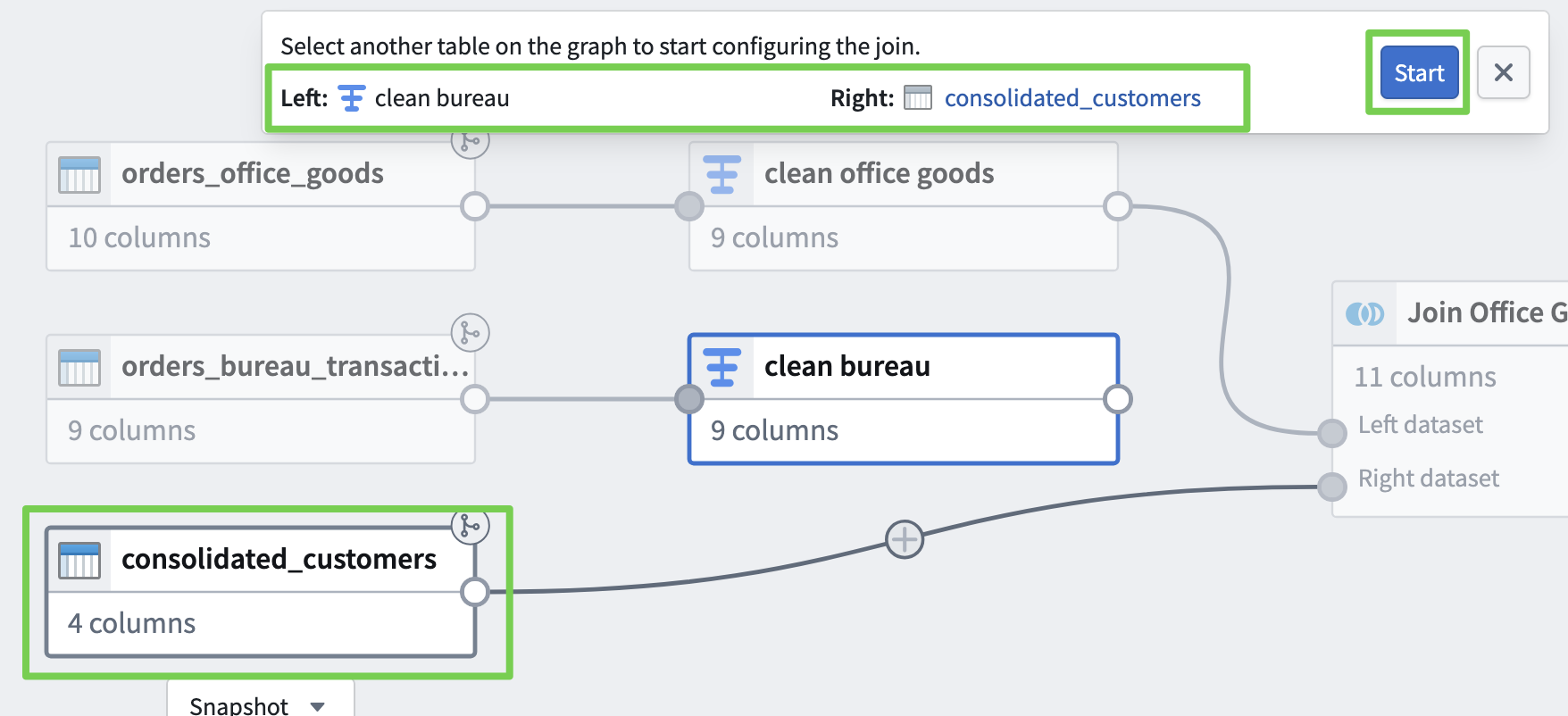
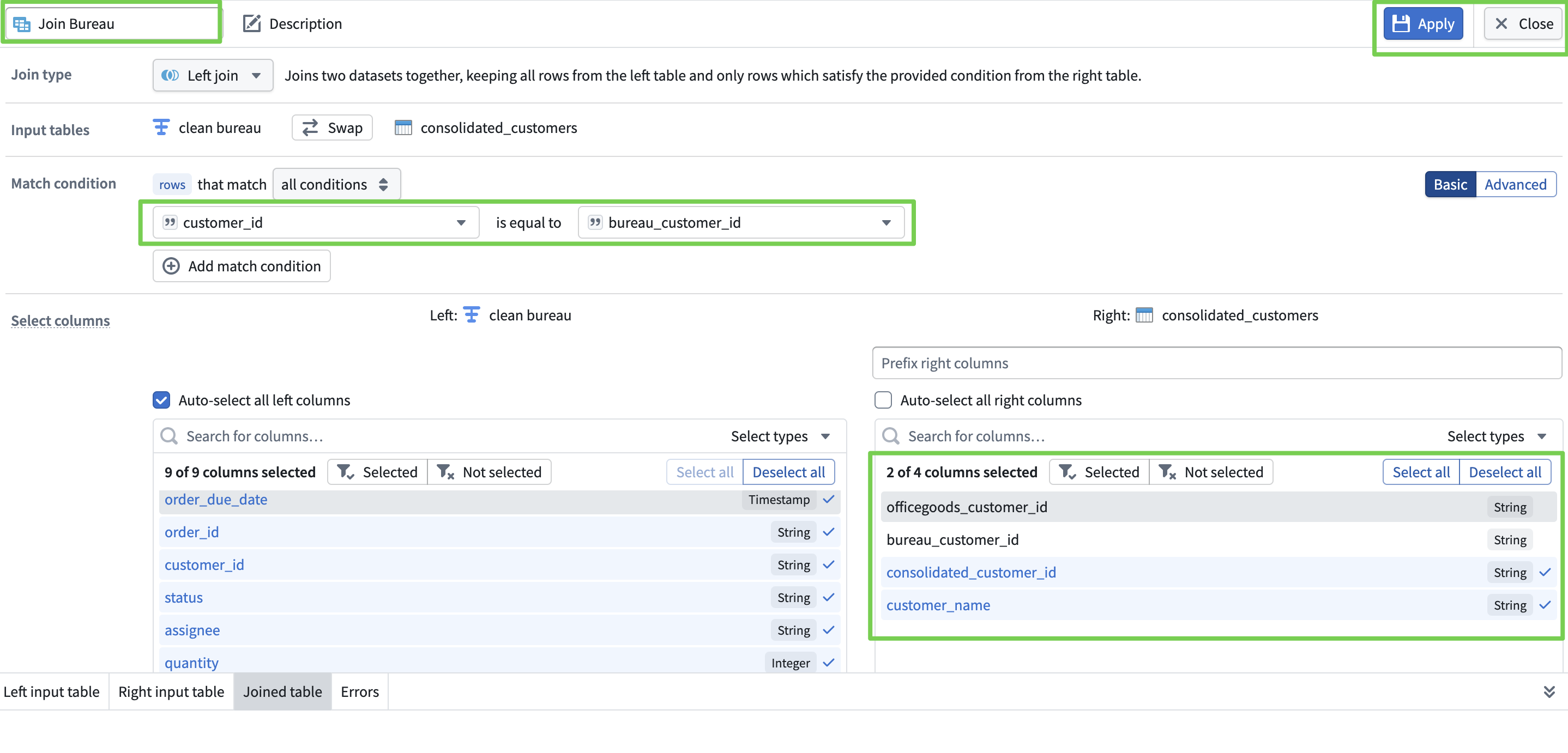
- Verify
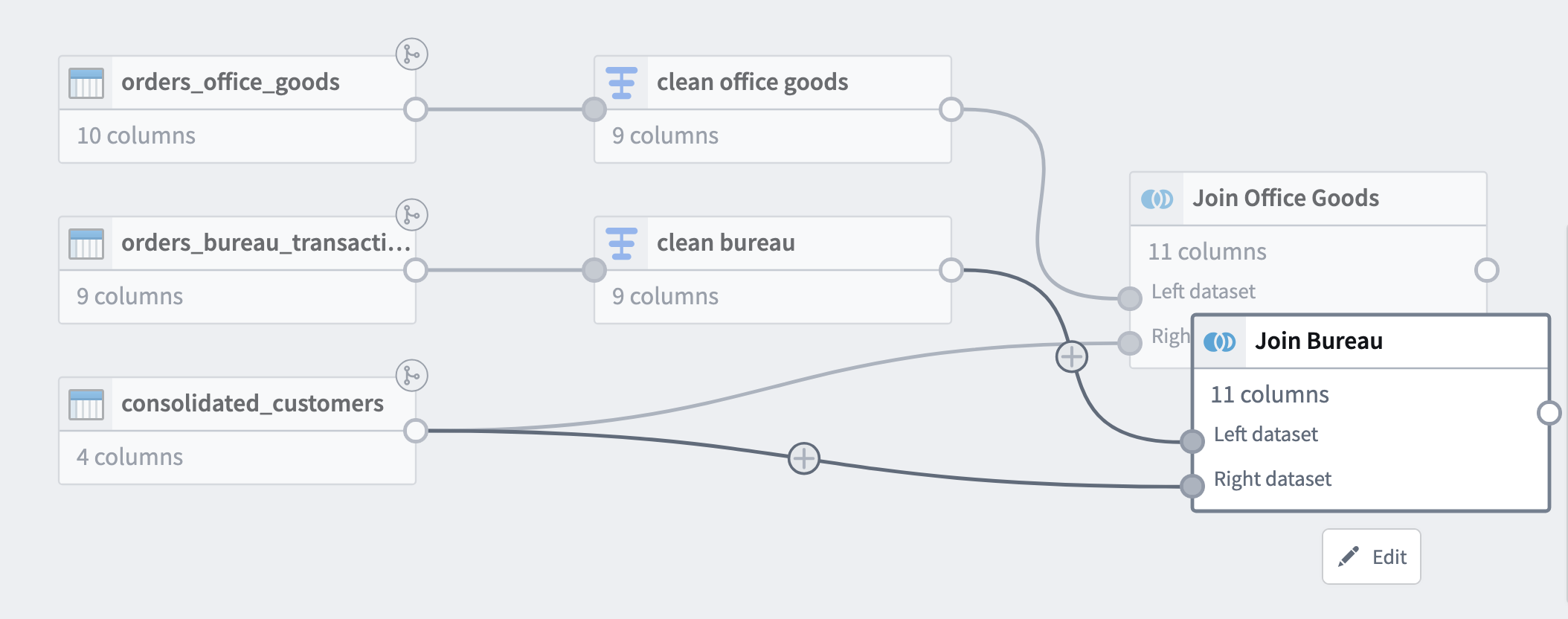
Creating a Single Orders Table
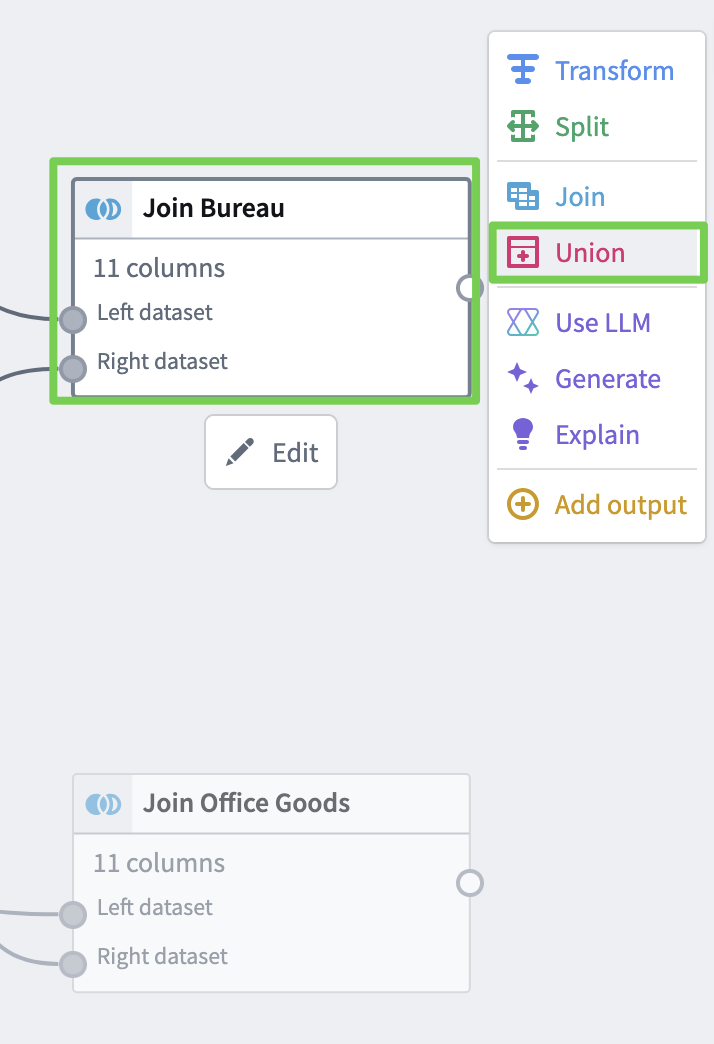
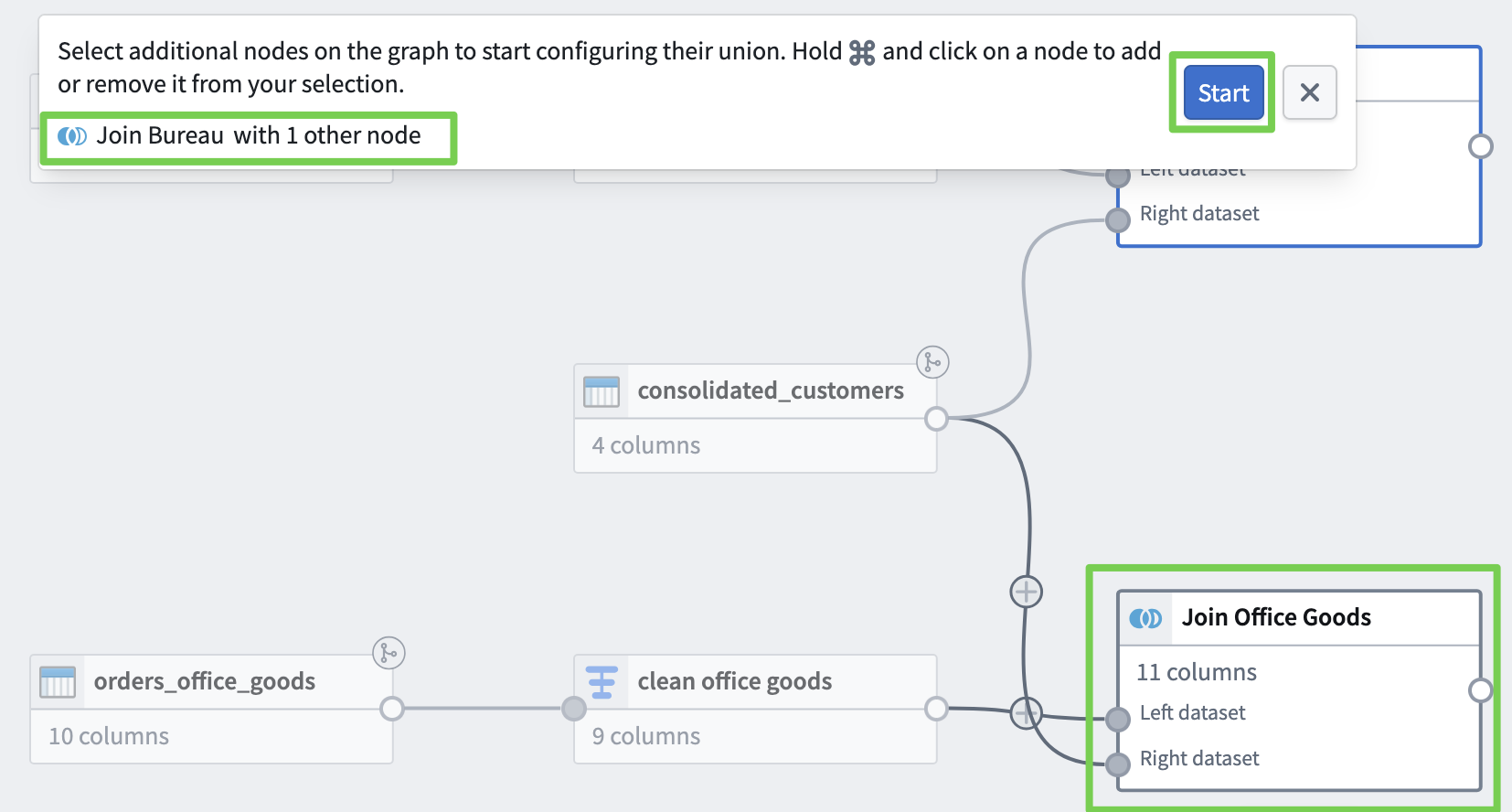
- Enter the Union operation name: Union Orders
- Since we unified the schemas of both datasets earlier, we can now merge the data.
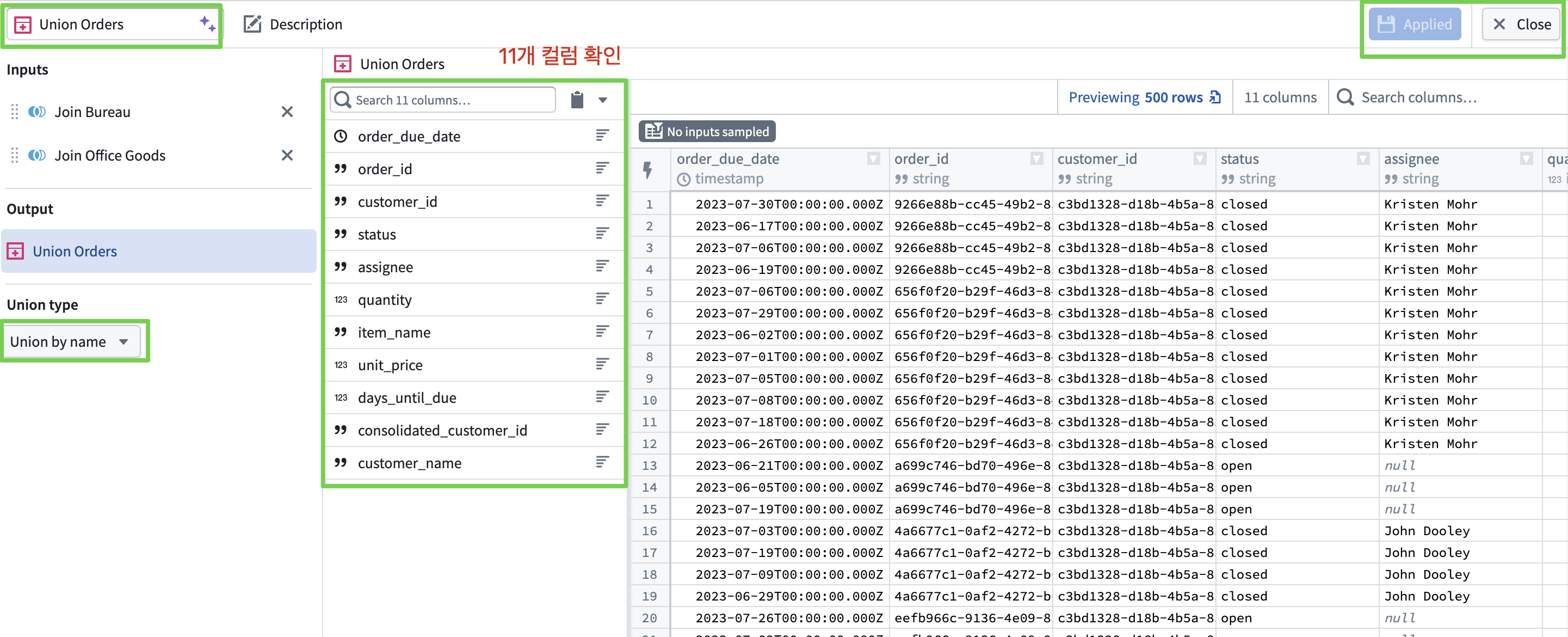
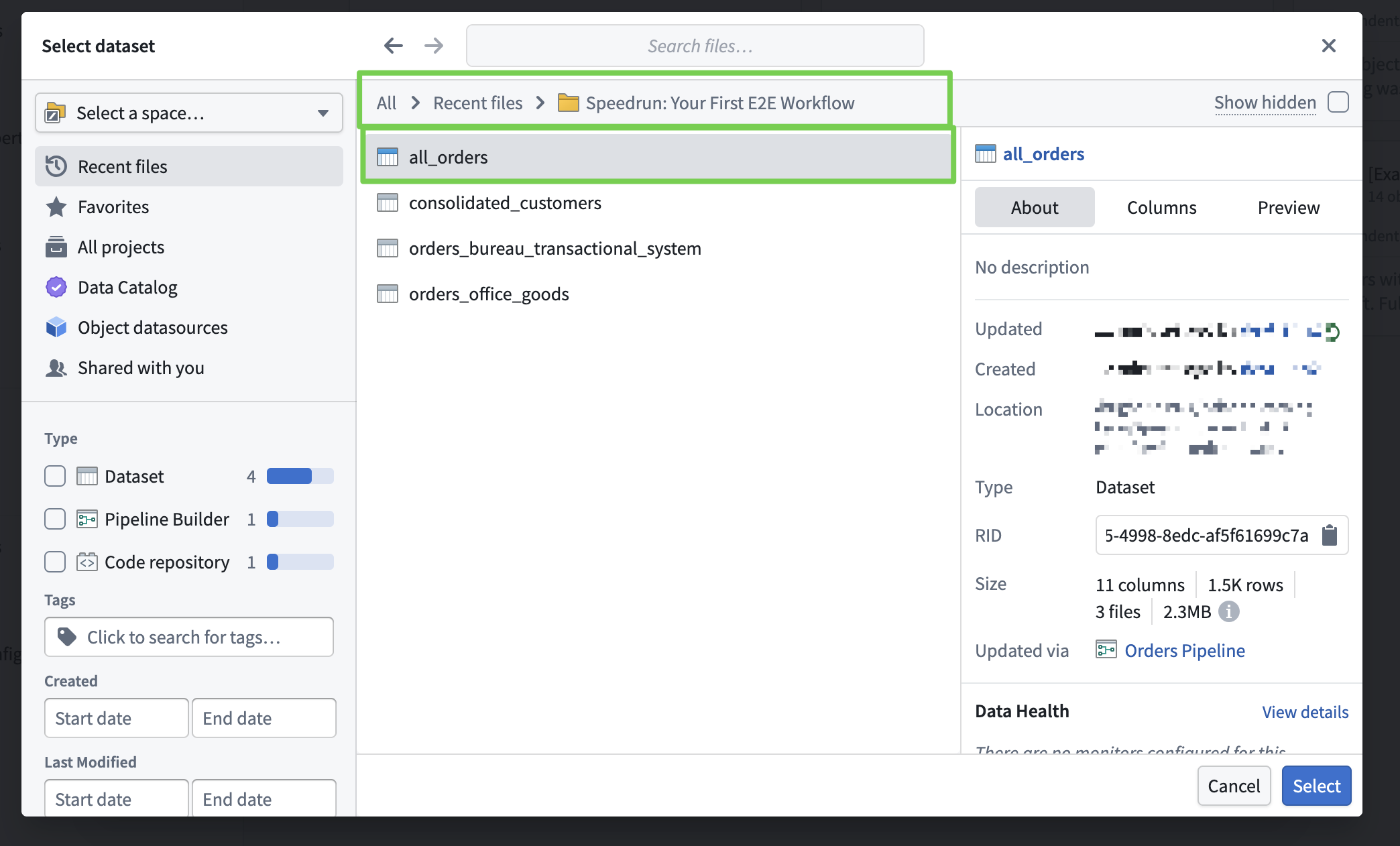
- Create it as a dataset so it can be used by other Palantir applications.
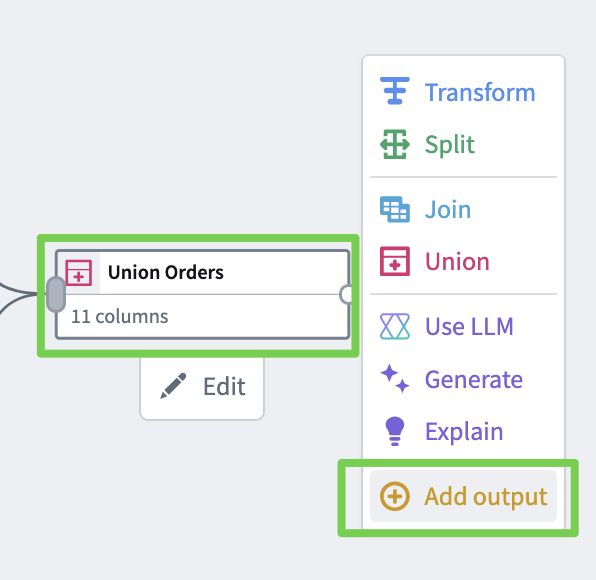
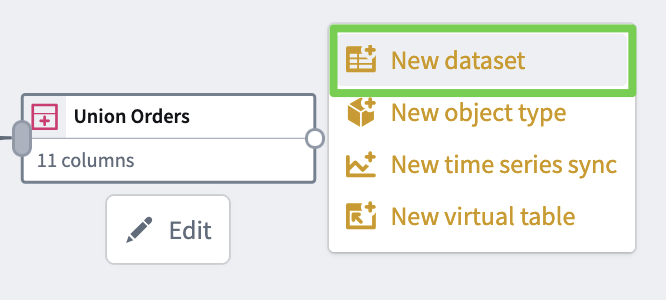
- Dataset name: all_orders
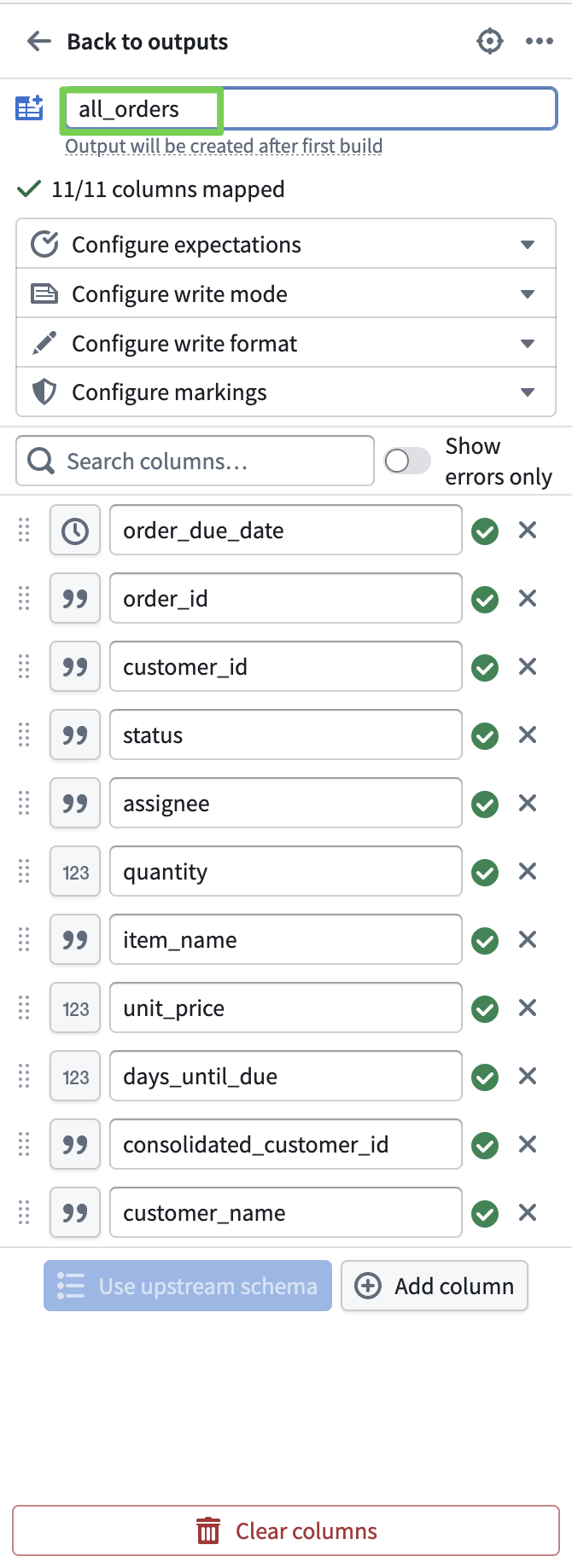
- Save and deploy the pipeline.
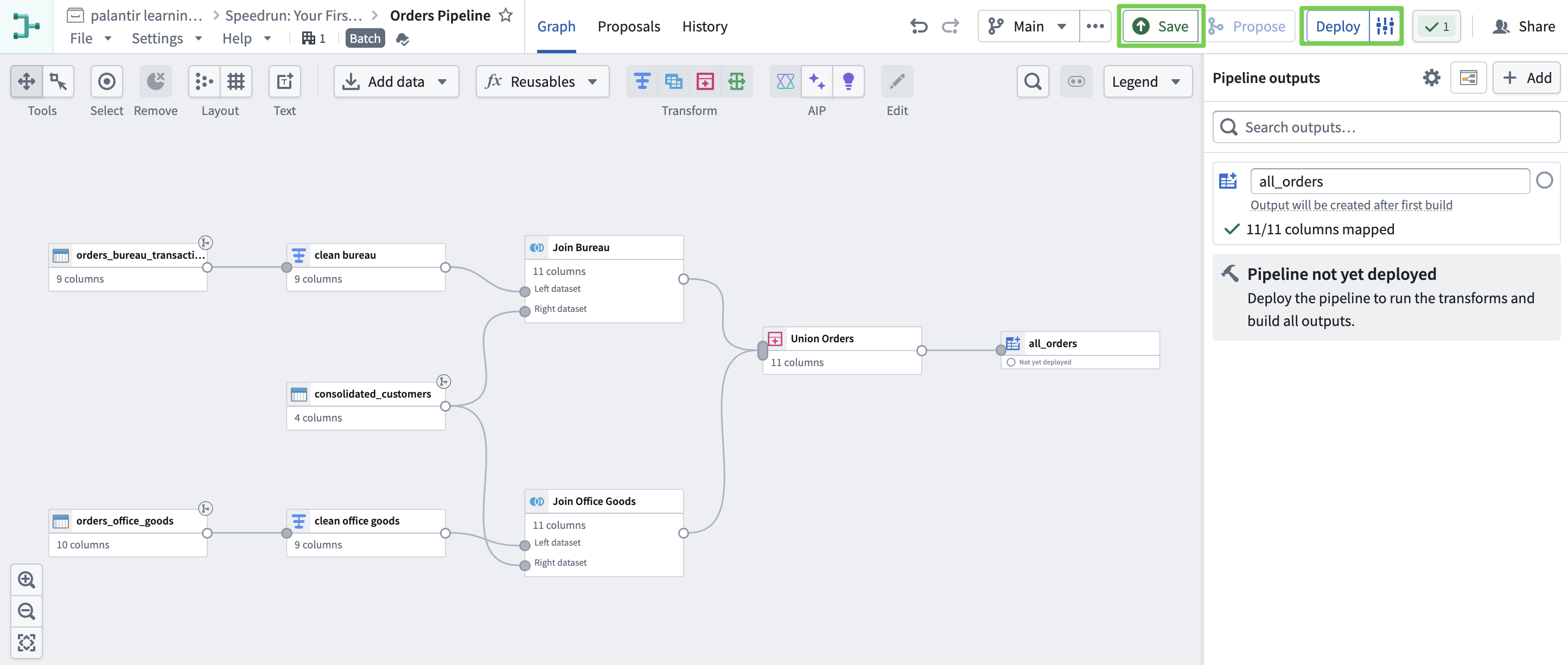
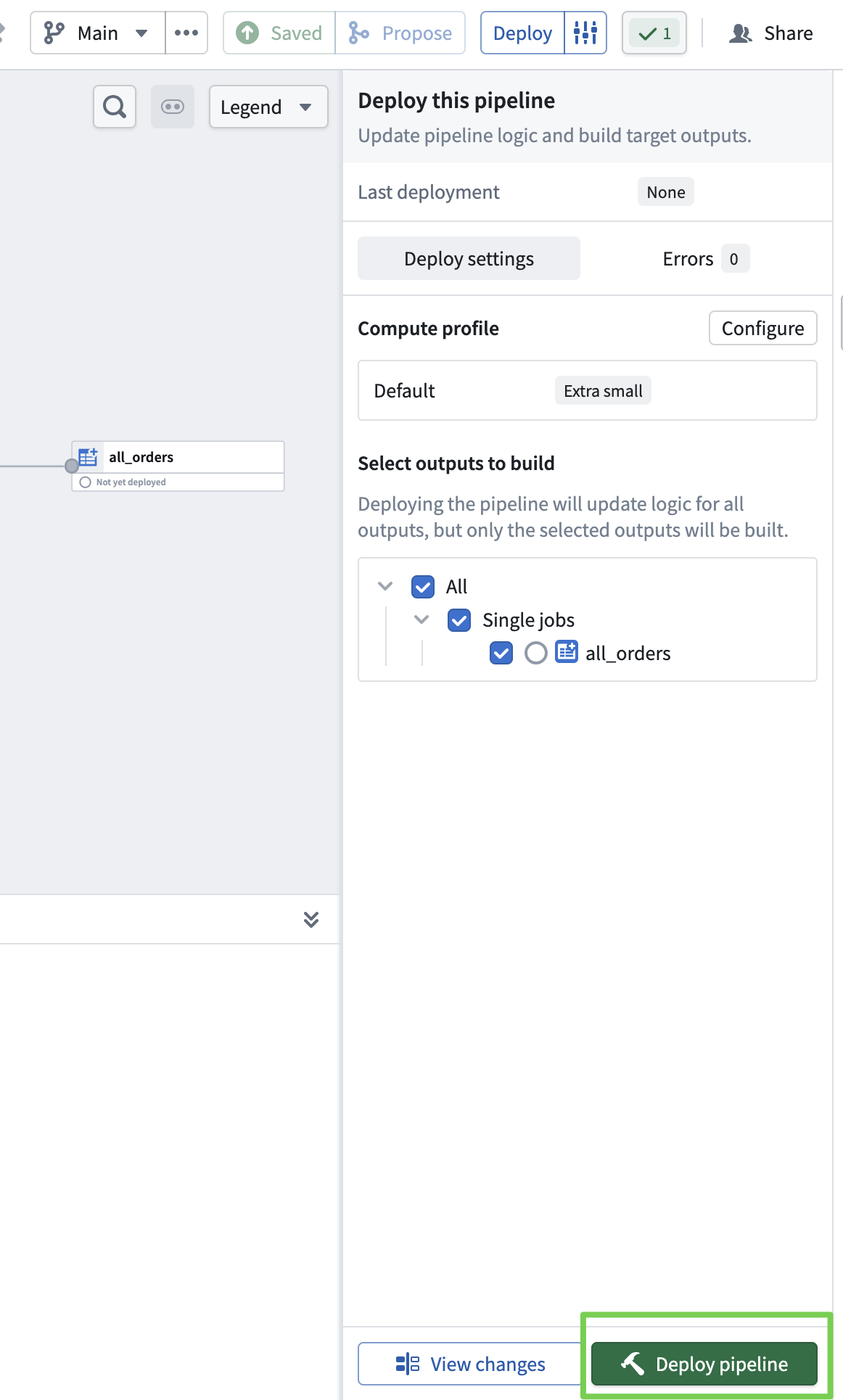
Up to this point, we’ve built a pipeline
to clean and integrate the data.
By deploying the pipeline, the actual data pipeline runs
and produces the result dataset.
Now let’s put this cleanly organized data into the Ontology and start using it.
2. Ontology Construction
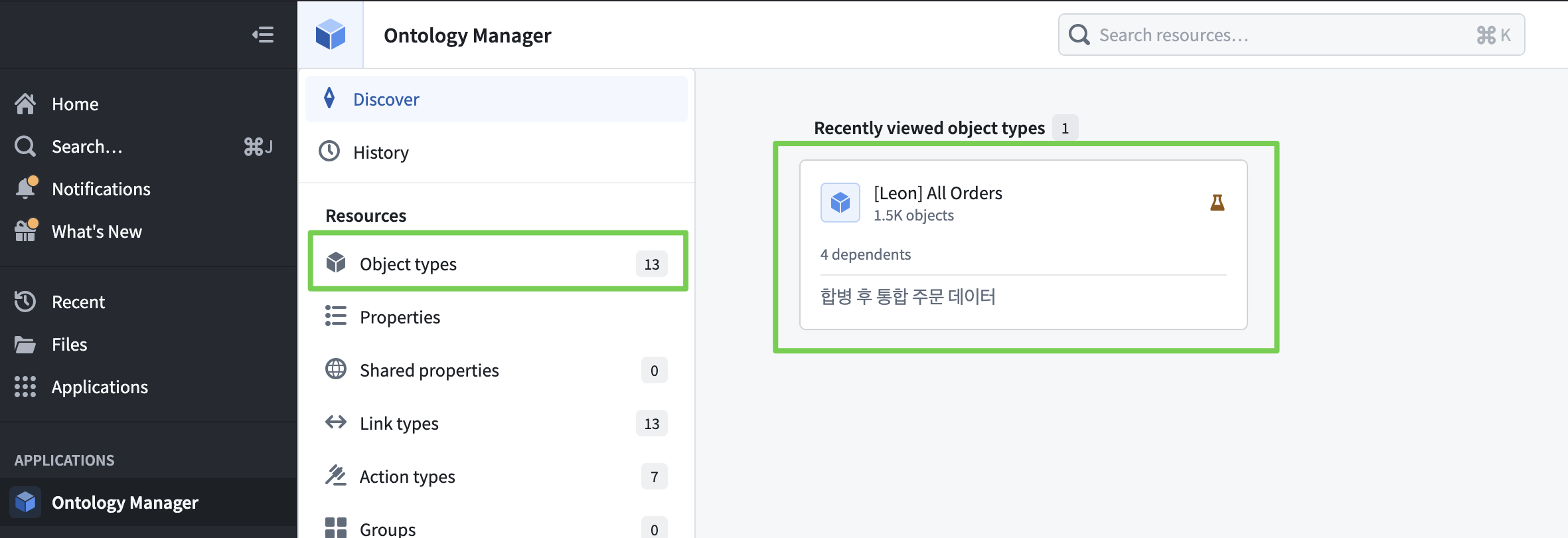
Using Ontology Manager to build the ontology.
Simple dataset → Transform into a form that can represent relationships.
Ontology Manager
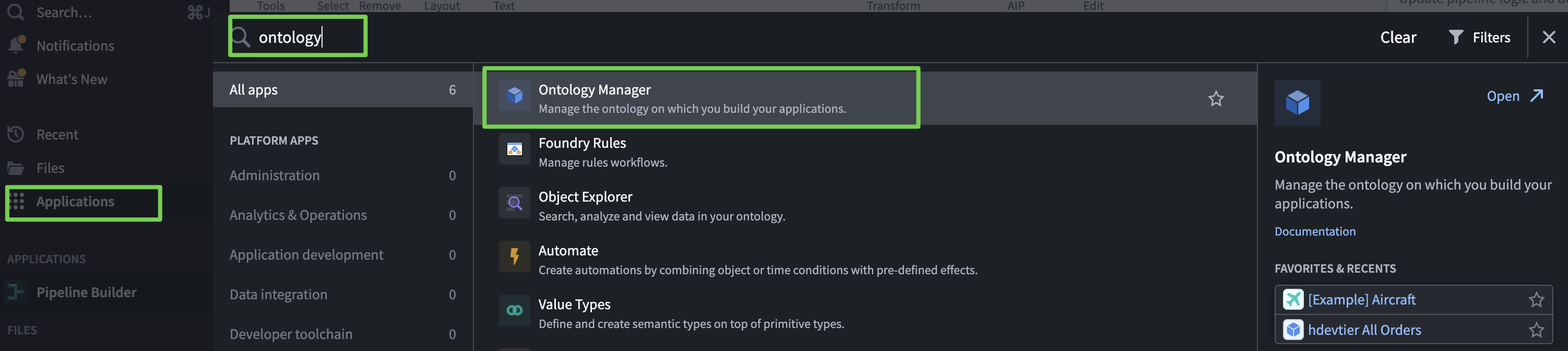

Creating an Ontology Object
Import the previously created data and create it as an ontology object.
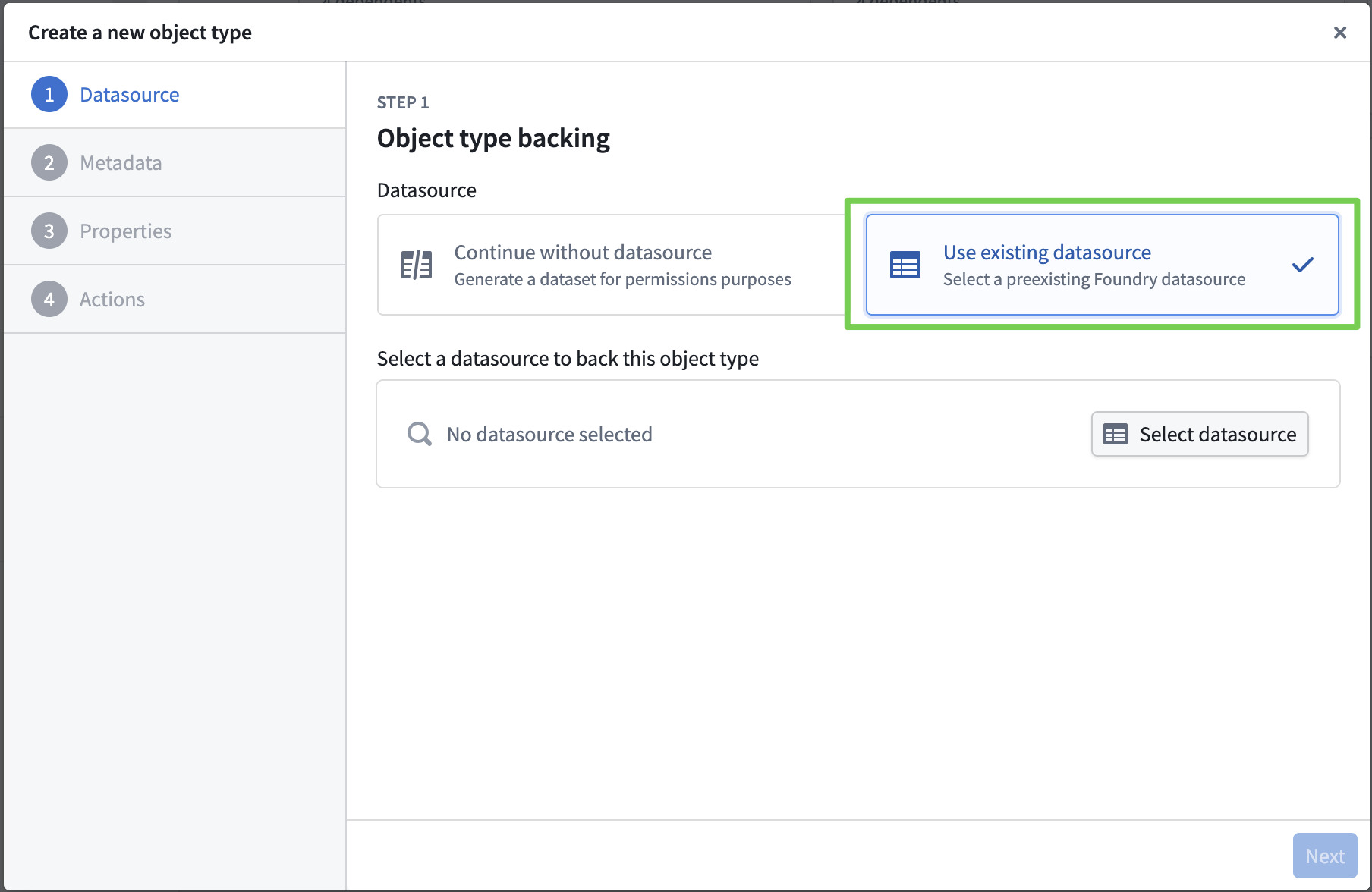
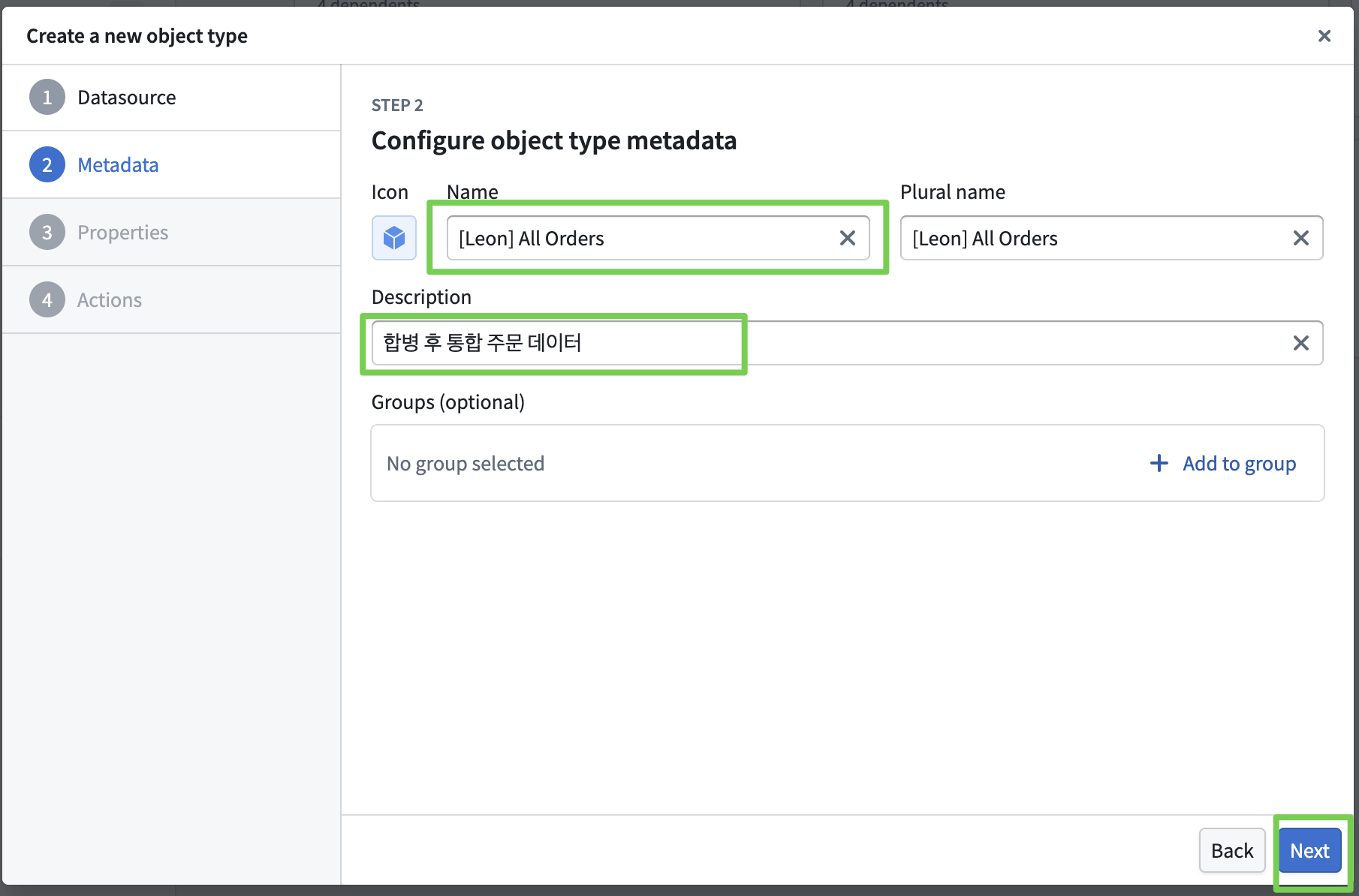
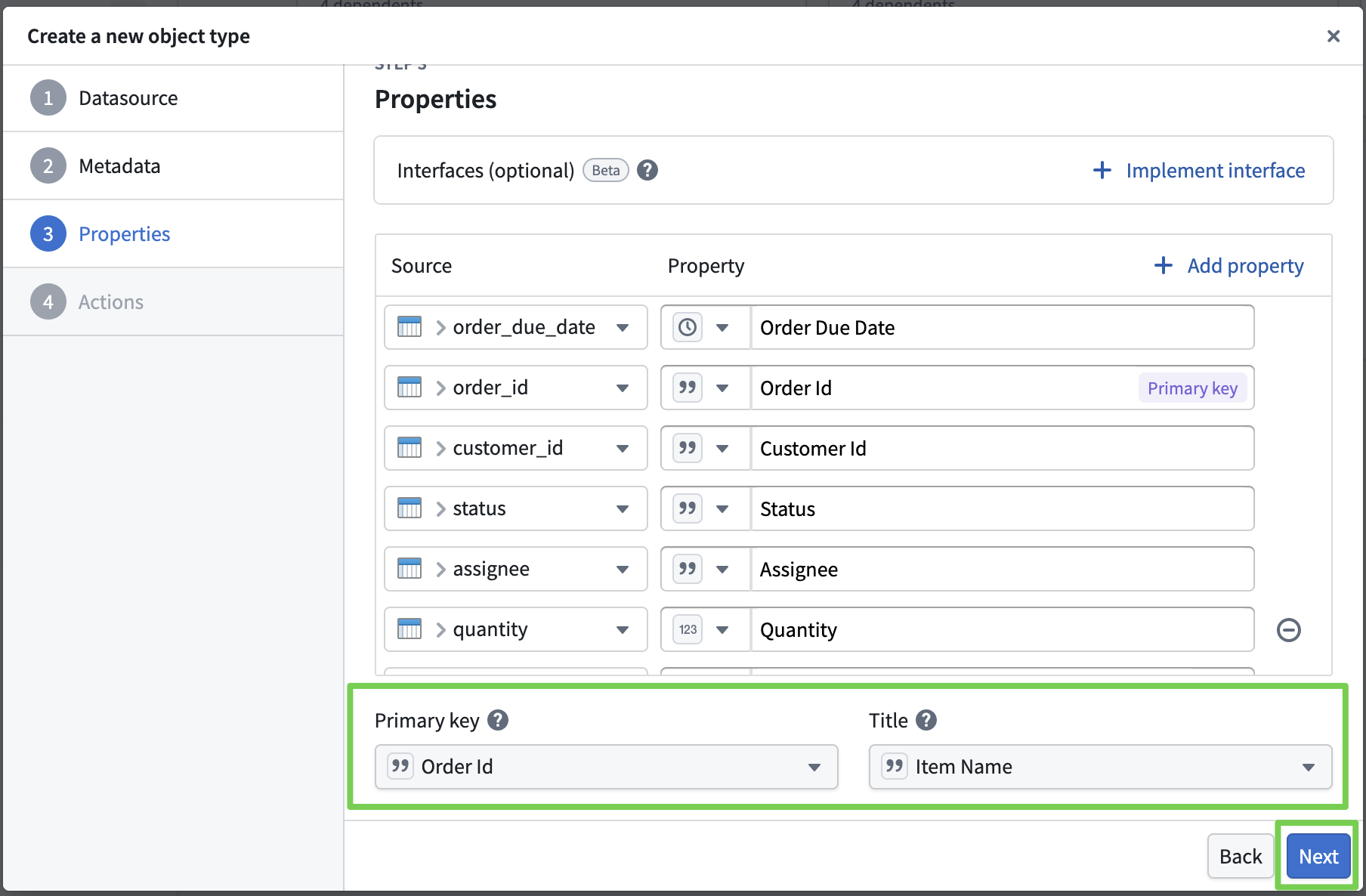
- Set the property information, primary key, and title for the ontology object.
- Here, we import all other info as-is and only set the primary key and title.
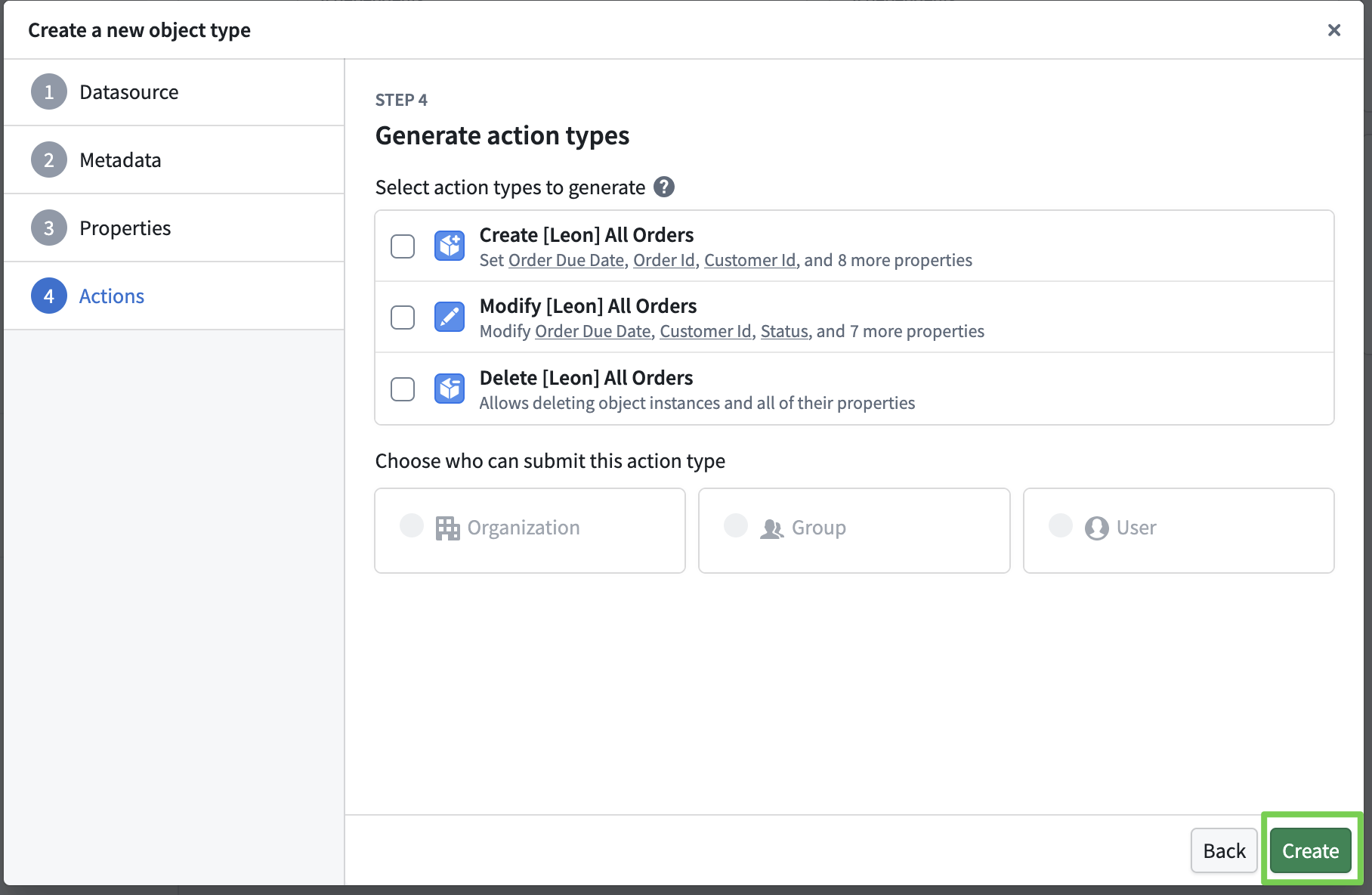
- Actions to modify the ontology will be covered later; for now, just define the object and create it.
Applying the Ontology Object
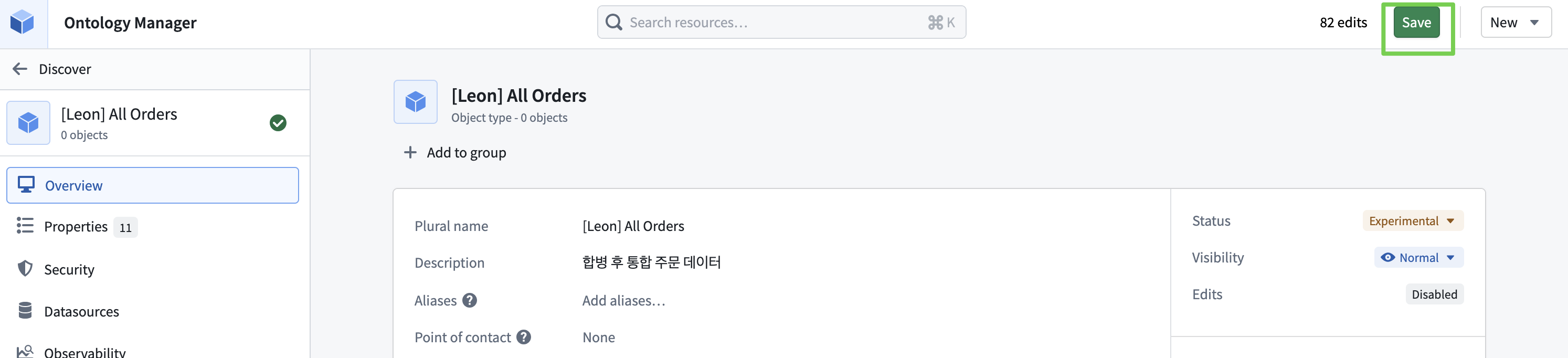
- You must click Save for changes to be reflected in the ontology.
- Clicking Save triggers an indexing process from the dataset into Palantir’s internal object storage.
- Once indexing is complete, you can confirm 1,492 objects.
3. Application Layer for Monitoring and Operations
- Develop an operational tool based on the ontology.
- Managers assign orders.
- Monitor unprocessed and at-risk deliveries in real time.
Workshop
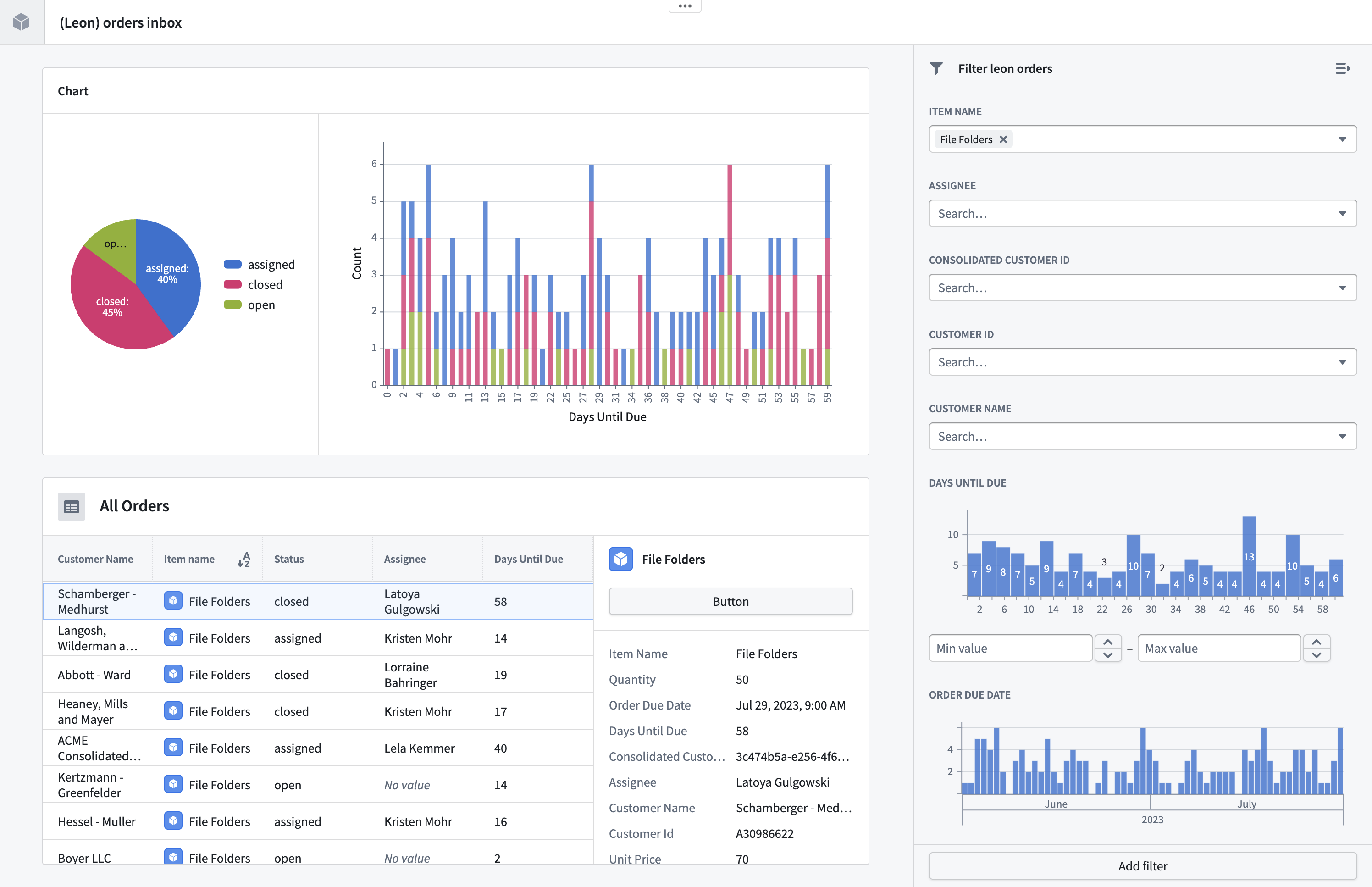
Build the UI, import ontology objects to display data, and integrate with Ontology Actions to enable creating, modifying, and deleting ontology objects from the screen.
Creating a Workshop Module
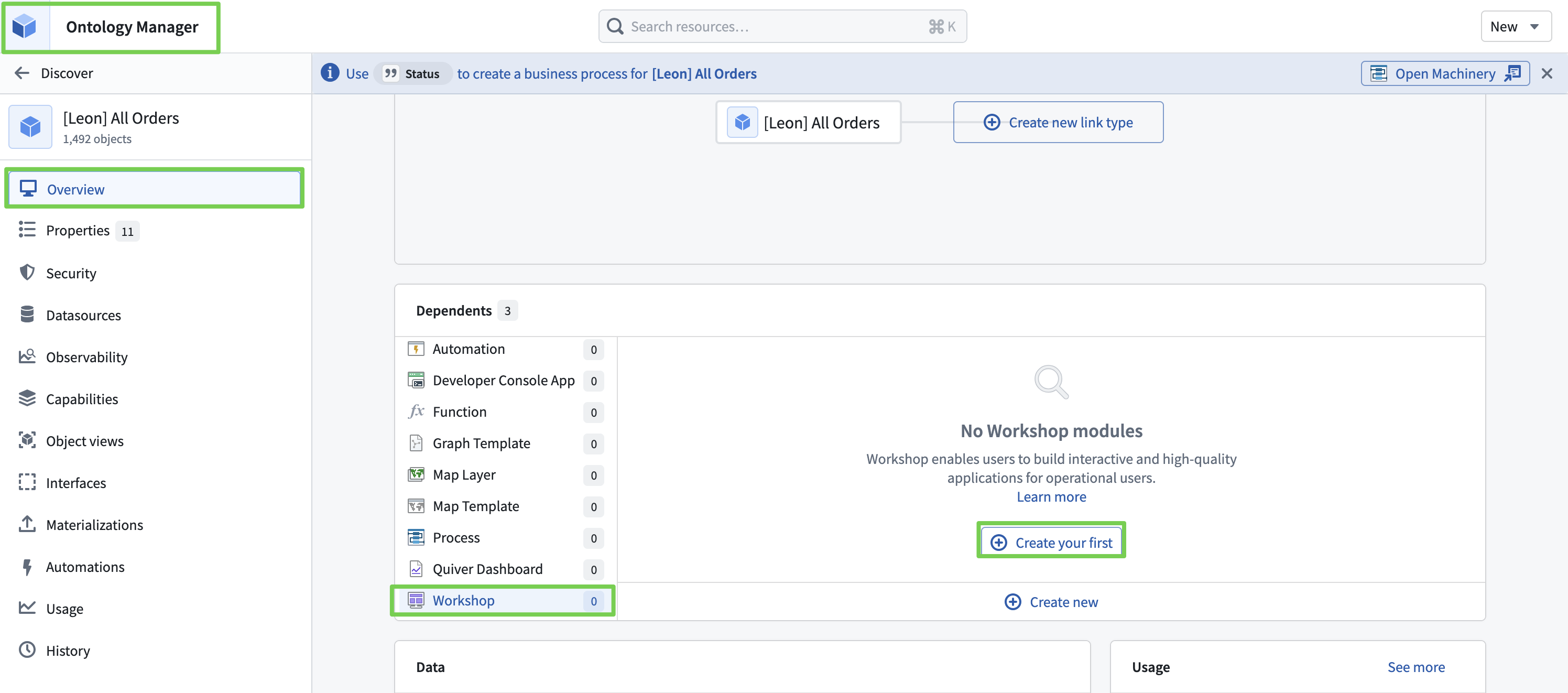
- Workshop Name:
[YourName] Orders Inbox - Location: My project folder (Speedrun: Your First E2E Workflow)
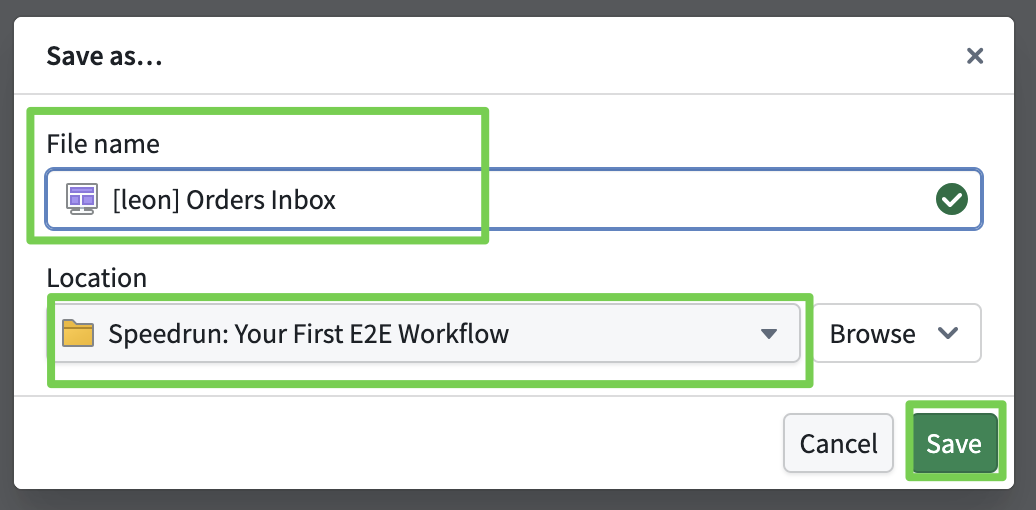
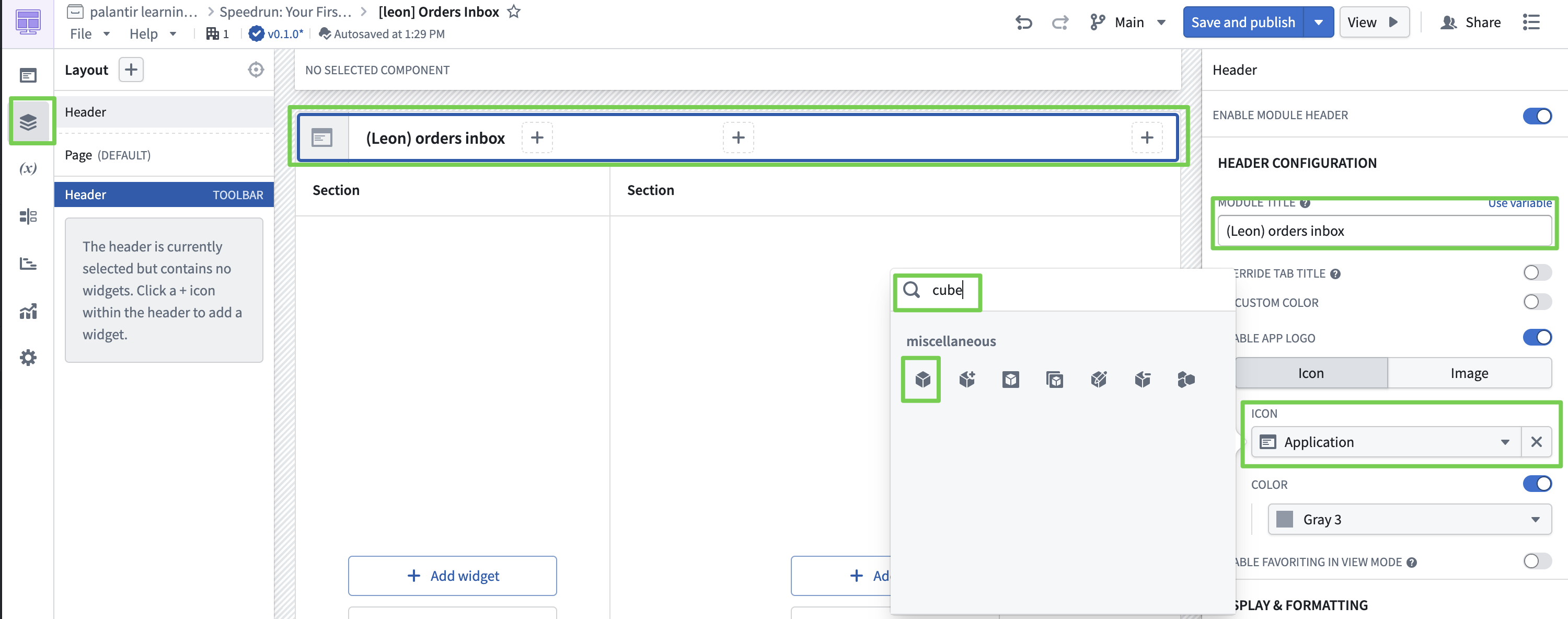
The detailed Workshop UI layout is covered in the training materials and is omitted here.
The key takeaway is that you can import the built ontology into the screen and display it through various widgets.
Workshop UI Layout Complete
Ontology Manager
Integrating Ontology Actions with Workshop
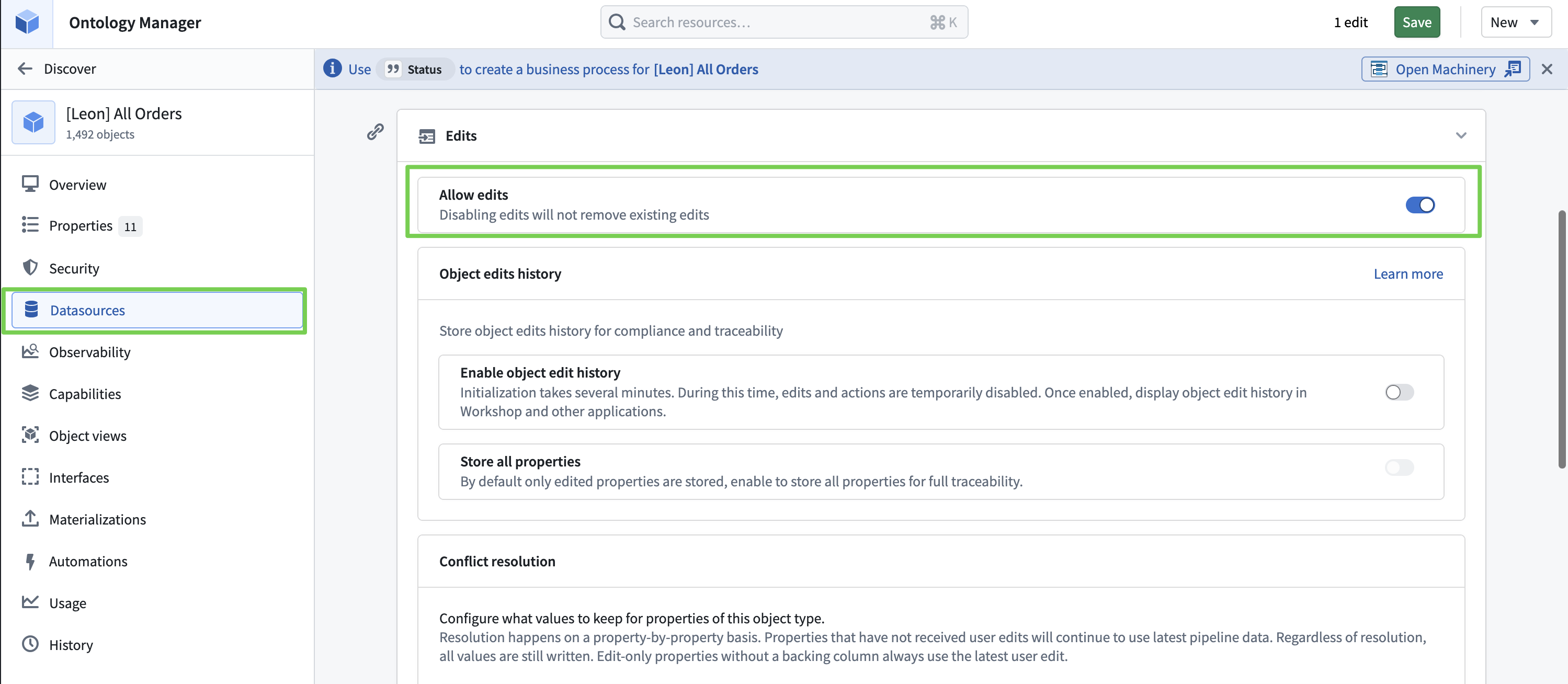
- Enable not just viewing the data built in the ontology, but also creating, modifying, and deleting it.
Enabling Ontology Object Modification
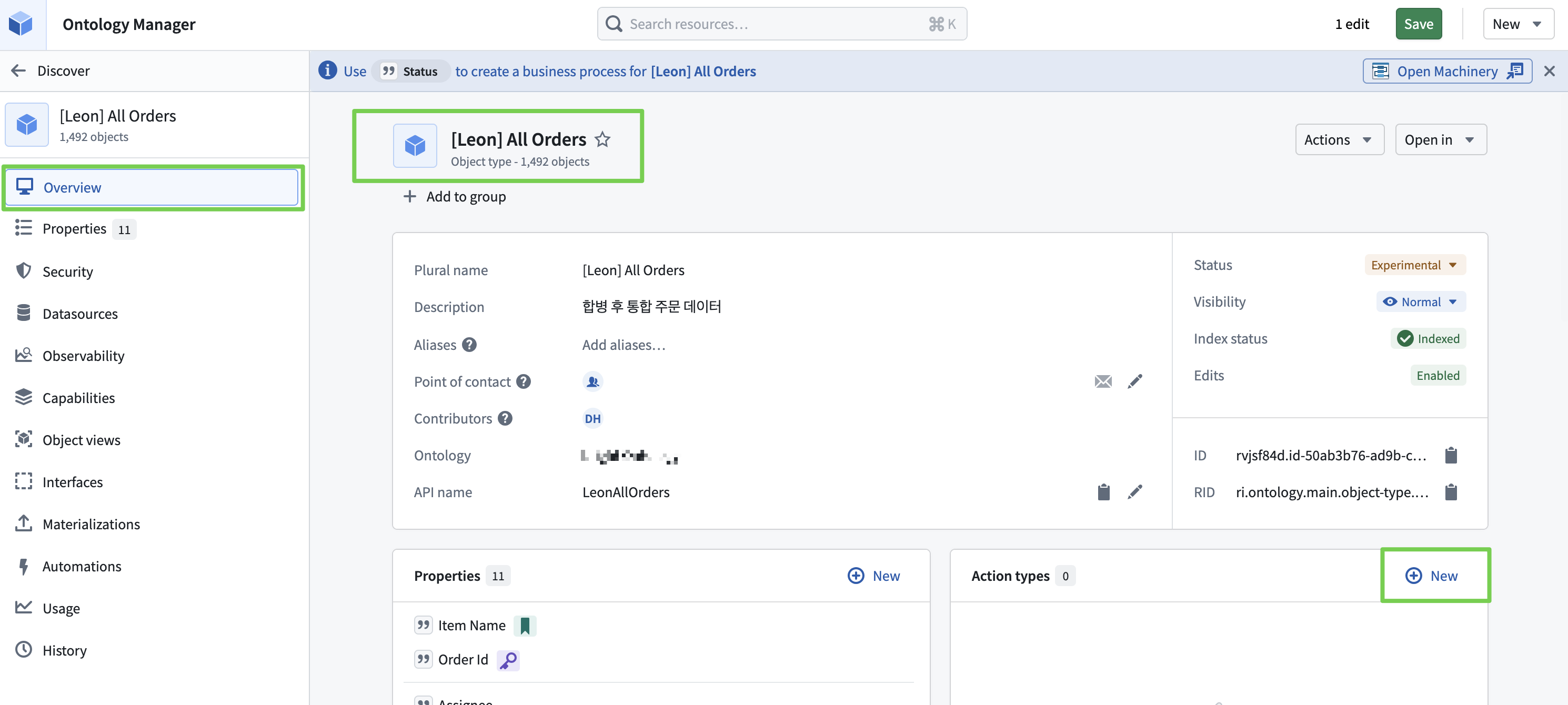
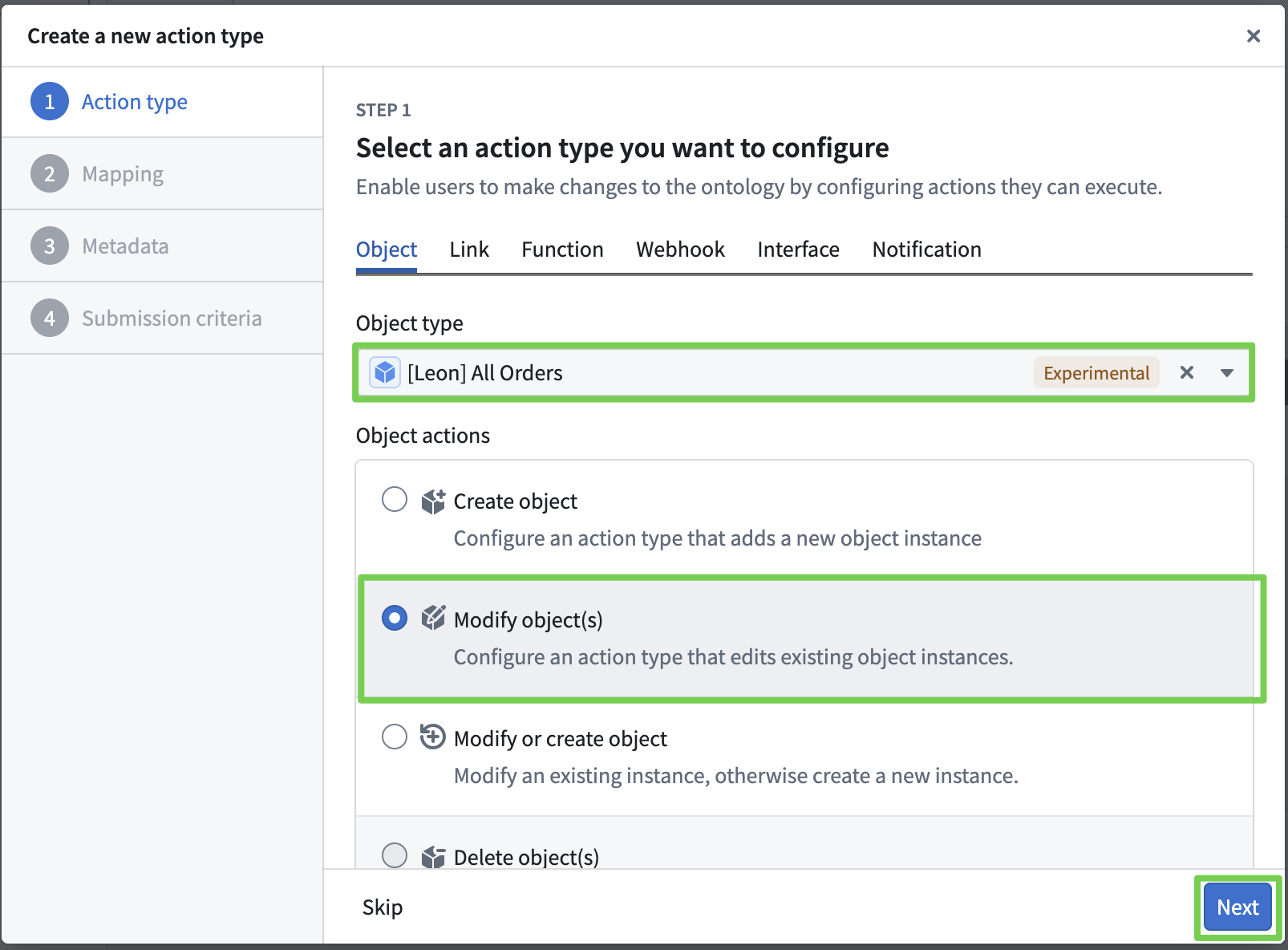
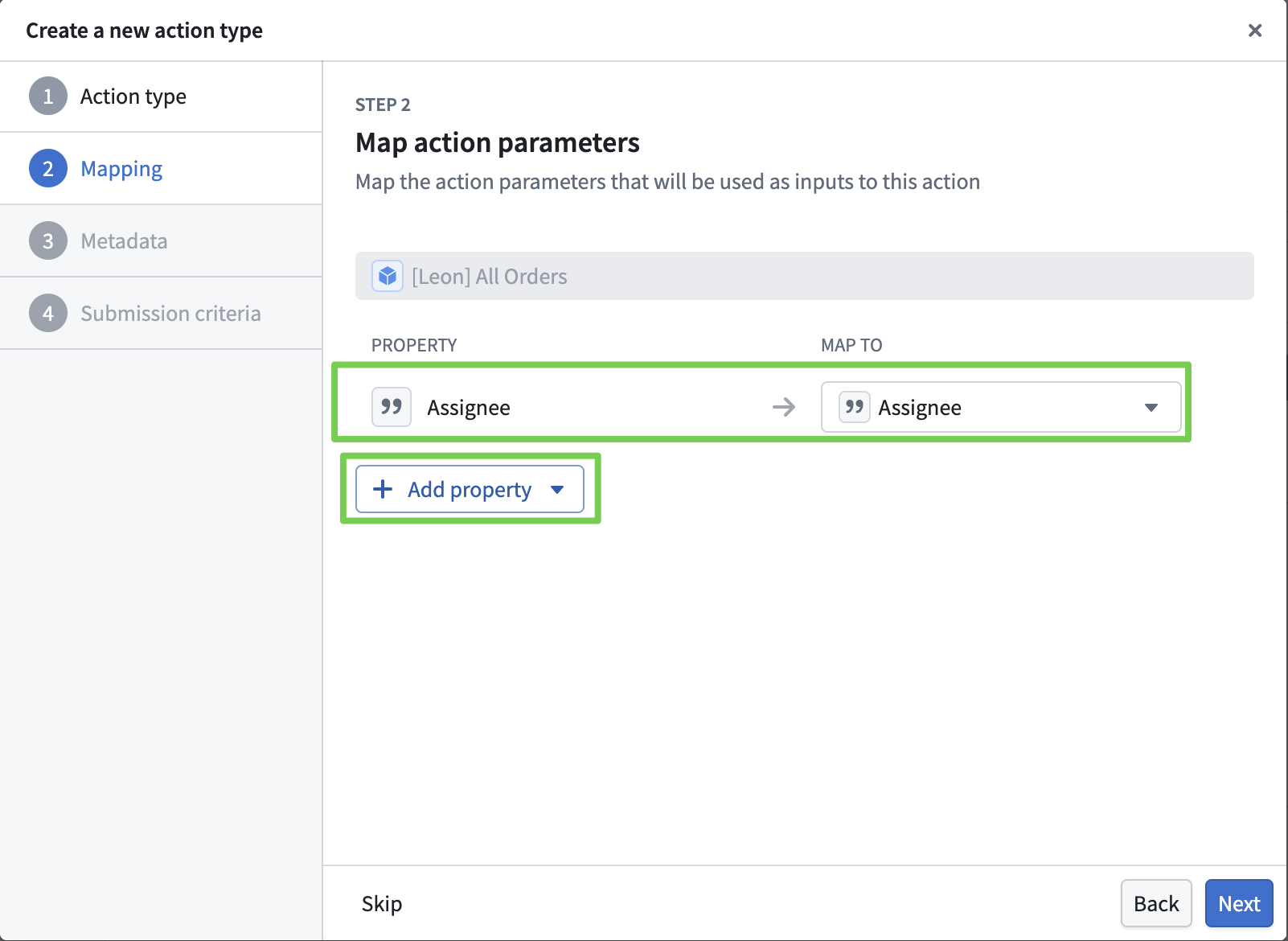
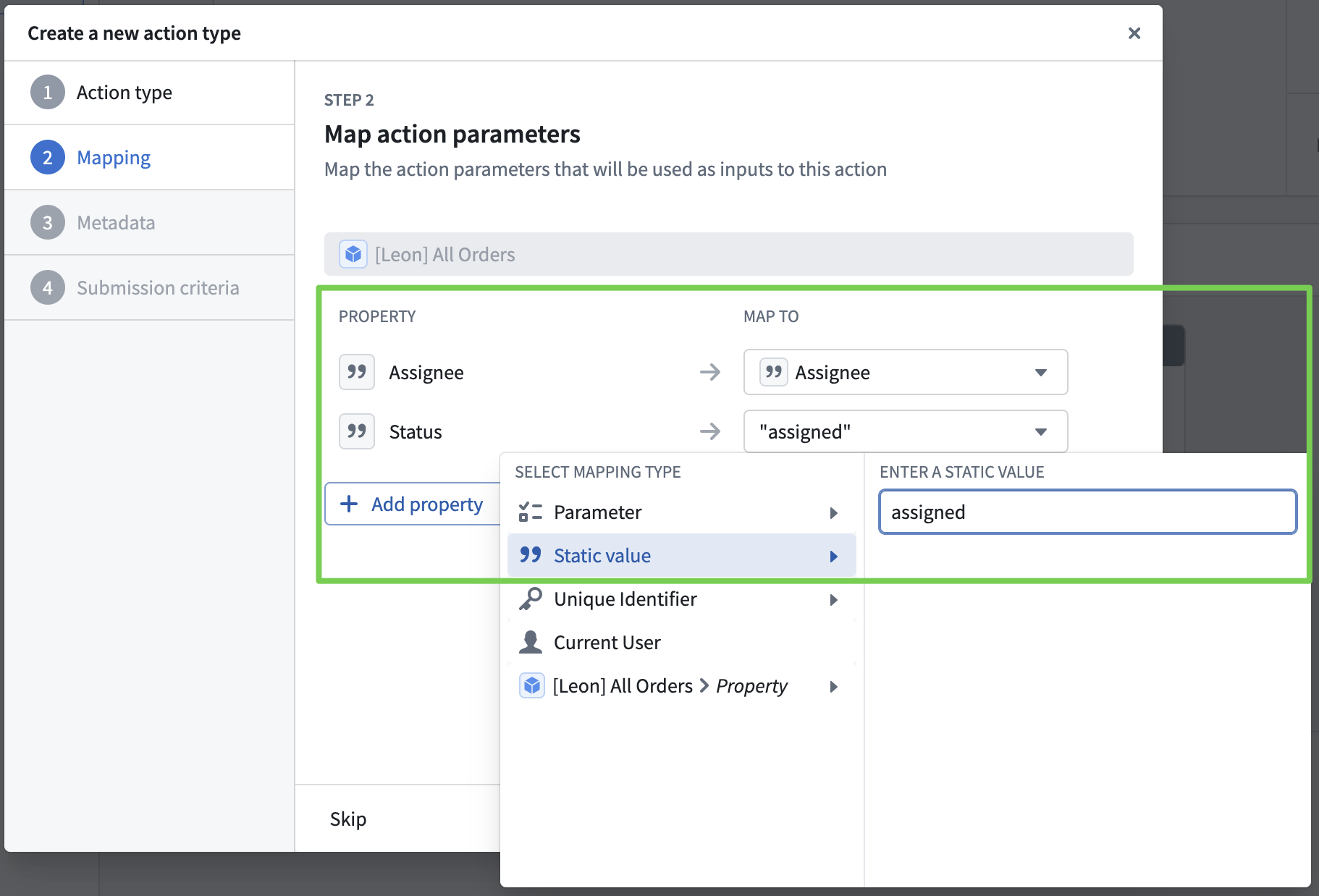
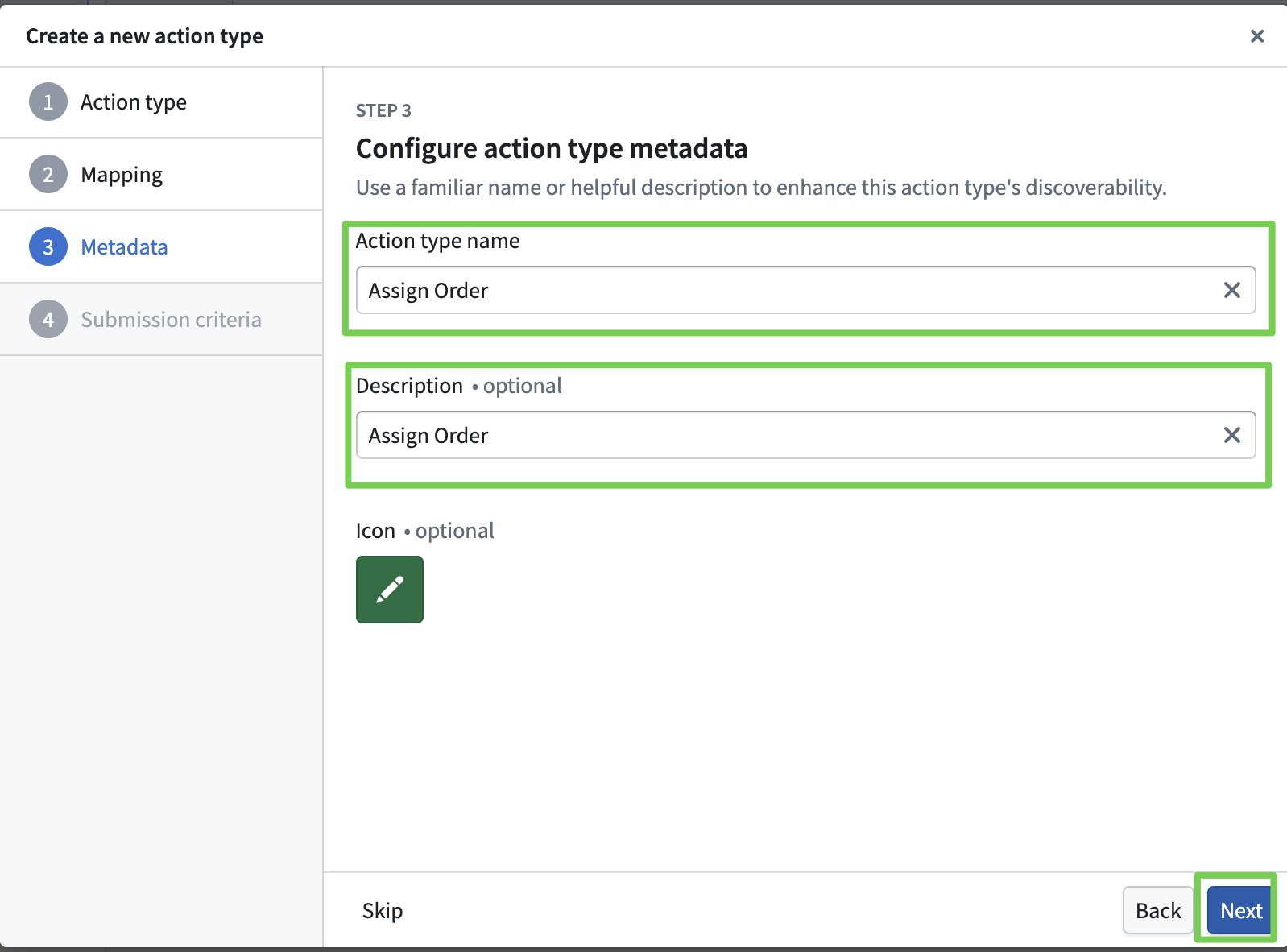
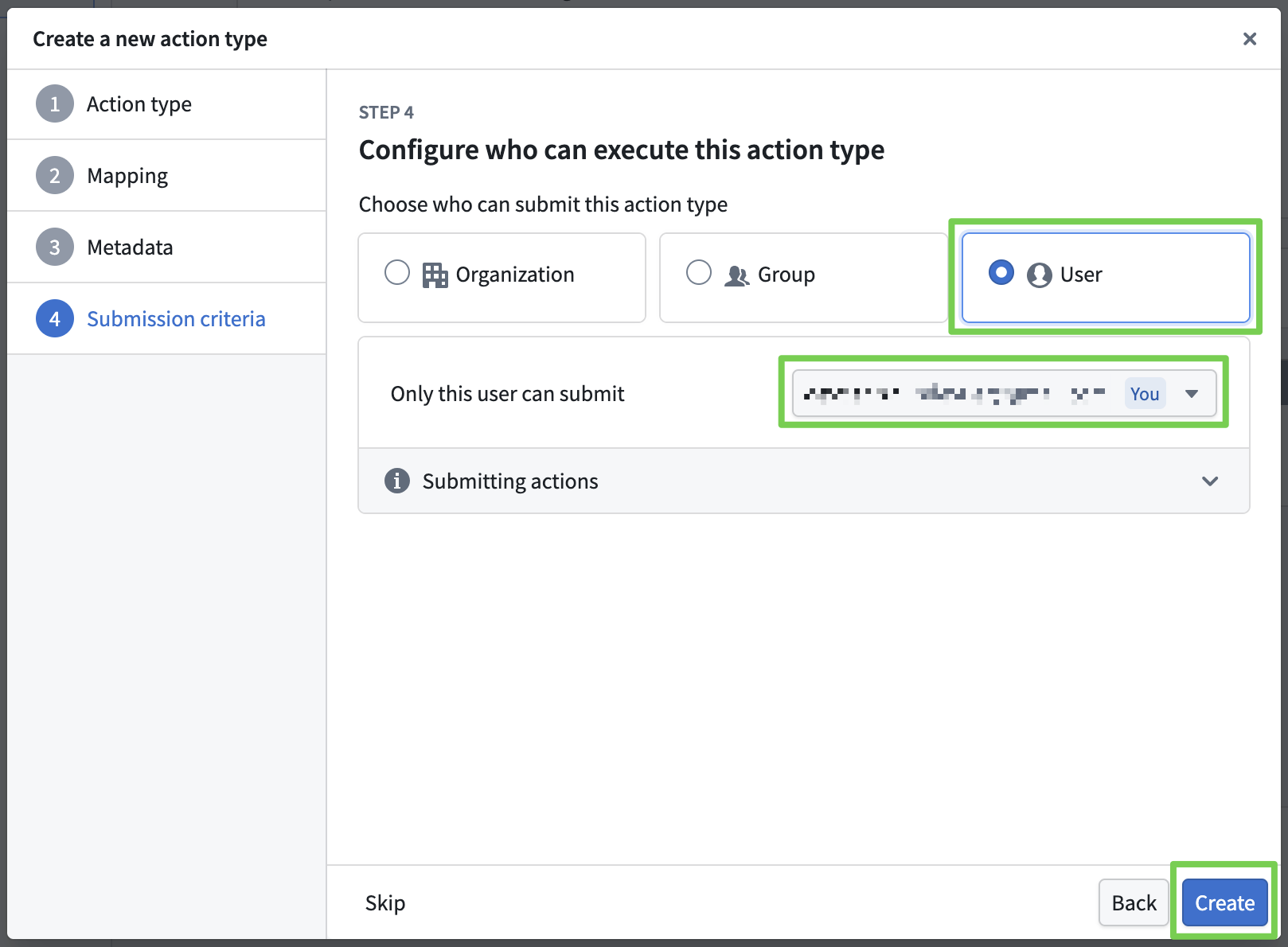
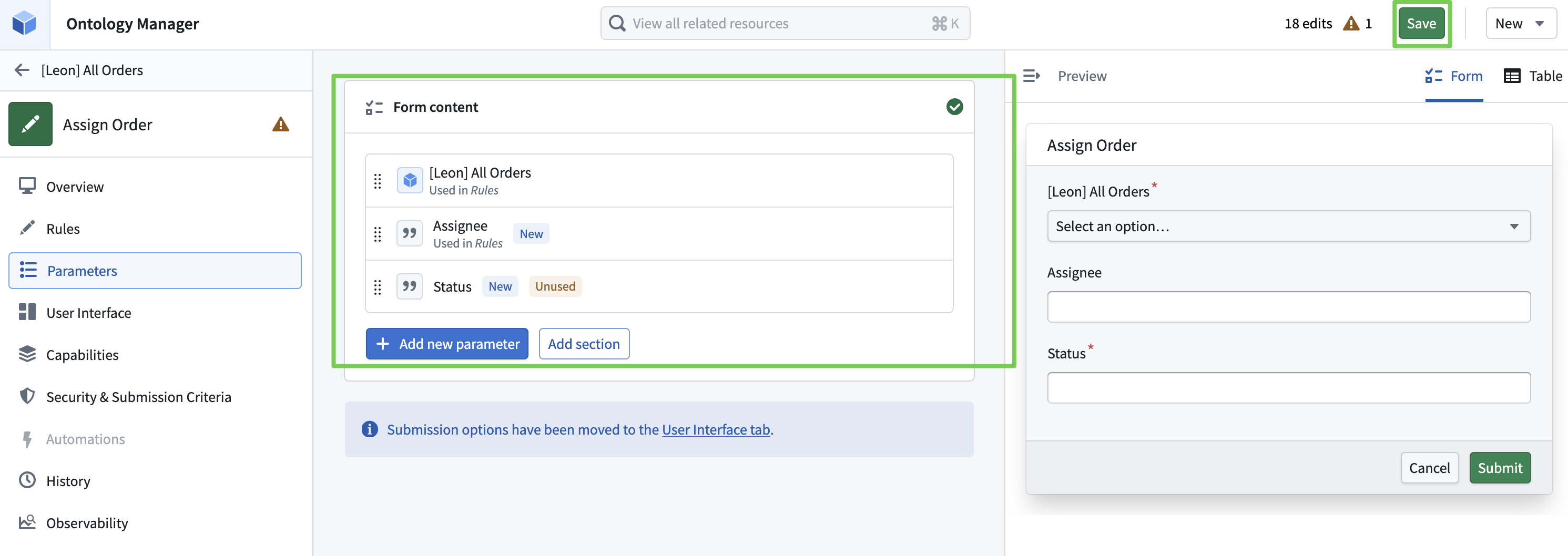
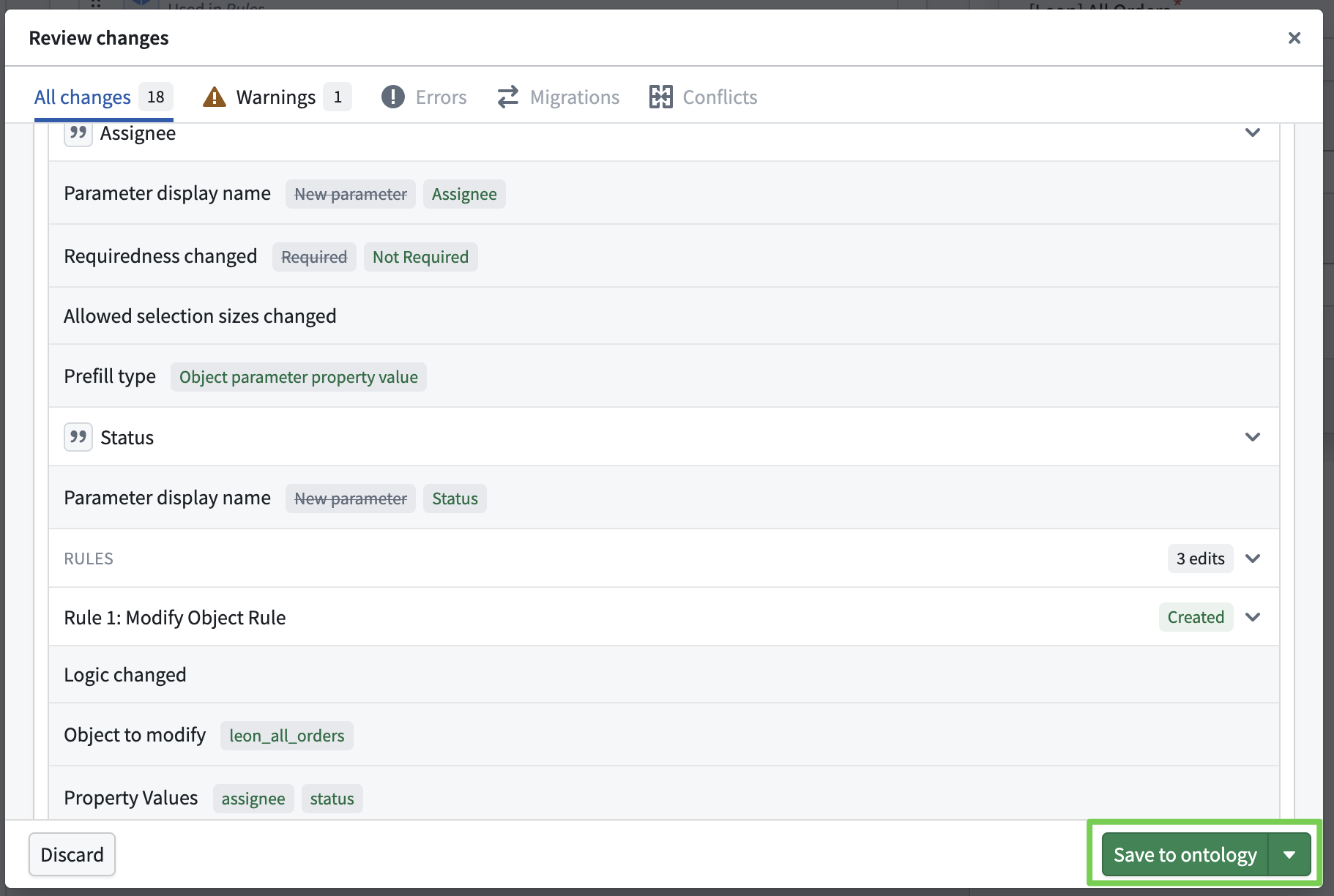
Defining Ontology Object Modification Actions
- You can define Actions for creating, modifying, and deleting objects, along with execution permissions.
- Here, we define an Action that modifies an object when triggered.
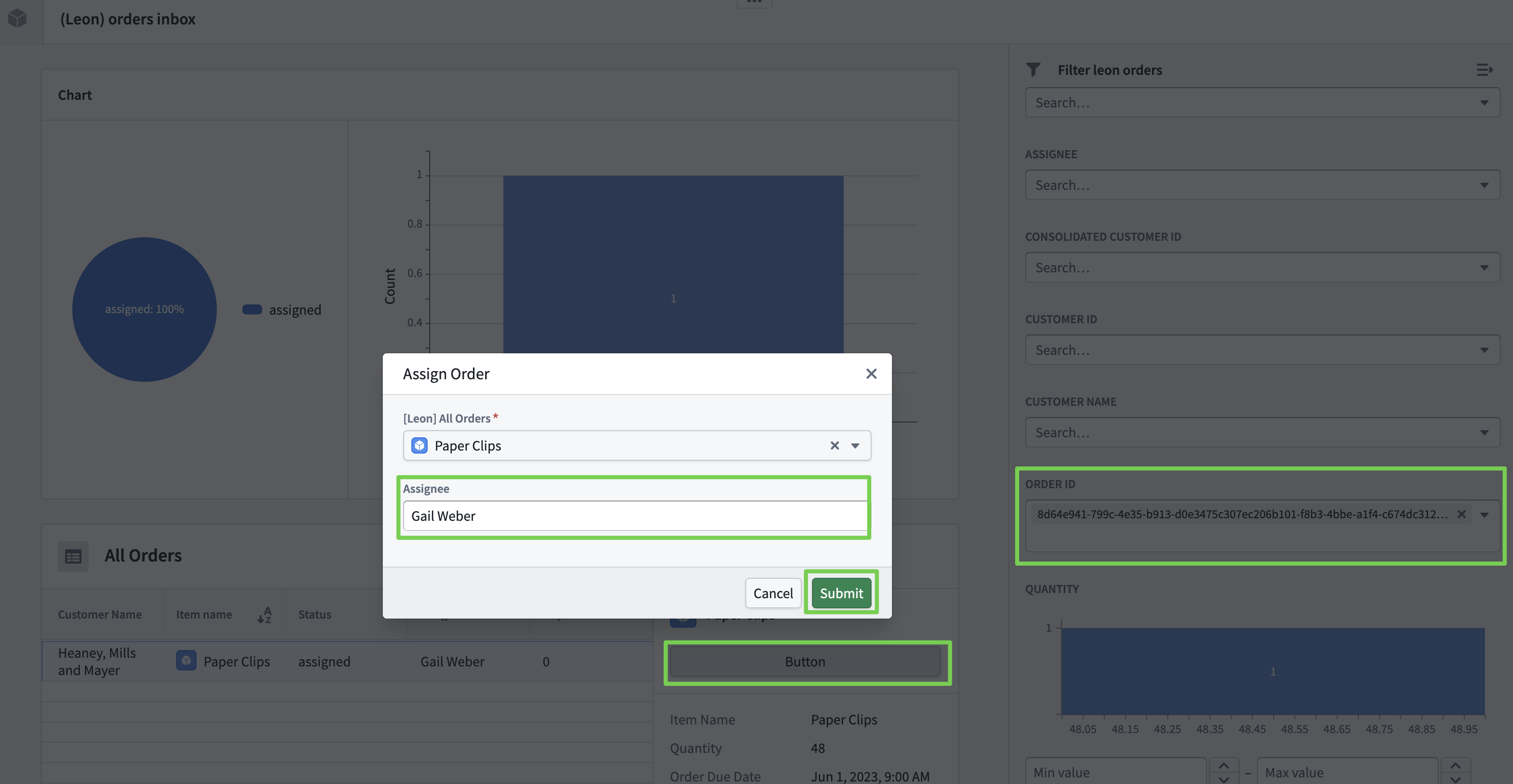
- Define the order assignment as an Action.
Workshop
- Now link the Action to a button in the application.
Navigate to the Workshop module:
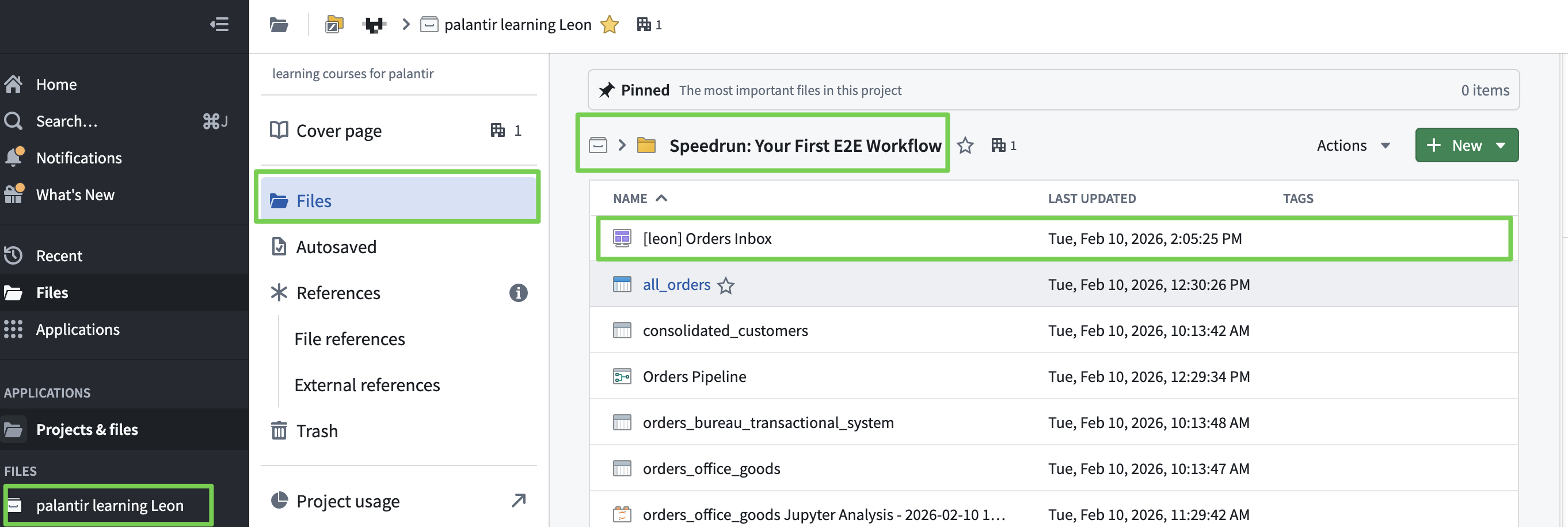
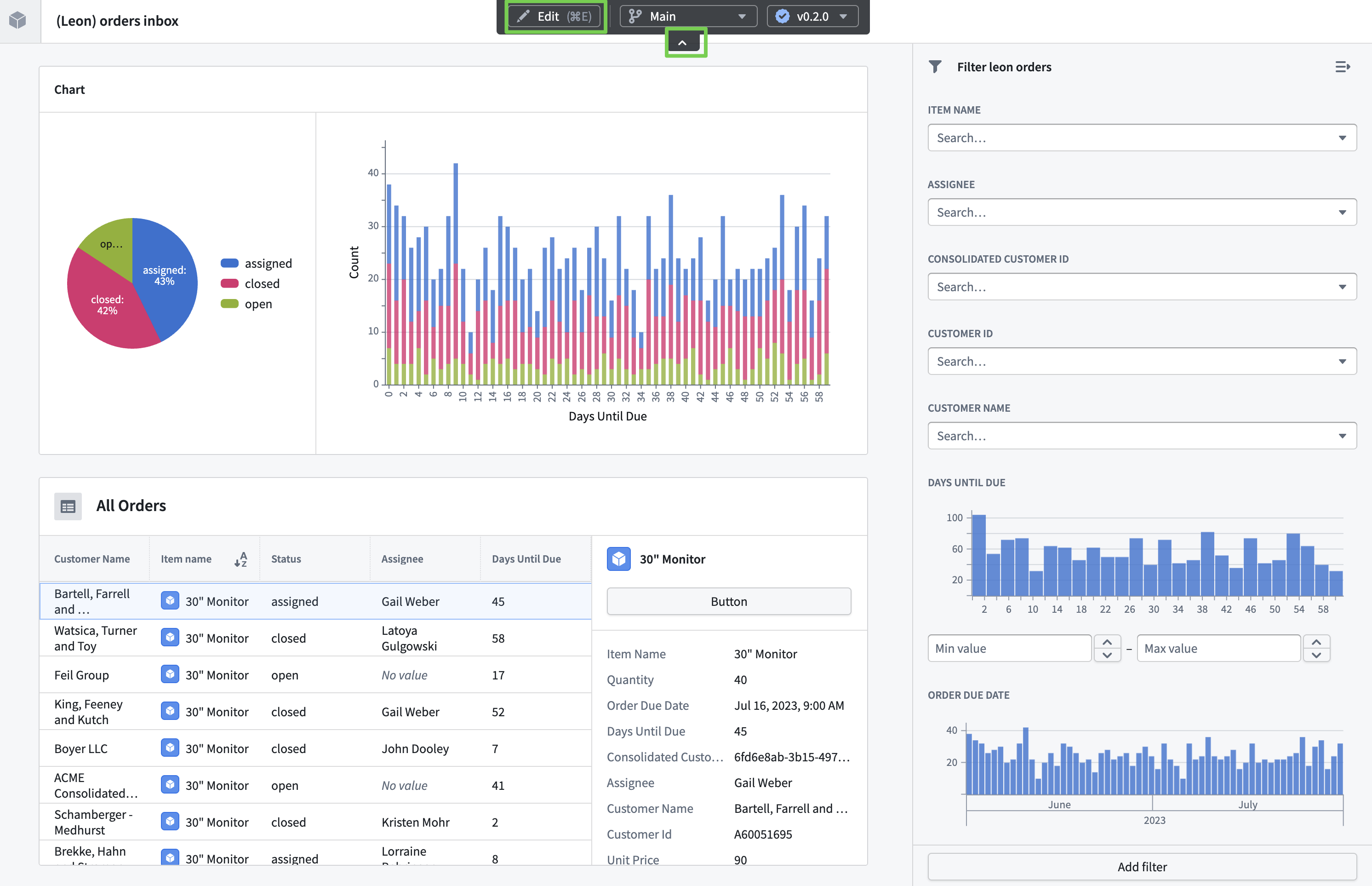
Linking an Action to a Button
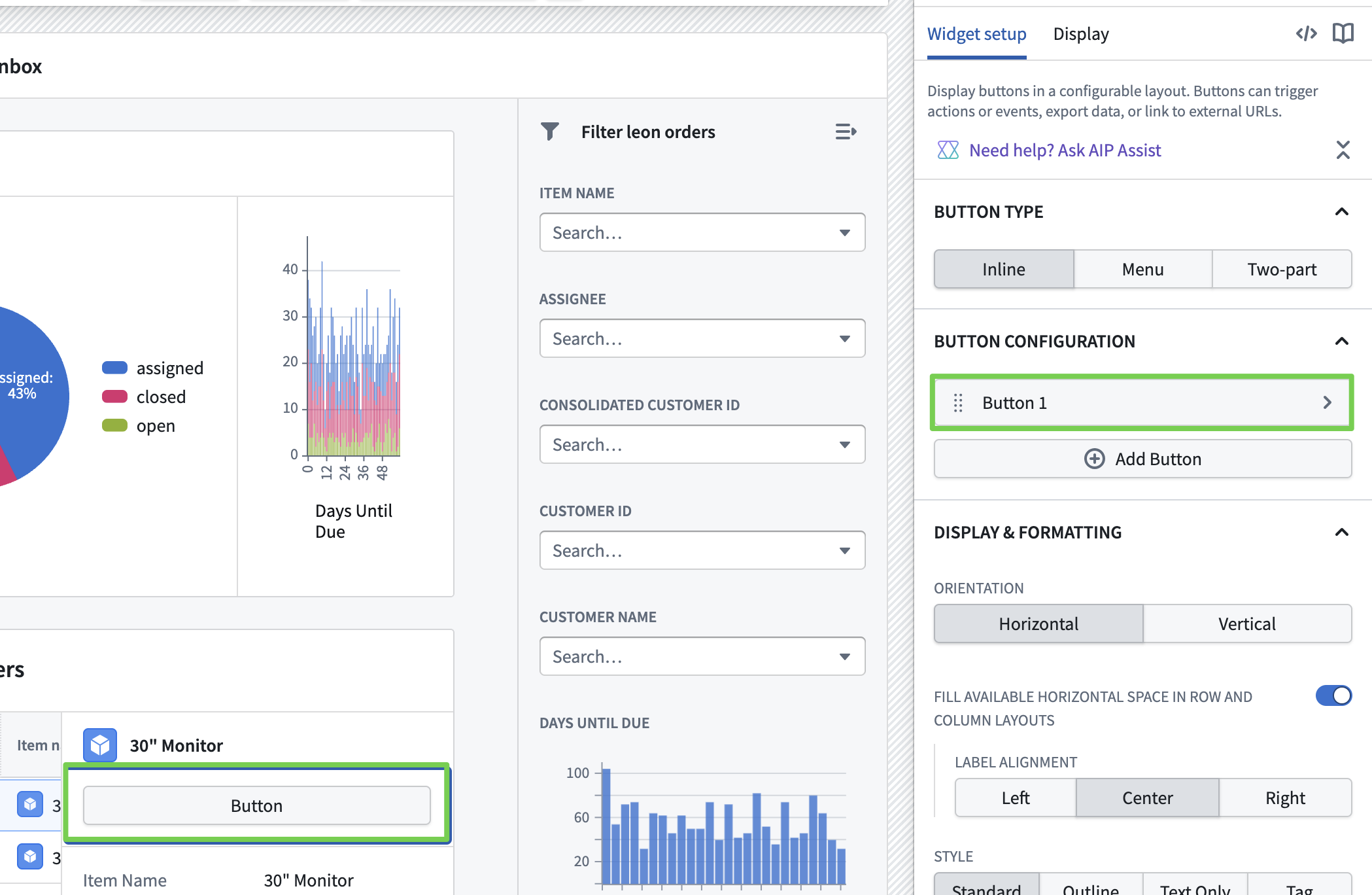
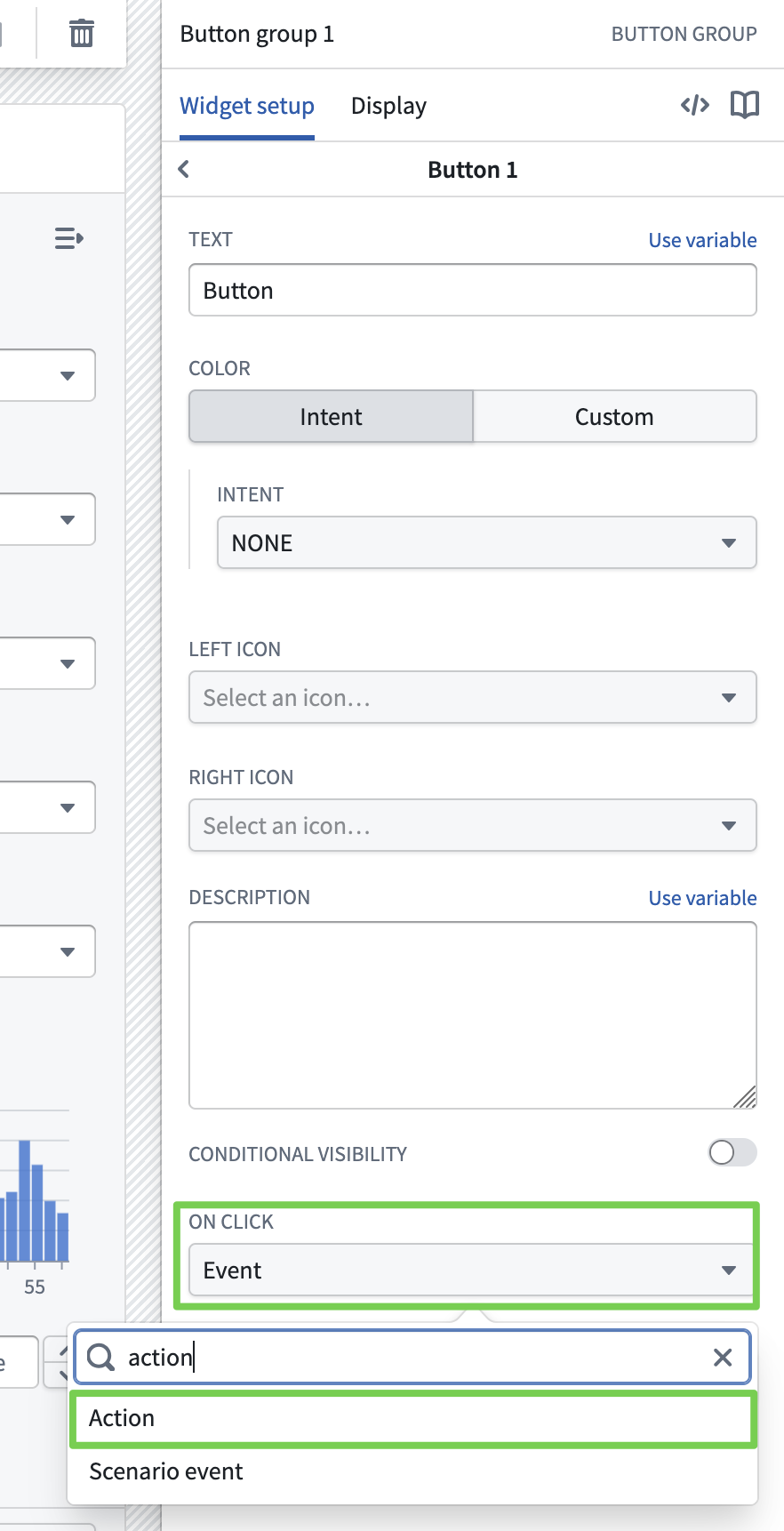
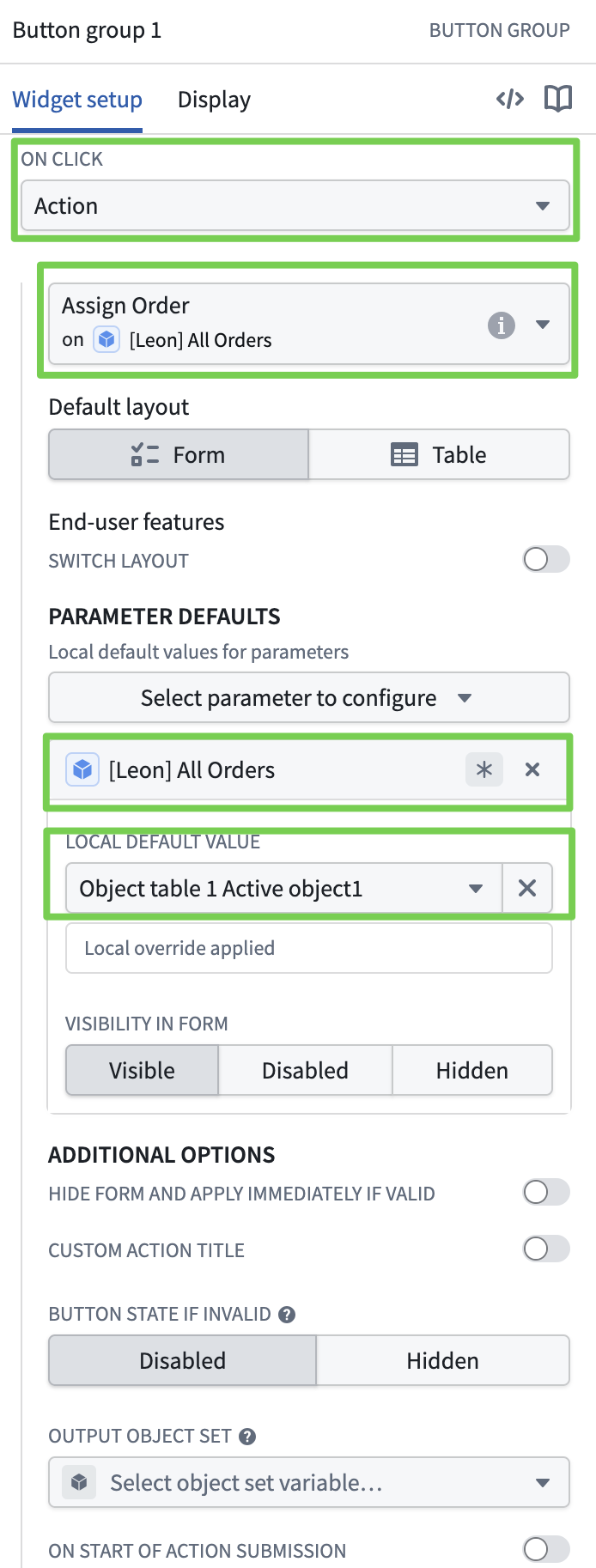
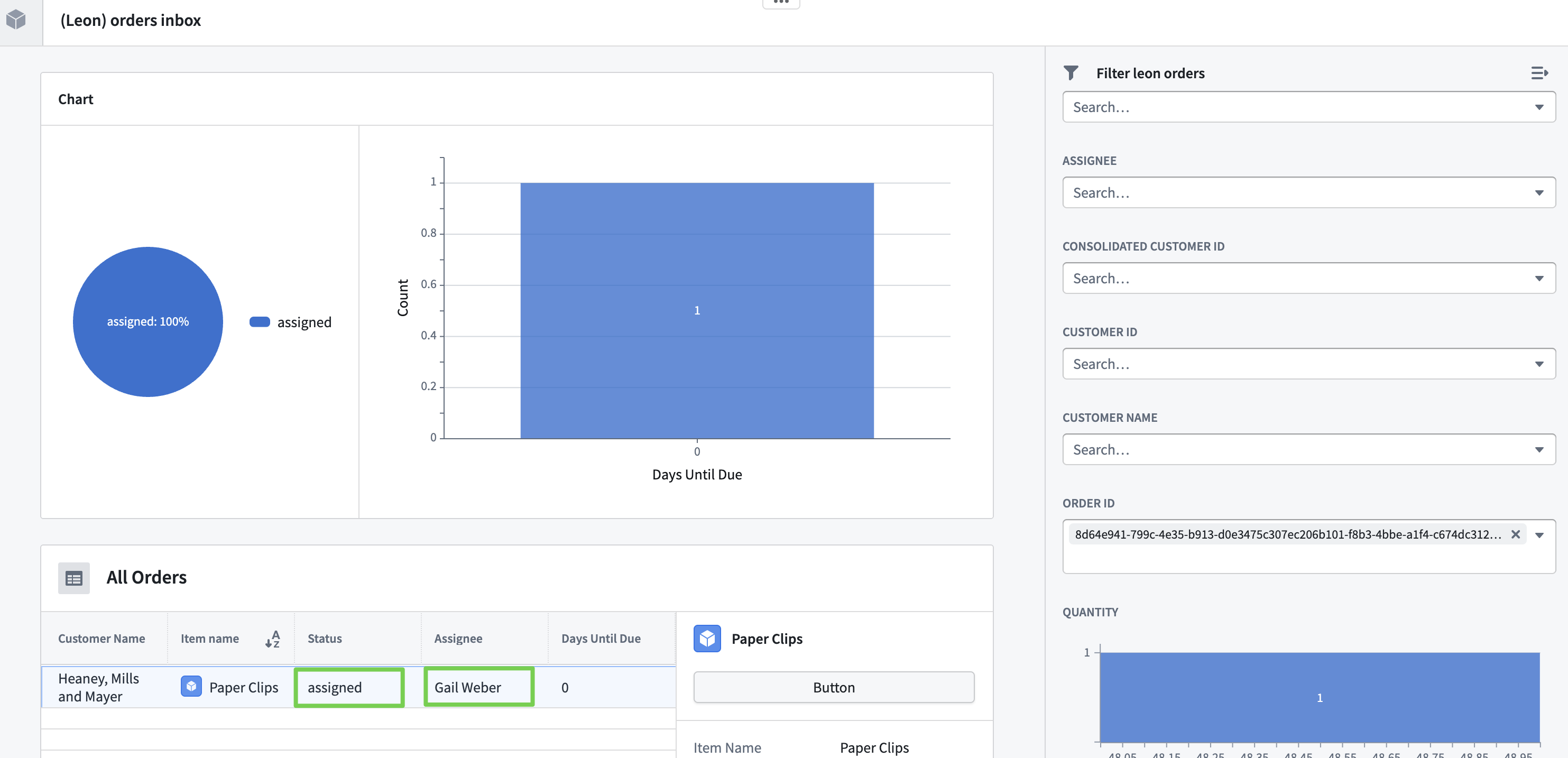
Verifying the Action
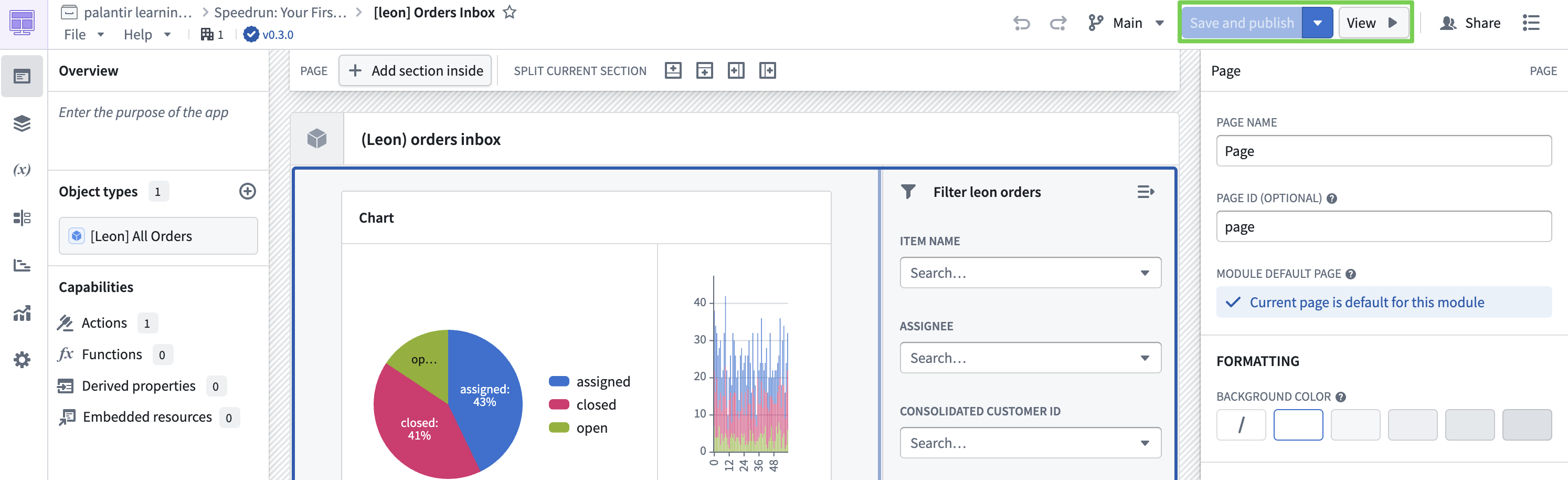
- Click the View button to check if it works correctly.
Bonus: Lineage Feature
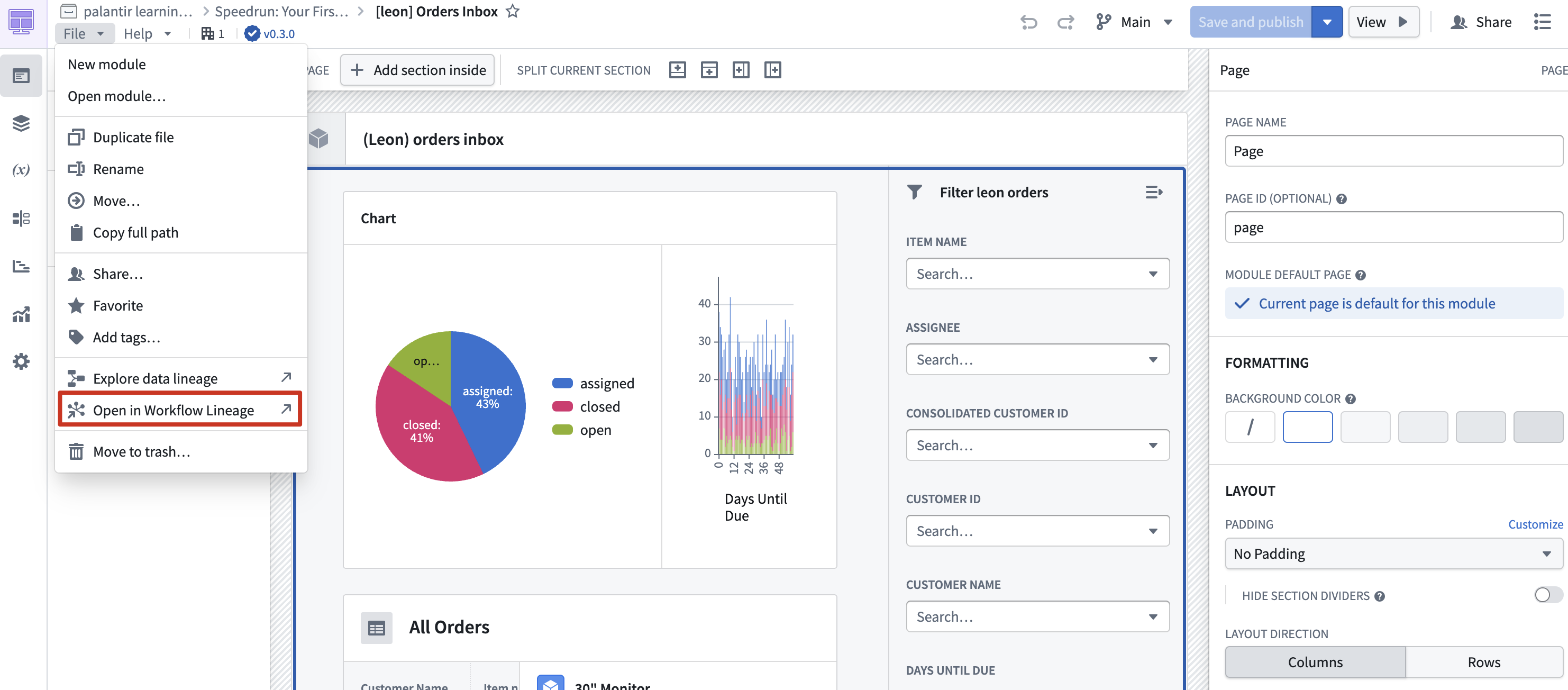
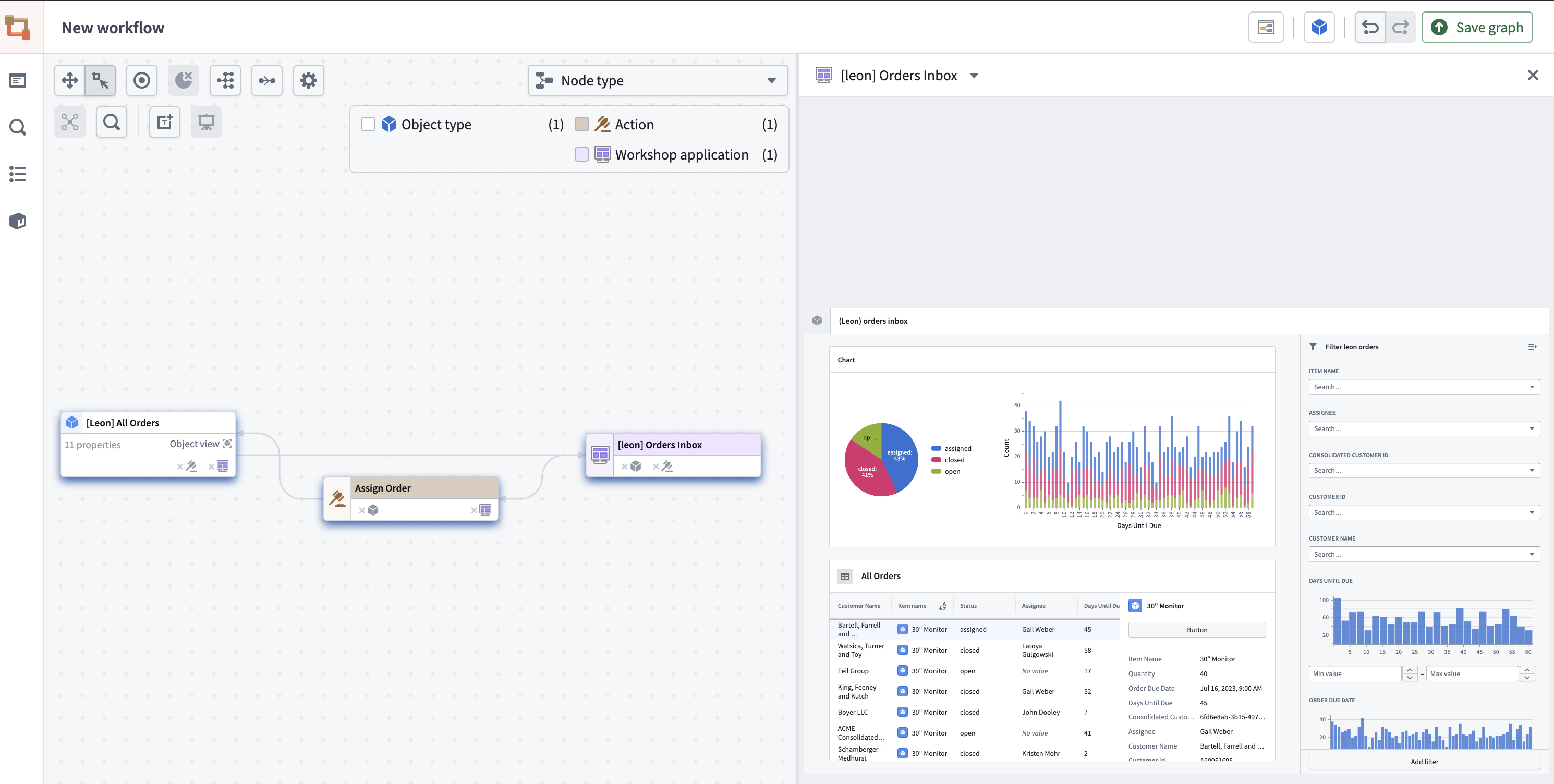
Data Lineage
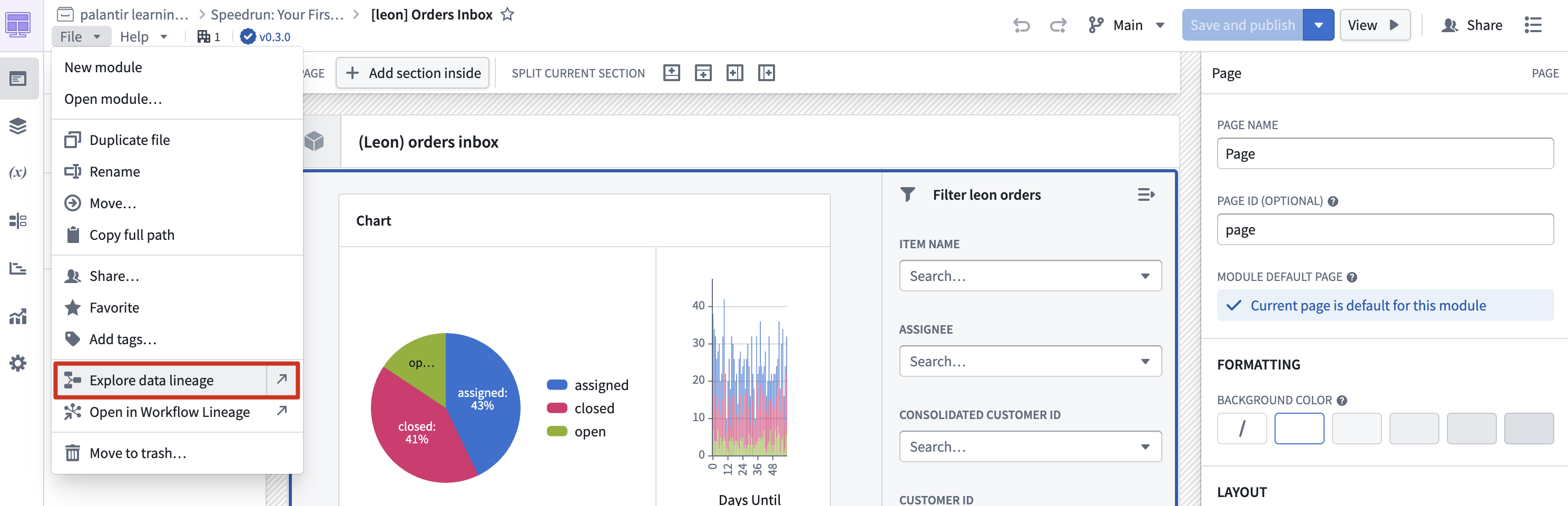
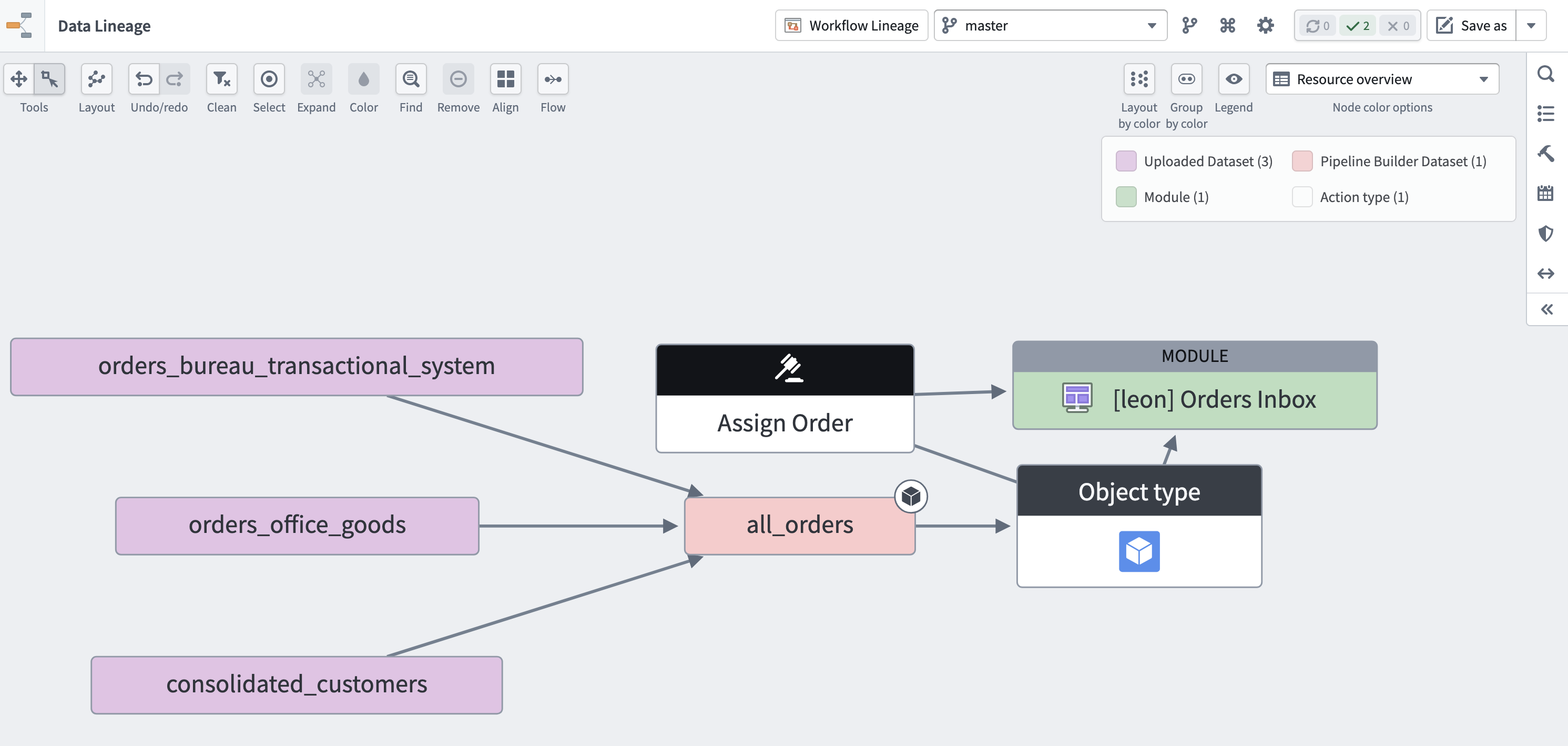
Workflow Lineage